Optimizing Master Data Quality
What does quality in master data mean? And how can it be optimized?
Quality in master data means that it is as complete as possible — i.e., all information required for an efficient work process is available in the system. It also means that no data is stored twice in the system, so that all information can be clearly assigned.
To enable Sales Executives to ensure the highest possible quality of their master data, the following features are implemented:
- Option to check master data for complete default address and communication data
- Duplicate check for contacts and companies
Maintaining Default Addresses
Master data should be checked for completeness with regard to address and communication data, to ensure the reachability of contacts.
To find contacts or companies where data completeness is not given (regarding address data, E-Mail addresses, or phone numbers), the filter function is used.
All contacts or companies where no default address, E-Mail, or phone number is maintained are to be found.
- Open the corresponding FilterView of Contact or Company.
- Filter using the following filter criteria:
- "Default address maintained"
- "Default E-Mail maintained"
- "Default phone maintained"
➡️ The data can then be supplemented for the found contact or company records.
If the data cannot easily be supplemented, it can be checked whether the data should continue to be managed in the system and potentially set to inactive or deleted/anonymized, depending on the data protection basis.
Checking and Cleaning Up Existing Data for Duplicates
The data quality in the system must be ensured. Redundant records should be merged and the data quality in the system optimized.
For this, the system provides support functions to handle duplicates in the system:
- avoid them early (Duplicate Check on New Entry),
- identify them,
- search for them,
- check them, and
- clean them up (exclude or resolve them).
Identifying Duplicates
The system identifies potential duplicates by checking the fields defined in the scan pattern.
For example, "Company name" and "Address" for a company, or "First Name, Last Name" and "E-Mail address" for a contact.
The scan pattern defines the fields that are taken into account during the duplicate check. These can be adjusted administratively.
The duplicate detection works technically and functionally in such a way that duplicates are viewed and displayed from the perspective of a record. This can result in a different number of duplicates being displayed between two records. This is because fields with values are considered in the check, while empty fields are not.
➡️ The more data that is maintained on a record, the fewer duplicates are displayed.
➡️ The less data that is maintained on a record, the more duplicates are displayed.
When potential duplicates are detected for a record,
- the notification "Duplicates found!" is displayed in the Preview of the checked record.
- And the potential duplicate records are listed in the "Duplicates" tab.
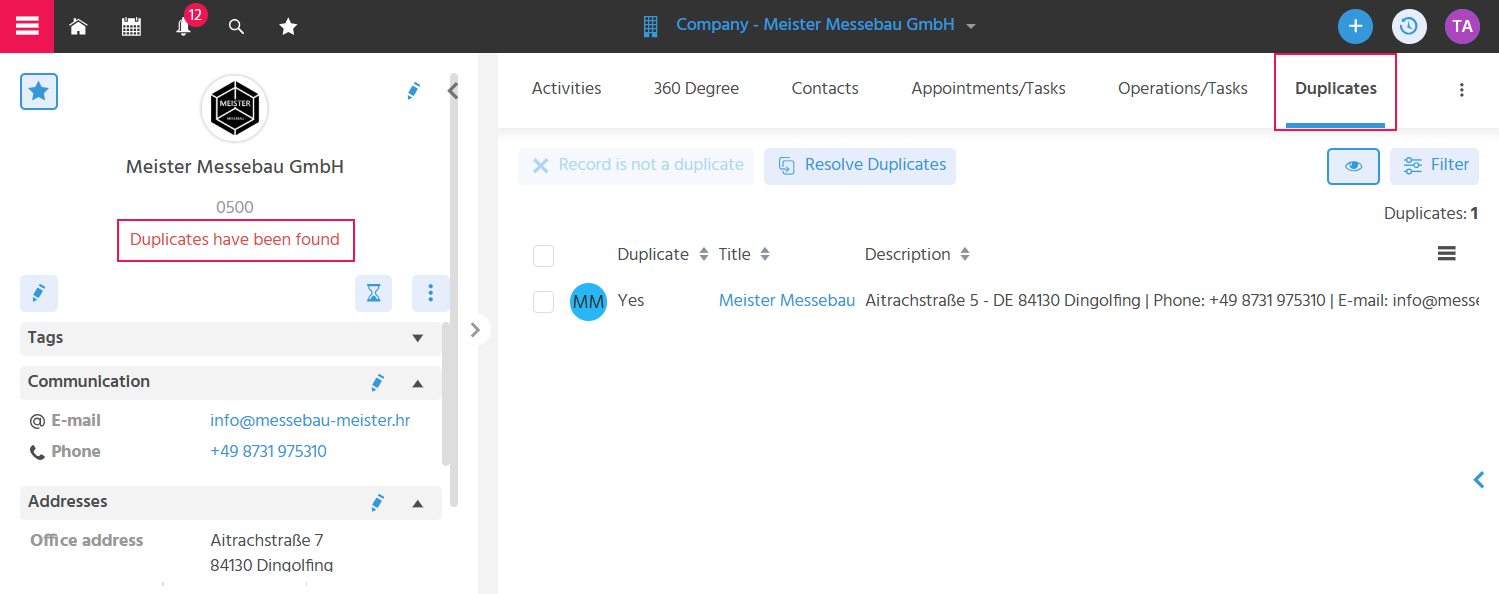
In the FilterView table, it is not possible to distinguish between a duplicate and an Other Function.
There are three companies in the system that at first glance could be duplicates.
But the "Duplicates found!" notification is only displayed in two records and the duplicates are listed in the tab.
Procedure for the duplicate check for the respective records:
| Company | A | B | C |
|---|---|---|---|
| Name | "Bohrmarkt GmbH" | "Bohrmarkt" | "Bhormark" |
| Default city | "Regensburg" | is empty | is empty |
Duplicate check for Company A:
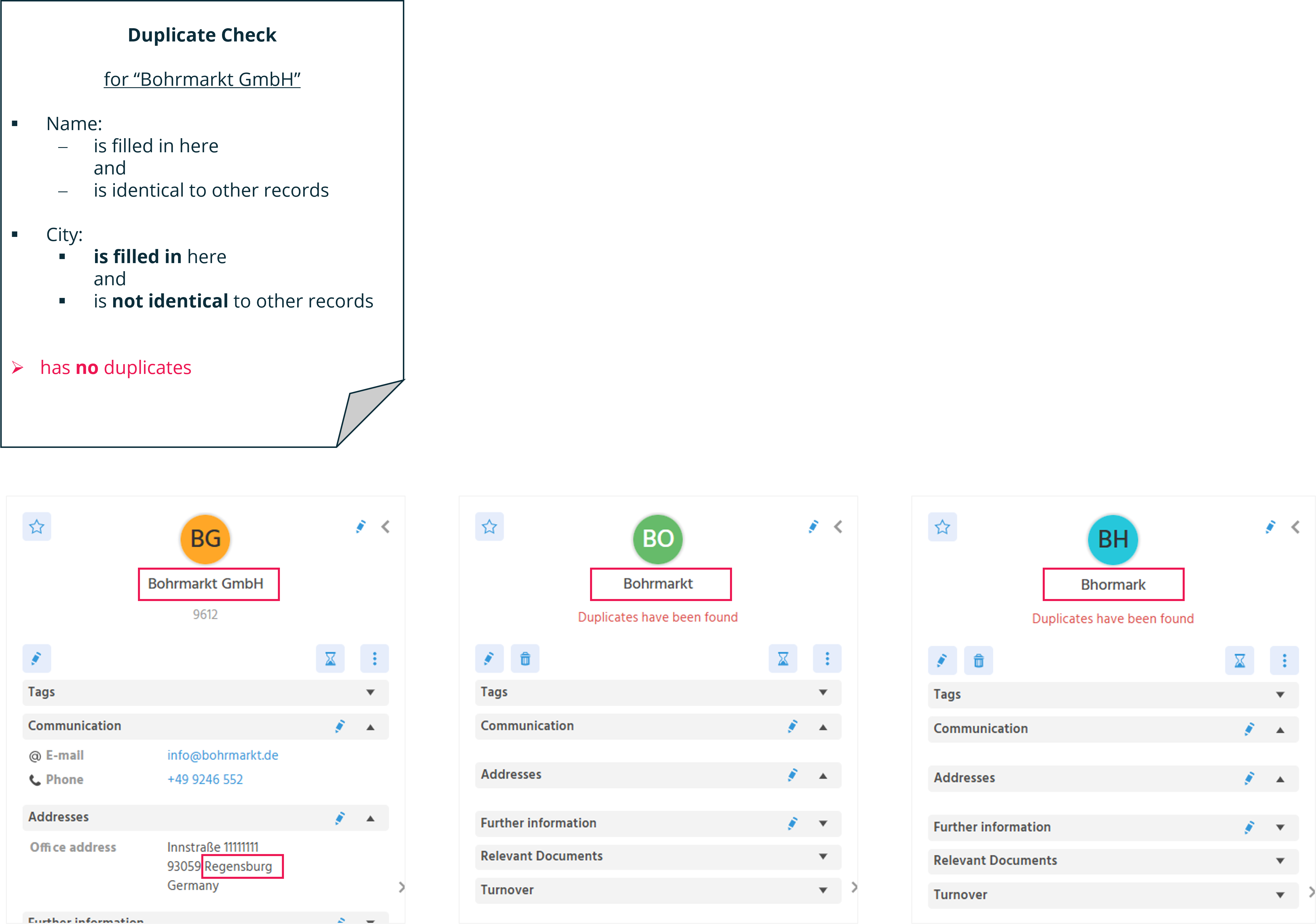
➡️ Duplicates tab of Company A: No match with Company B and C, as the default city at Company A is filled in and therefore taken into account
Duplicate check for Company B:
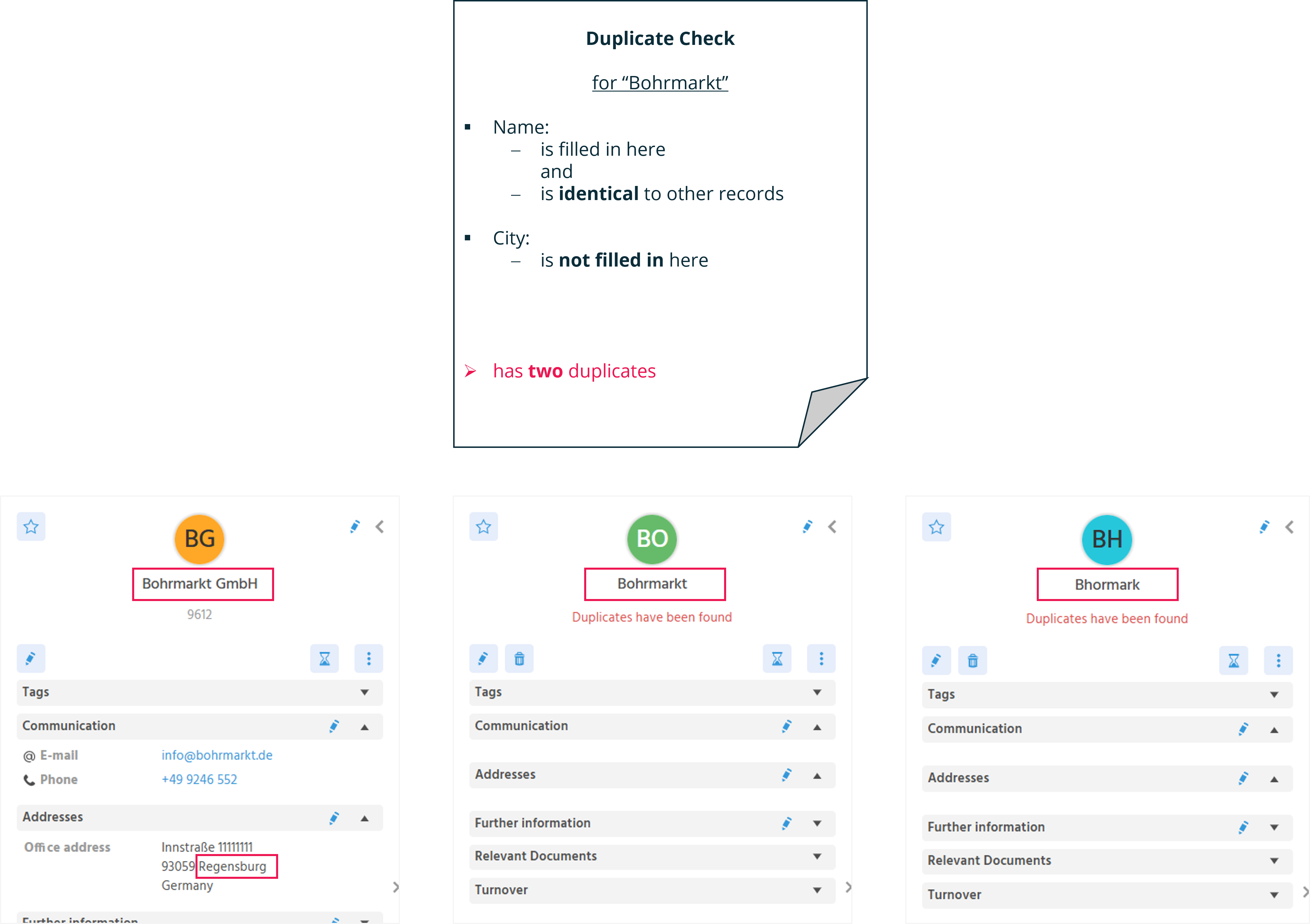
➡️ Duplicates tab of Company B: Match with Company A and C, as the default city at Company B is not filled in and therefore not taken into account
Duplicate check for Company C:
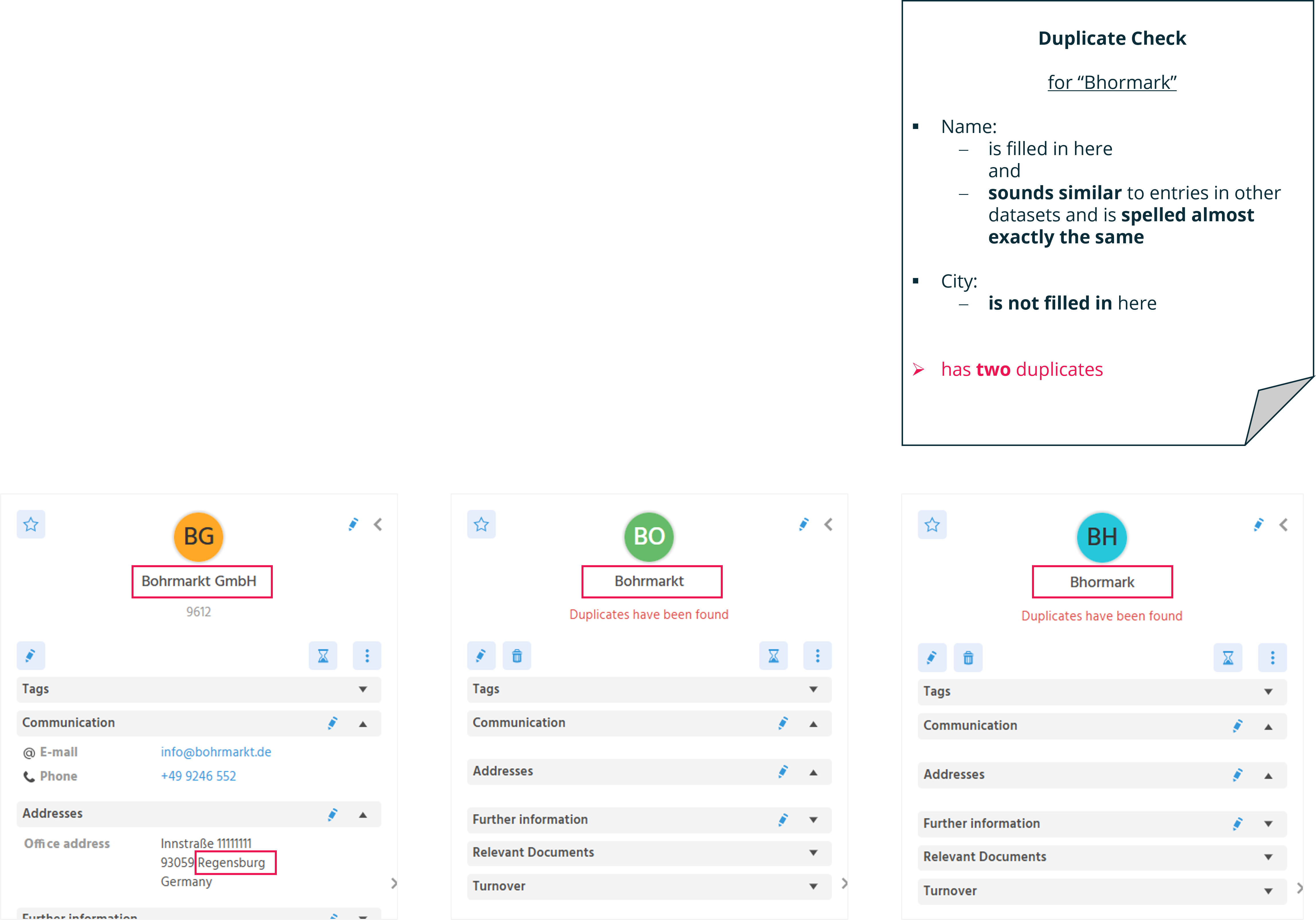
➡️ Duplicates tab of Company C: Match with Company A and B, as the default city at Company C is not filled in and therefore not taken into account
For duplicates, the user's authorization is taken into account. If a user has no authorization for certain records, these are also not displayed in the duplicates.
The user identifies potential duplicates because they have certain information that tells them these are duplicates, even though the fields checked by the system are different. For example, a person has married and changed their name.
Duplicates detected by the system or the user can be merged or excluded. If a user identifies two records as duplicates, they can directly execute the functions for merging.
Searching for Duplicates
To search the system for duplicates, the FilterView of Company or Contact is used.
With the filter criterion "Duplicates" and the operator "Greater than or equal to", duplicates in the system can be identified.
The total number of duplicates in the system is to be determined.
The filter "Duplicates greater than or equal to 0" is used.
➡️ The filter result thus contains all records for which the automatic check for potential duplicates was positive.
It is to be determined whether there are multiple duplicates for a single record in the system.
The filter "Duplicates greater than or equal to" is used again, but the number is increased.
➡️ By increasing the number incrementally, possible duplicate clusters can be identified.
Checking Duplicates
📝 A personal duplicate check is necessary when:
-
The system identifies records as duplicates, but only the user can determine that they are two different companies. For example, two companies happen to have the same name and are also in the same city — the system then detects a duplicate. The user can resolve this duplicate in the system by setting a corresponding flag.
To the Procedure – Excluding Duplicates -
The system does not detect duplicates and only the user can determine that they are duplicates. For example, a company has been renamed and was created a second time in the system. If the user knows that these are actually the same company, they can merge these records, even if the system does not detect the duplicate.
To the Procedure – Resolving Duplicates (without Selection)
Excluding Duplicates
To handle the case where the system detects duplicates that are not actually duplicates, the "Record is not a duplicate" Action is available in the "Duplicates" tab, which allows duplicates to be excluded. When this Action is executed, both records continue to be managed in the system and the duplicate notification is removed.
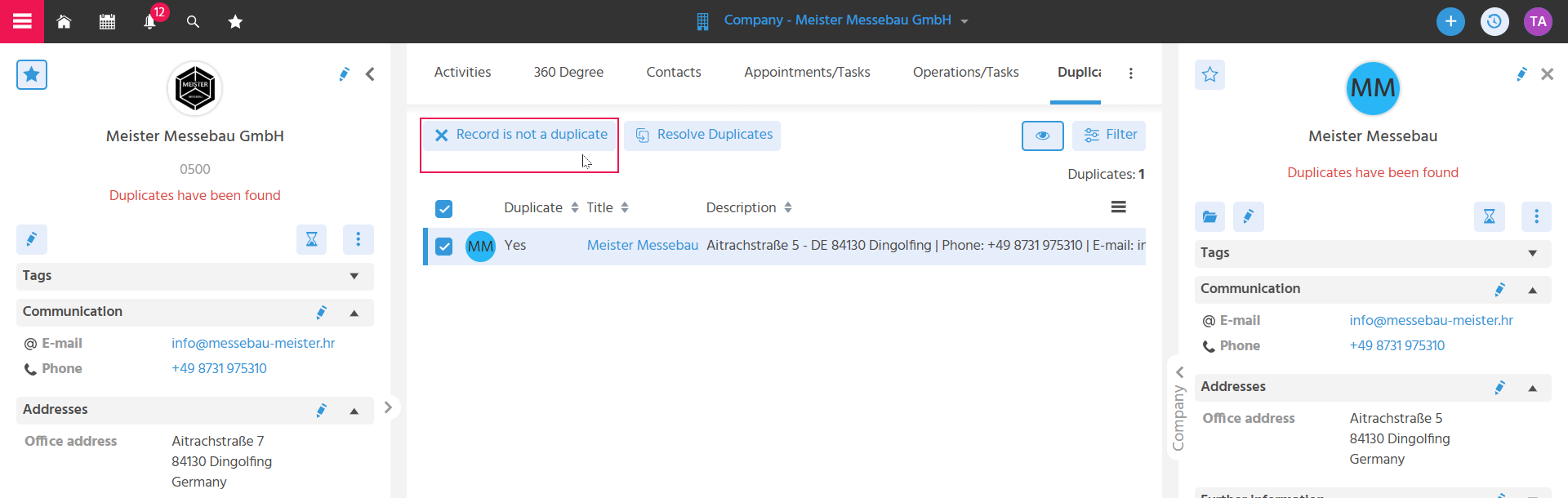
Undoing the exclusion of duplicates
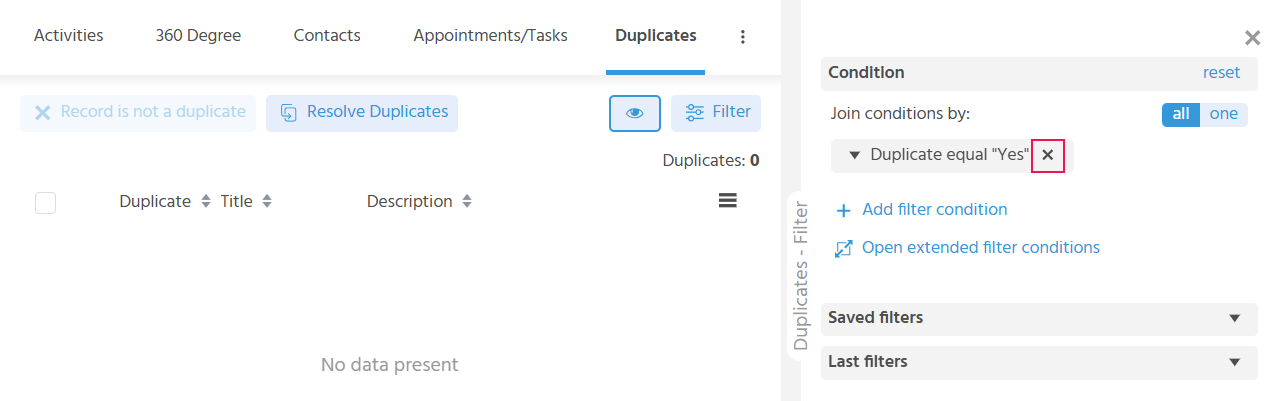
Once the "Record is not a duplicate" Action has been executed, the flagged records can be found by removing the predefined filter "Duplicate equals Yes".
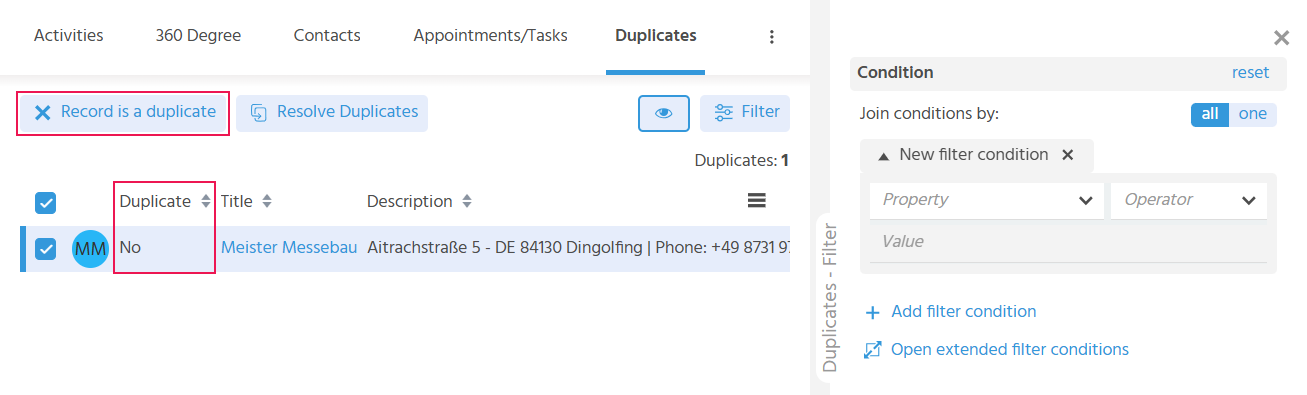
A record is selected in the table where "No" is entered in the "Duplicate" column.
The "Record is a duplicate" Action is then displayed. When this is executed, the records are again flagged as duplicates in the system.
It is to be determined whether duplicates have been incorrectly flagged as duplicates by the system.
- Search for duplicates in the system.
- Then open the record in the MainView and go to the "Duplicates" tab. Execute the "Record is not a duplicate" Action here.
- Finally, both records are managed in the system without the duplicate notification.
Resolving Duplicates
To handle the case where the system or a user has identified a duplicate that is now to be resolved, the "Resolve Duplicate" Action is available. The "Resolve Duplicate" Action is always active. The duplicate record can thus also be selected manually. This is required if the duplicate record was not found by the system.
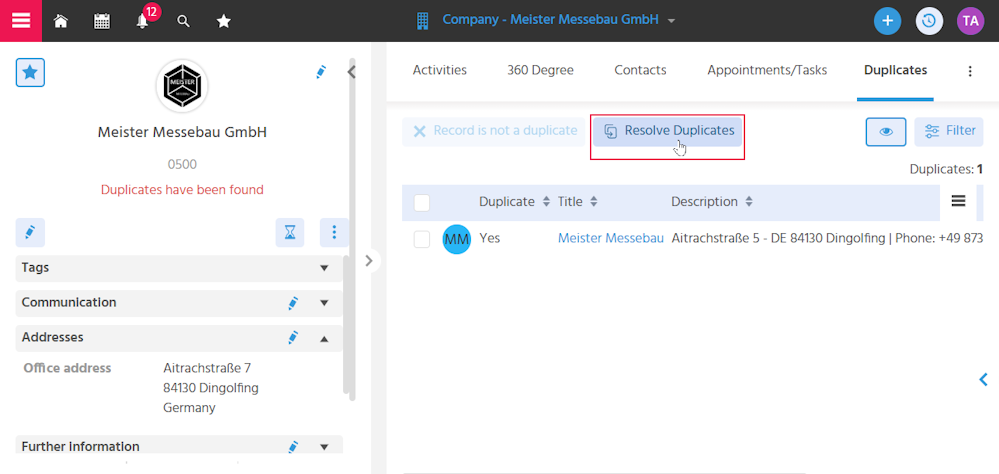
The user has identified a duplicate (not the system) that is now to be resolved.
Procedure for resolving a duplicate without a record being displayed or selected in the "Duplicates" tab:
- Open the record to be retained in the system in the MainView and go to the "Duplicates" tab.
- Execute the "Resolve Duplicate" Action.
- The record open in the MainView is entered in the "Original" field.
- Manually select the duplicate record in the "Duplicate" field (if necessary, the two fields can also be swapped).
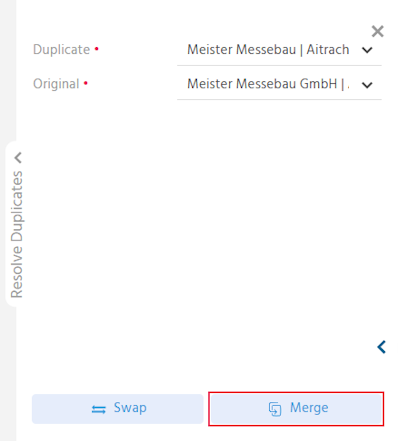
- Execute the "Merge" Action.
- In the Duplicate Merge Dialog, select which information (values or linked data) from the original and which from the duplicate should be retained.
- The merge is completed with "Save".
- If necessary, adjust certain Attributes.
The system has identified a duplicate that is now to be resolved.
Procedure for resolving a duplicate when one or more records are displayed in the "Duplicates" tab:
- Open the record to be retained in the system in the MainView and go to the "Duplicates" tab.
- Select the duplicate record in the table (there may be multiple records listed as duplicates in the table).
- Execute the "Resolve Duplicate" Action.
- The record open in the MainView is entered in the "Original" field.
- The record selected in the table is entered in the "Duplicate" field (if necessary, the two fields can also be swapped).
- Execute the "Merge" Action.
- In the Duplicate Merge Dialog, select which information (values or linked data) from the original and which from the duplicate should be retained.
- The merge is completed with "Save".
- If necessary, adjust certain Attributes.
Swapping duplicate and original
To swap duplicate and original, the "Swap" Action is executed.
For example, when the duplicate merge was started from the MainView of the duplicate.
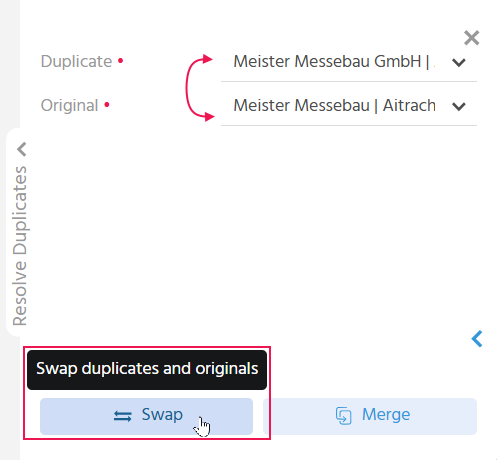
With the "Merge" Action, the Duplicate Merge Dialog opens, in which it is determined which values from the duplicate and which from the original are to be retained.
After the merge, the record must be checked for:
- Attributes captured multiple times that should only be captured once per record.
- Addresses and communication data captured multiple times. All information that is no longer required must be deleted here after the merge. Default Addresses may also need to be reset here.
The merge is documented in the "Logs" tab.
➡️ In the event of an error, the log message shows what caused an error during the merge and therefore data may not have been fully resolved. The information enables an ADITO developer or technically experienced System Manager to perform a subsequent cleanup/clarification.
Duplicate Merge Dialog
When merging duplicates, a decision must be made for individual fields or links of the affected records as to whether these should be retained or deleted from the system.
The Duplicate Merge Dialog supports this process:
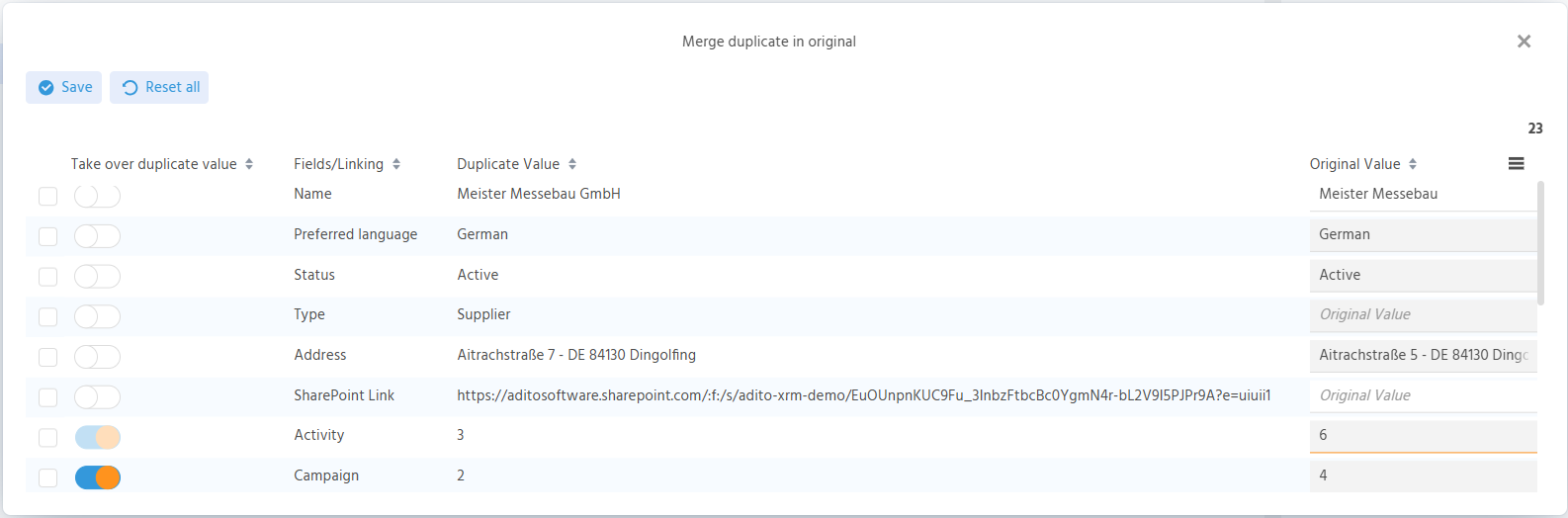
In the merge dialog, there are two types of selectable values:
-
Own fields of the record (e.g., customer number, name, address) — these require either/or decisions about which value is retained.
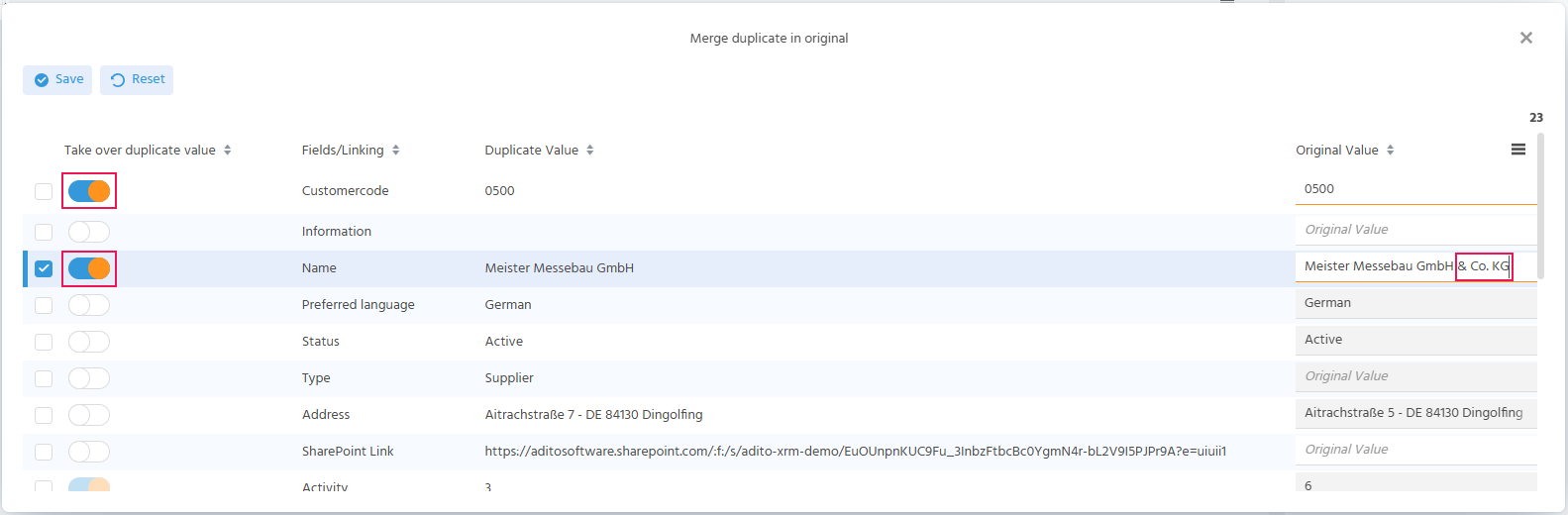
- When the toggle button is activated, the duplicate value is automatically adopted and the original value is overwritten.
- If neither the original value nor the duplicate value should be continued, a new value can be entered. Or, as shown in the example here, the company name can be supplemented. This manual input/change can be made for fields that are otherwise also filled by manual input, such as "Information" or "Name". Fields that are filled via a defined selection cannot be edited here ("Language", "Status", or "Type").
-
Links of the duplicate record (recognizable by the numerical values) can be transferred to the original record; otherwise they are deleted.
- There are links that must be transferred; accordingly, the toggle button cannot be edited.
- For links that do not have to be transferred, the toggle button can be set to inactive and the links will be deleted.
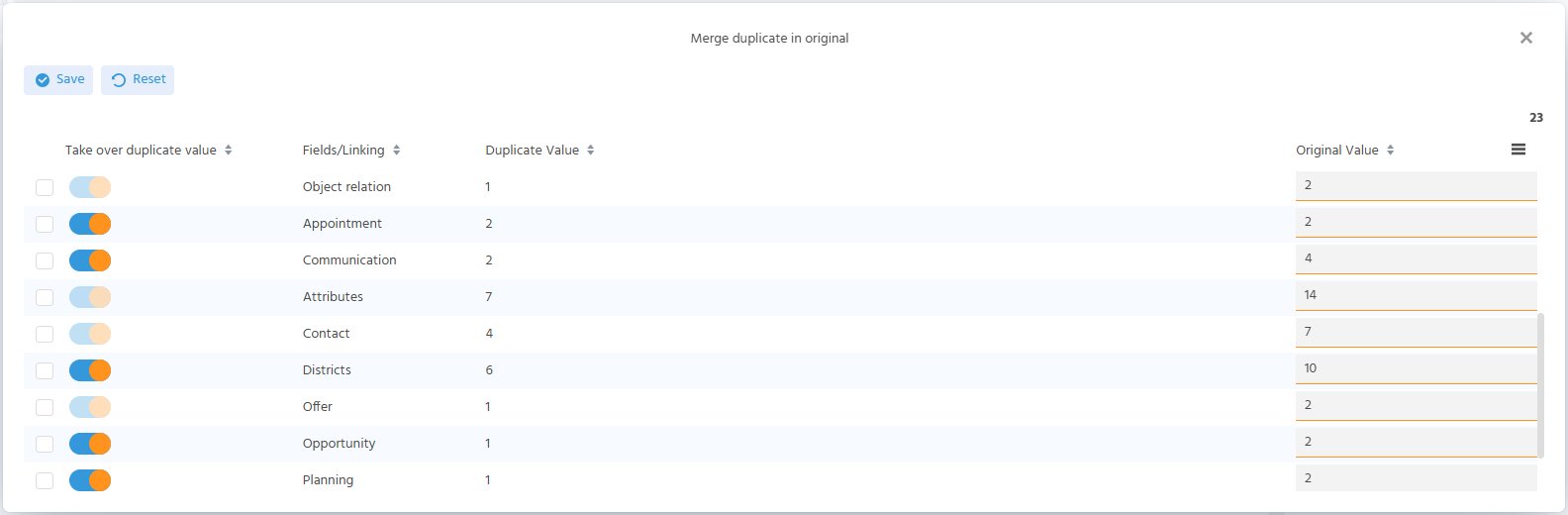
- By default, all linked data is transferred.
- When the toggle button is activated, all links of the duplicate are also transferred. A decision cannot be made per link.
- The value is calculated from the number of links present at the original plus the number of links added by the duplicate.
- All Attributes are transferred.
Attributes that may only be used once per record are transferred and must subsequently be cleaned up.
BEST PRACTICE: Special Cases with Contact Duplicates
Special cases with contact duplicates explained using examples from the demo data.
Duplicate due to Name Change
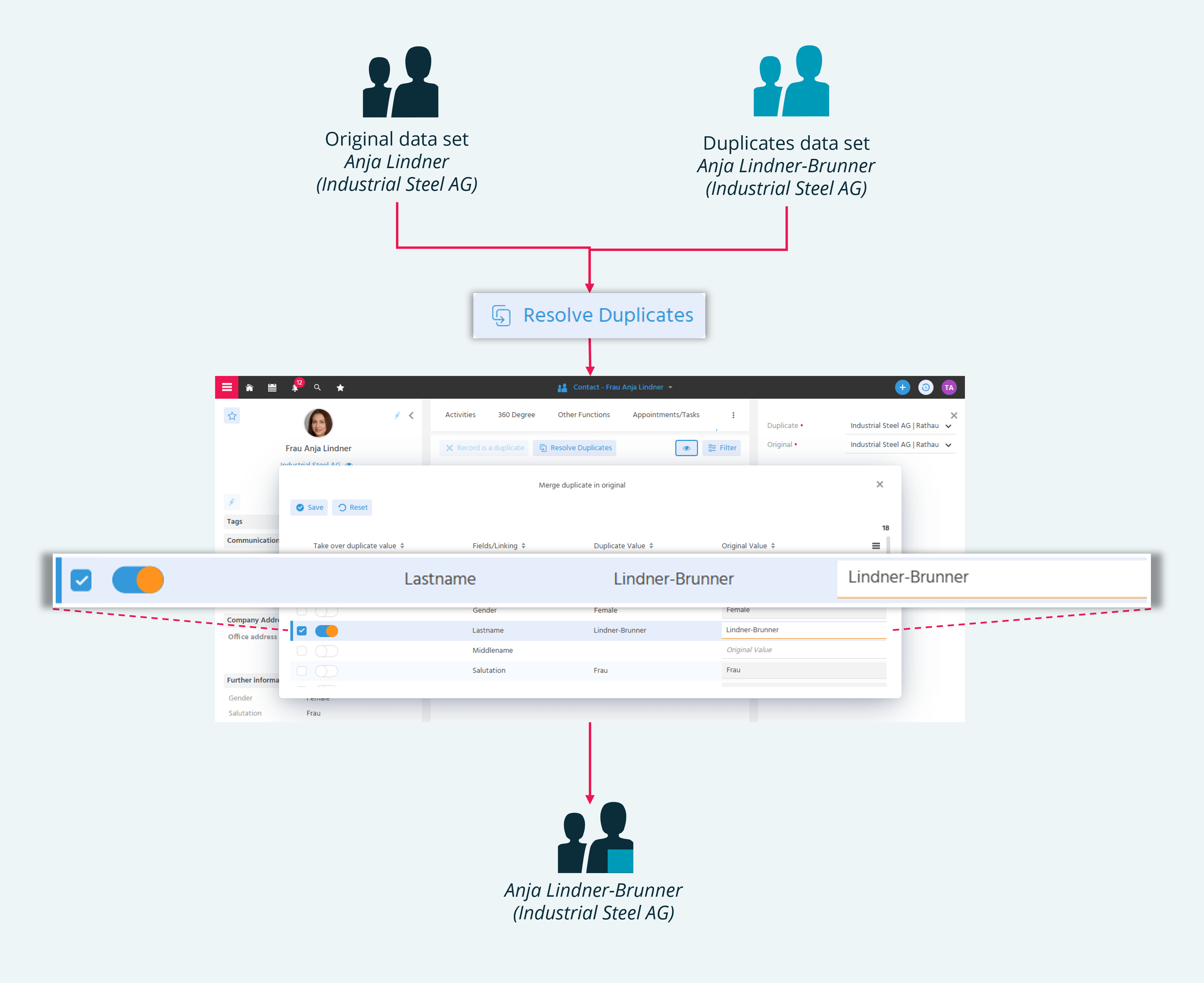
Contact Anja Lindner (Company A) was not renamed after her marriage, but was accidentally created as a duplicate Anja Lindner-Brunner (Company A).
The duplicate is not detected by the system, but can be manually selected by the user as a duplicate during the duplicate merge.
Procedure
- Define original and duplicate (swap if necessary).
- Resolve the duplicate see Resolving Duplicates - Best Practice: You Have Identified a Duplicate.
- In the Duplicate Merge Dialog, select that the new last name should be continued.
Result:
➡️ There is now only one contact record that contains all previous information.
Duplicate at Different Companies
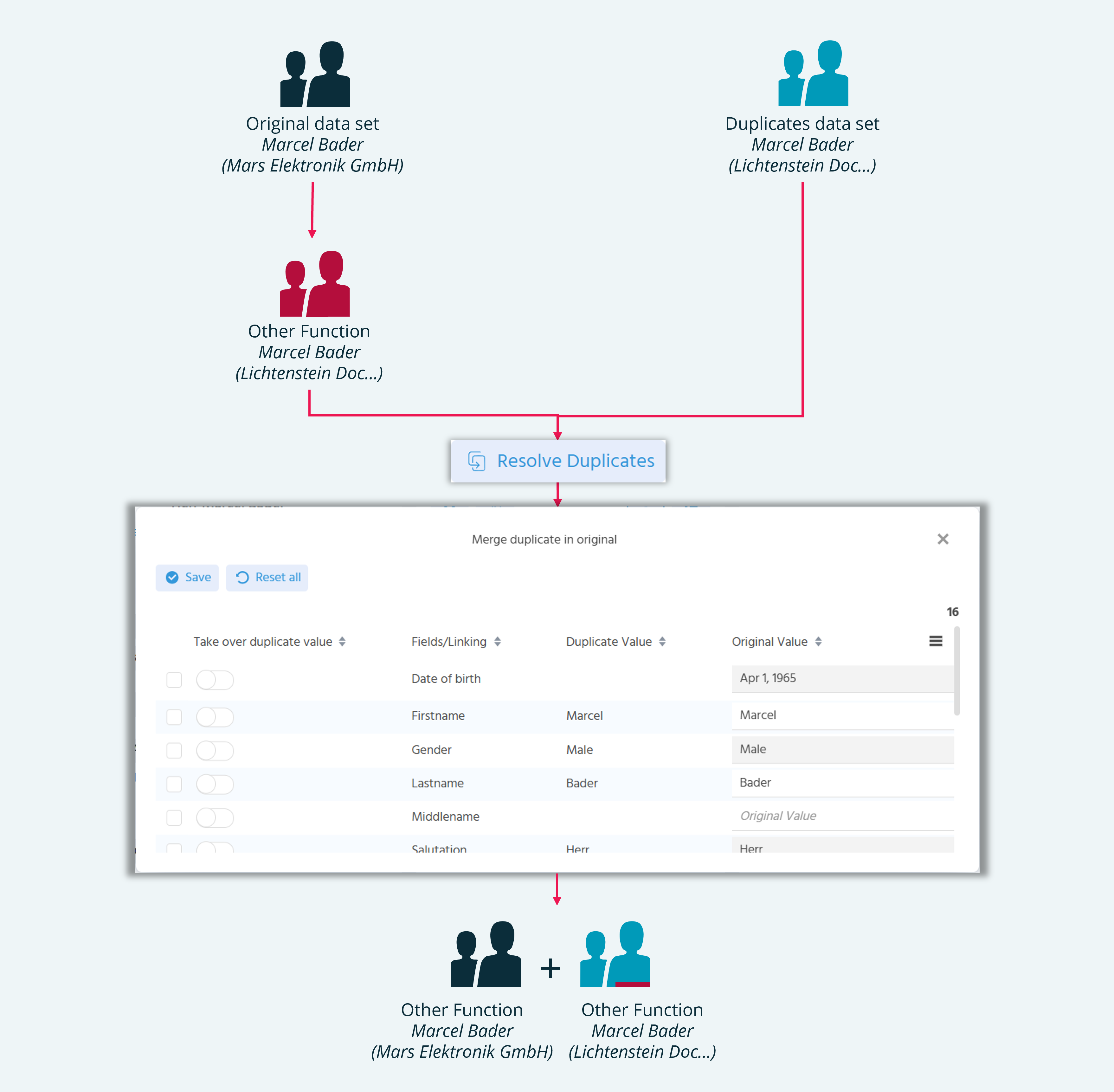
Contact Marcel Bader is at Company A and Company B => not "Other Function" records, but duplicate records.
The merge would discard one of the two functions, as the company selection in the merge dialog is an either/or decision.
Procedure
-
Create an other function at Company B from the contact record of Marcel Bader (at Company A).
Result:
➡️ Mr. Bader now exists twice at Company B. -
Merge the duplicate record at Company B with the newly created function at Company B.
Result:
➡️ Both functions are now cleanly linked to Mr. Bader's person record.
Transferring a Private Record to a Function Record
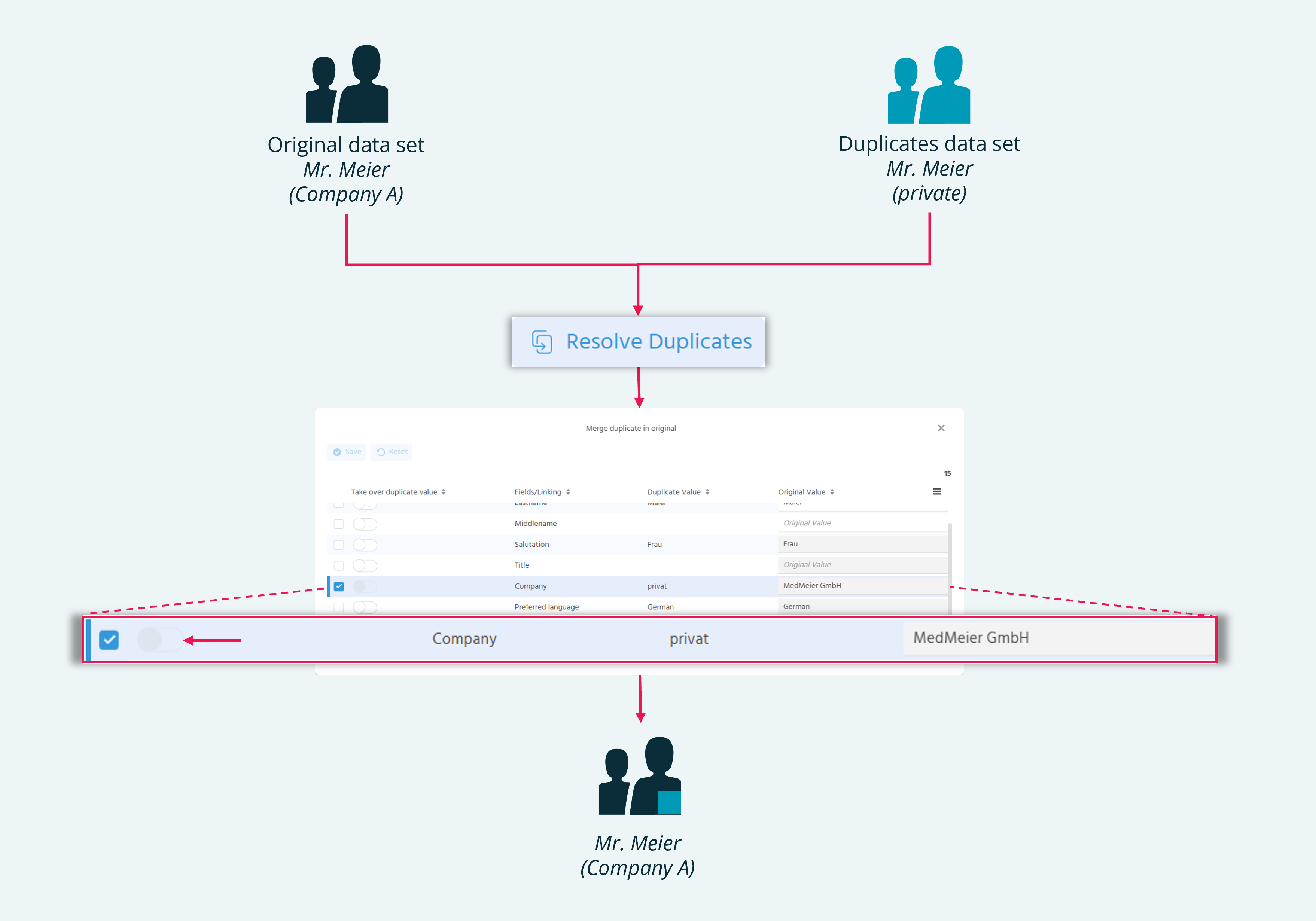
Contact Mr. Meier is recorded in the system as a private individual and at Company A. => not "Other Function" records, but duplicate records.
ATTENTION: It is not possible to transfer the company during the duplicate merge when the "company record" is overwritten by the "private record". The toggle for overwriting is grayed out.
This approach is only used when the "Private" record is to be deleted and not continued as an "Other Function". For example, if up to now only a "private contact" relationship existed with this contact and after a trade show visit the contact is to be continued with a company, so that the previous communication is to be transferred to the new record. If both records are to remain in the system, the duplicate must be resolved as described in the previous example.
Procedure
- Merge the contact record of Mr. Meier (at Company A) with the "Private" duplicate record.
Result:
➡️ The contact record of Mr. Meier (at Company A) also contains the information from the "Private" record.
Resolving Duplicate Clusters
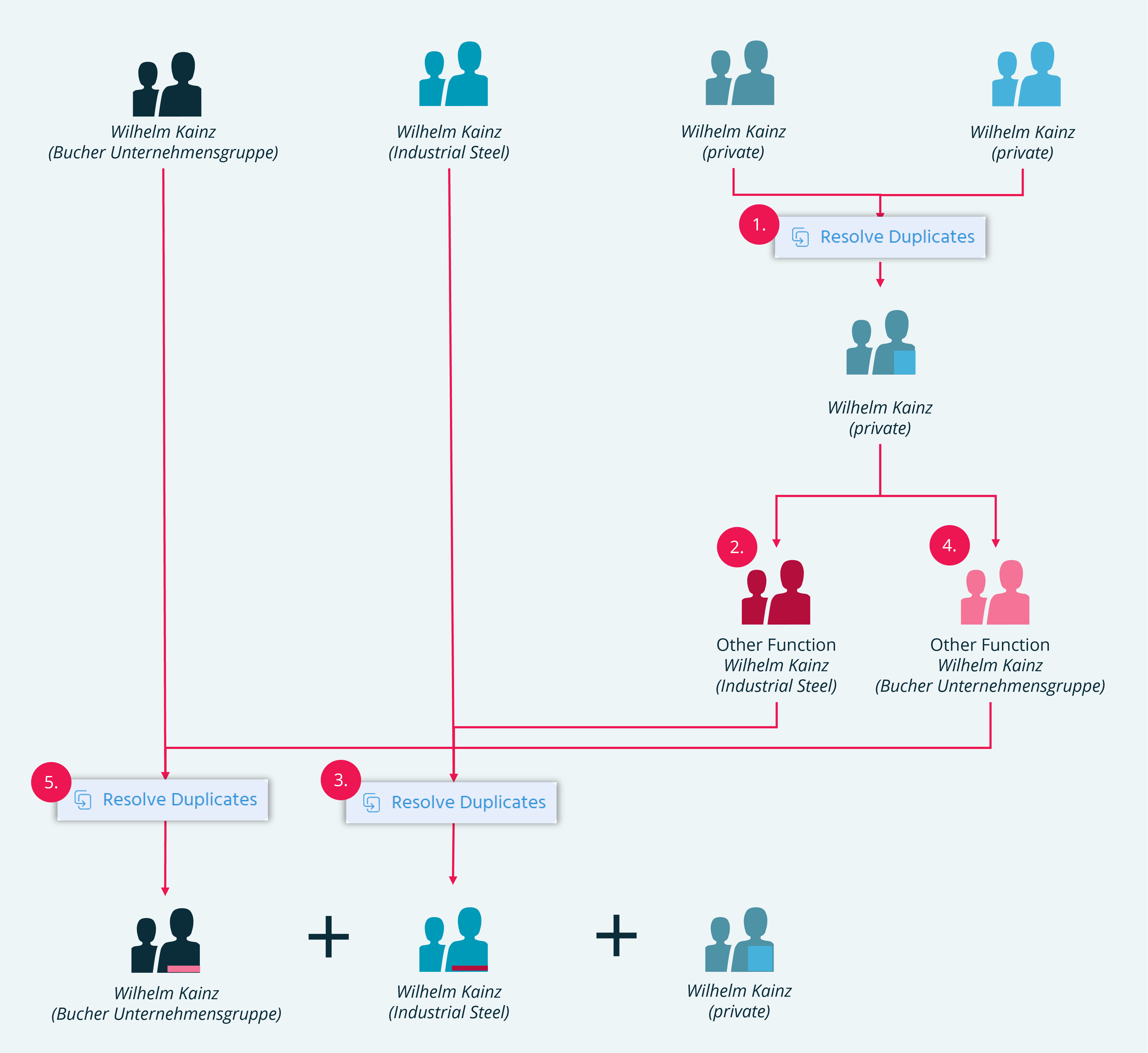
Using the example of Mr. Kainz, there are two private records and two records at companies.
If these were "simply" merged, the three functions of Mr. Kainz would be discarded, as the company selection in the merge dialog is an either/or decision.
Procedure
- Merge the two private records.
- Create an other function at the company "Industrial Steel AG" for Mr. Kainz's private record.
- Which can then be merged with the duplicate record.
- Also create an other function for the function at the company "Bucher Unternehmensgruppe".
- Which is merged with the duplicate.
Result:
➡️ The contact Wilhelm Kainz has three further functions: Private, Industrial Steel, Bucher Unternehmensgruppe
➡️ No data is displayed in the "Duplicates" tab anymore.