Defining Duplicate Scan Patterns
The System Manager has the following functions available to define and optimize the scan pattern so that the system can check for duplicates based on specific fields.
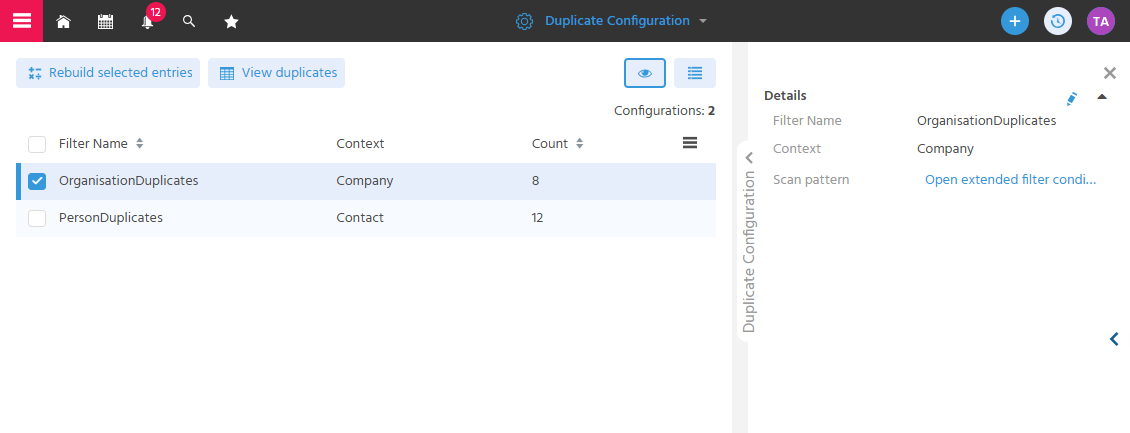
Configuring the Scan Pattern via Filter
The criteria by which duplicates are to be identified in the system are configured. This allows the duplicate check to be adapted to company-specific requirements and thus ensures high data quality.
The scan pattern is configured using the extended filter view.
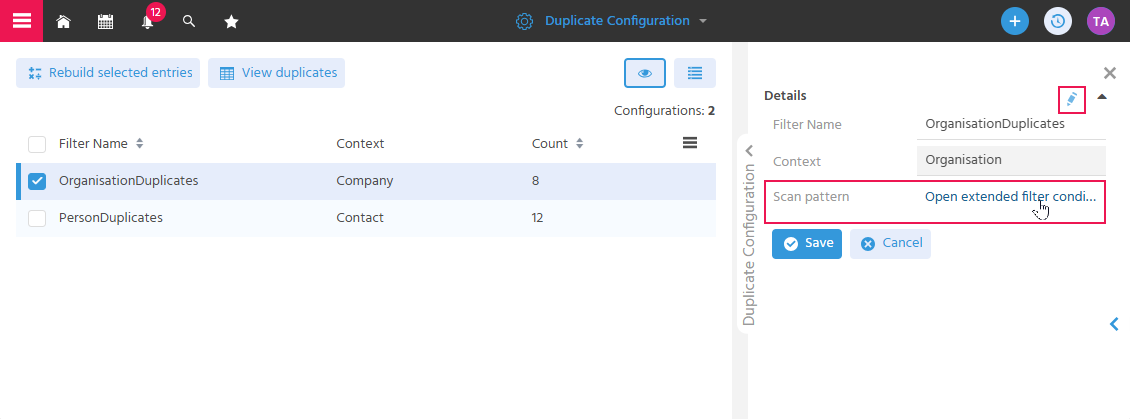
- The fields are defined that are to be considered during the duplicate check.
- Linking and grouping in the filter can be defined to specify whether all fields or individual ones must be met as criteria to identify records as duplicates.
- It can be defined whether certain terms should be excluded (e.g., GmbH, Co., KG).
- The fuzziness can be defined (how exactly the contents must be written identically).
Defining Fields
Selected* filter criteria of Company or Contact are used to define the fields that are considered in the duplicate check. For example, using the filter criterion "Name", the content of the "Name" field is checked when checking company duplicates.
🛠️→ The filter criteria could be adjusted via customizing.
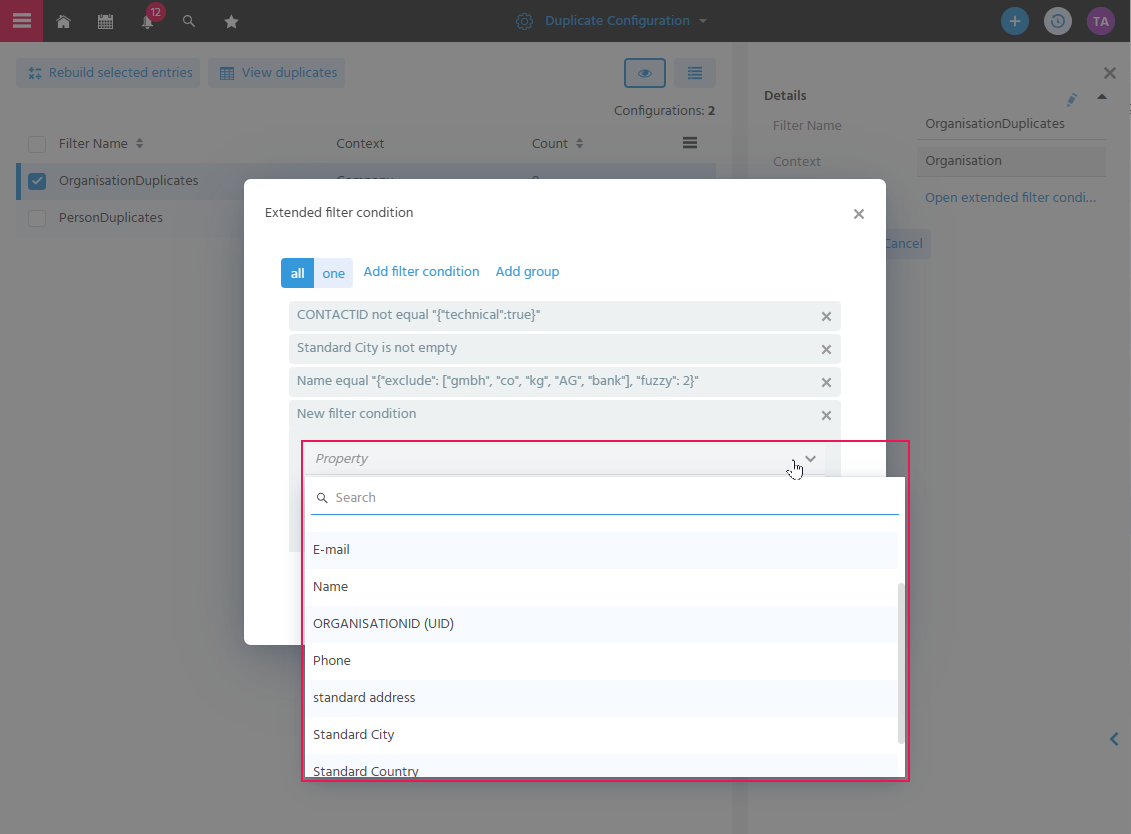
The operator specifies how the field is checked.
Supported operators:
- equals (default),
- Only matches are displayed when the value is equal.
- Here, additional terms can be excluded and the fuzziness defined.
- Example Pattern:
fieldname: ('stringvalue')
- not equal,
- Matches are displayed when the value is different.
- Example Pattern:
-fieldname: ('stringvalue')
- is empty
- Only matches are displayed when no value is captured (the field is empty).
- Example Pattern:
-fieldname: [* TO *]
- contains (CONTAINS),
- Only matches are displayed where the value is contained. A wildcard is placed before and after the searched value.
- Example Pattern:
fieldname: (*'stringvalue'*)
- does not contain (CONTAINSNOT)
- Only matches are displayed where the value is NOT contained. A wildcard is placed before and after the searched value.
- Example Pattern:
-fieldname: (*'stringvalue'*)
Other operators such as "is not empty" are converted to the default operator (equals) and have no separate function.
For example, if the "E-Mail Address" field is to be used in the duplicate check, the operator "is not empty" is used here. This means the system uses the default operator "equals" and checks whether the content of the "E-Mail Address" field is the same on both records.
The filters are only taken into account when the affected field contains a value on the record from which the check originates.
Linking and Grouping in the Filter
Filter conditions can be linked with ALL (AND) or ONE (OR) and, if required, bundled with groupings. This allows complex scan patterns to be mapped.
- ALL: All criteria must apply for it to be a duplicate ➡️ e.g., Name AND City must be equal
- ONE: It is sufficient if one criterion applies ➡️ e.g., E-Mail OR Name must be equal
Scan Pattern - Company (Example from the demo system)
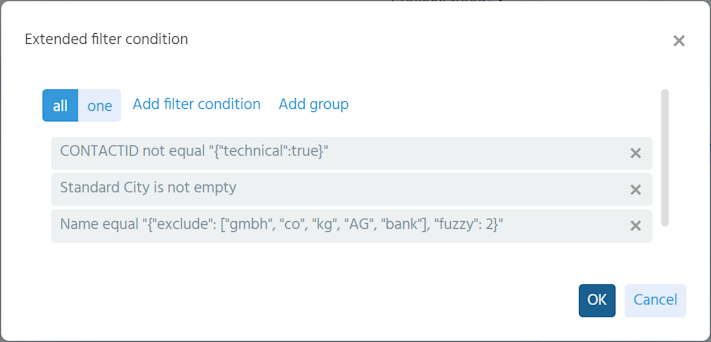
Configuration of the fields:
-
Contact_ID
So that the record's own entry is not flagged as a duplicate. The index search would otherwise always return the record itself. The addition of the filter in the company scan pattern was necessary for technical reasons (background: the field is needed for the calculation of the notification display, which is used for both Company and Contact (here Person_ID)).
⛔ ATTENTION: This filter must not be deleted or modified, as otherwise the duplicate notifications will be displayed incorrectly. -
Standard City and Name
The name of the city and the company must be identical for the system to set the duplicate notification.
Only the city is taken into account when checking the address. A granular breakdown (street, house number, etc.) tends to result in more duplicate entries or only shows duplicates in very few cases.
When checking the company name, certain terms are also excluded and the fuzziness is defined.
If additional fields are to be added to the scan pattern for Company, these can be adjusted with the basic configuration options of the filter. For example, if the E-Mail address is also to be taken into account, the scan pattern would need to be restructured analogously to the scan pattern for Contact.
Scan Pattern Contact (Example from the demo system)
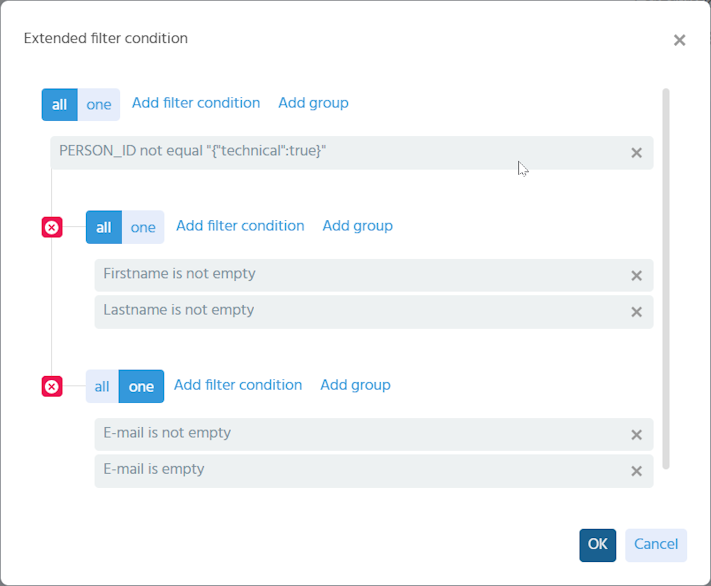
Configuration of the fields:
-
Person_ID
This sets the condition that the Person_ID must be different. As a result, "other functions" of a record are not identified as duplicates. -
First Name and Last Name
-
E-Mail
- E-Mail is not empty ➡️ The captured E-Mail address is identical
- E-Mail is empty ➡️ No E-Mail address is captured
This means that records are flagged as duplicates by the system where the first and last name are identical and the E-Mail address is also identical, but also where one of the two records may not have an E-Mail address captured.
If additional fields are to be used for the duplicate check, e.g., the phone number, this can be added to the filter like the E-Mail address. However, note that too many ONE (OR) groups should not be added, as poor data quality may lead to more duplicates. If the date of birth is to be considered, it should be integrated into the group of first and last names.
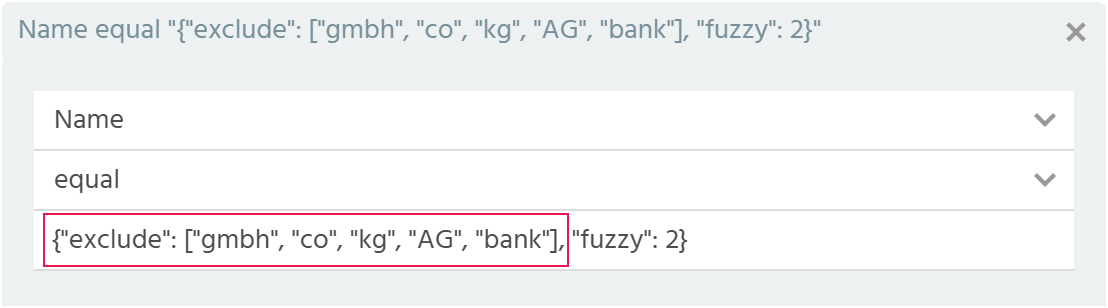
Excluding Terms
For the key "exclude", a list (array) with values is specified that are to be removed from the search term.
The list can be extended directly in the filter.
Defining Fuzziness
The key "fuzzy" specifies the numerical value that represents the fuzziness. The number of different letters per word is considered. By default, the value "2" is preset. If higher accuracy is required, the value 1 can be used: Tom vs. Tim
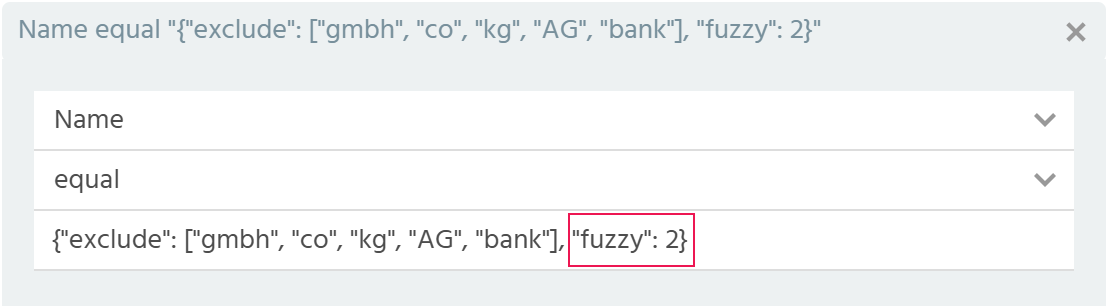
Words that are excluded by "exclude" or are shorter than the fuzzy value are not taken into account by the fuzzy logic. The fuzzy logic is applied to each word individually. This can lead to more matches for company names consisting of multiple words, e.g.: "Bäckerei Müller". Additionally, phonetic search applies here and influences the result (as in the index search).
🛠️→ For more details, see Platform-Help "Index field types" — developer knowledge required.
Recalculating & Displaying Duplicates
Recalculate duplicates to transfer changes to the scan pattern directly into the system. This allows the changed settings to be checked immediately based on the identified duplicates.
To transfer the scan pattern configuration into the system, the Action "Rebuild Selected Entries" is used. This recalculates the duplicates in live operation, and the current filters configured in the scan pattern are always applied.
In the next step, the number of duplicates still in the system should be checked.
The count is displayed directly in the table in the "Count" column. The specific result of how many contact or company duplicates are in the system can be opened with the Action "View Duplicates".
The data (contacts or companies) in your system is to be checked for duplicates and how many there are.
- Open the duplicate configuration.
- Select the scan pattern whose data is to be checked and execute the Action "View Duplicates".
- The FilterView opens with the filter "Duplicates greater than 0".
➡️ The number of duplicates in the system is displayed.
If there are many duplicates in the system, these are to be analyzed.
- As above, open the FilterView (of Contact or Company) with the duplicate filter.
- Change the filter "Duplicates greater than or equal to 0", e.g., to "Duplicates greater than or equal to 100". If this does not yet provide insights, adjust the number incrementally.
➡️ It is shown whether there are duplicate clusters and whether these may be caused by industry-specific terms.
For example, an industry-specific term was identified for companies that leads to duplicates, and this is to be counteracted.
- In the duplicate configuration, edit the scan pattern for Company (Configuration of the Scan Pattern).
- Add the term to the list of Excluding Terms.
- Recalculate the duplicates with the Action "Rebuild Selected Entries".
- Check the current status in the system to see whether, after excluding the term, there are now fewer duplicates in the system. Execute the Action "View Duplicates" for this.