Managing Recipients
Marketing Managers can add recipients to the bulk mail and manage them. The functions described below are available for this purpose.
Adding Individual Recipients
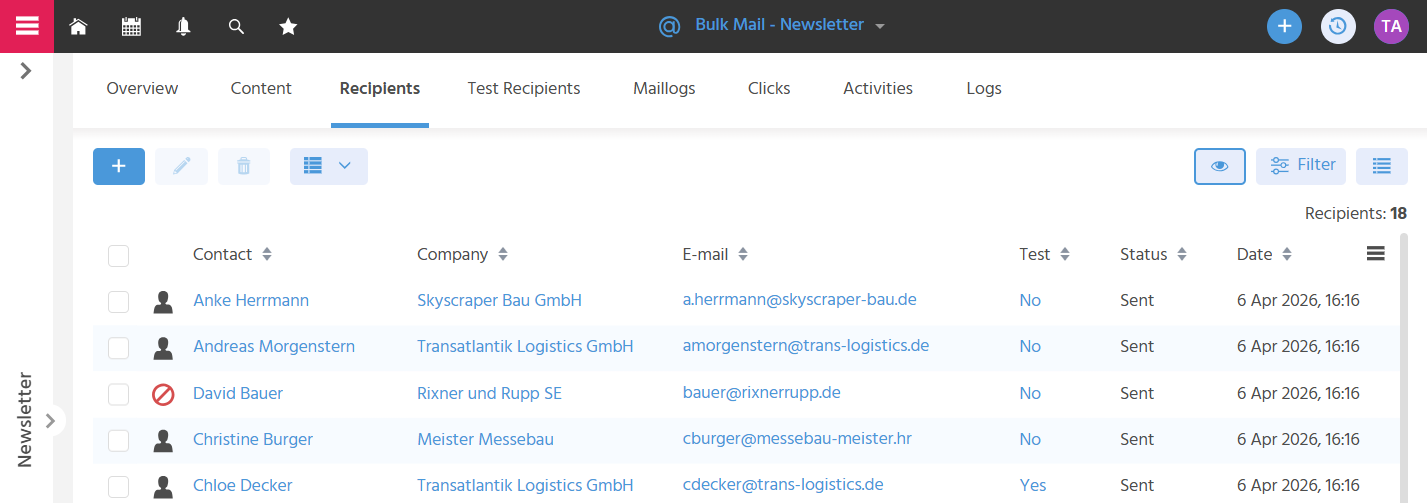
Using the plus button, individual recipients can be added to the bulk mail so that contacts can also be added independently of a filter. A SmallEdit opens where all contacts and companies stored in the system are selectable. In the "E-Mail" field, the default e-mail address is displayed initially. If multiple e-mail addresses are captured for a contact/company, all e-mail addresses are available for selection there.
Adding Recipient Groups
There is the option to add recipient groups to the bulk mail, so that the members of a target group do not all have to be added individually. For this purpose, the Action "Add to Bulk Mail" is available in the Contexts "Contact" and "Company", and in the Context "Bulk Mail" the Action "Add Recipients via Filter".
Action "Add to Bulk Mail"
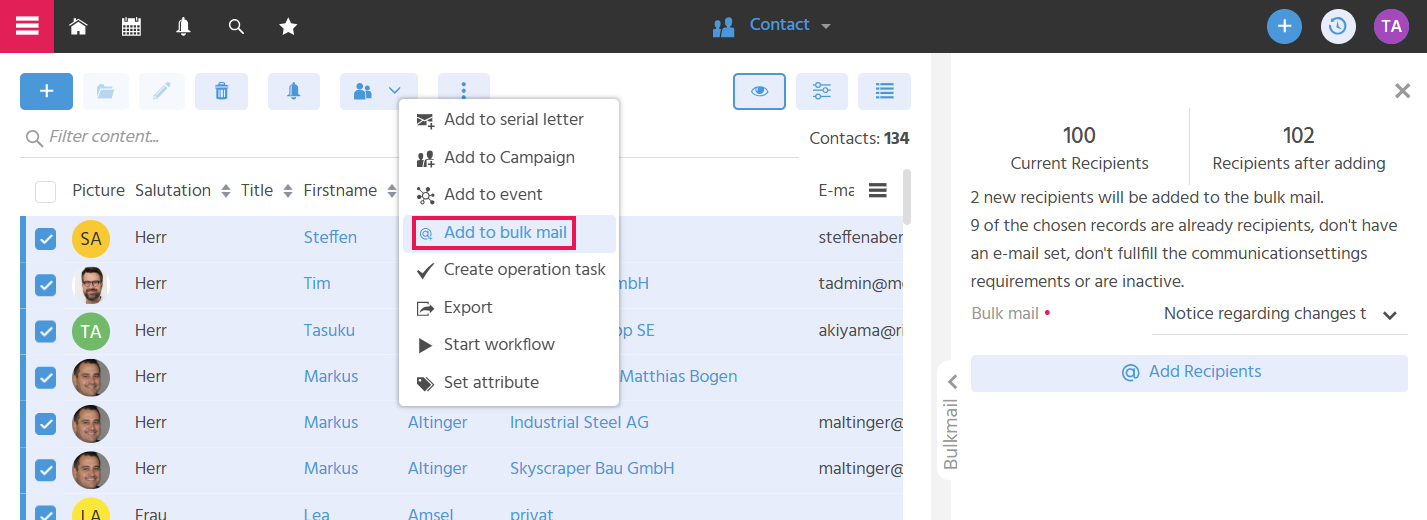
When the Action "Add to Bulk Mail" is executed, a SmallEdit opens in which all bulk mails with status "Not sent" are available for selection. When a bulk mail has been selected, the SmallEdit informs how many contacts/companies from the filter will be added as recipients, how many will not, and for what reasons they will not be added. With more than 10,000 selected contacts, the recipients are processed asynchronously in the background, so that the ADITO client is not blocked even with large recipient groups.
Action "Add Recipients via Filter"
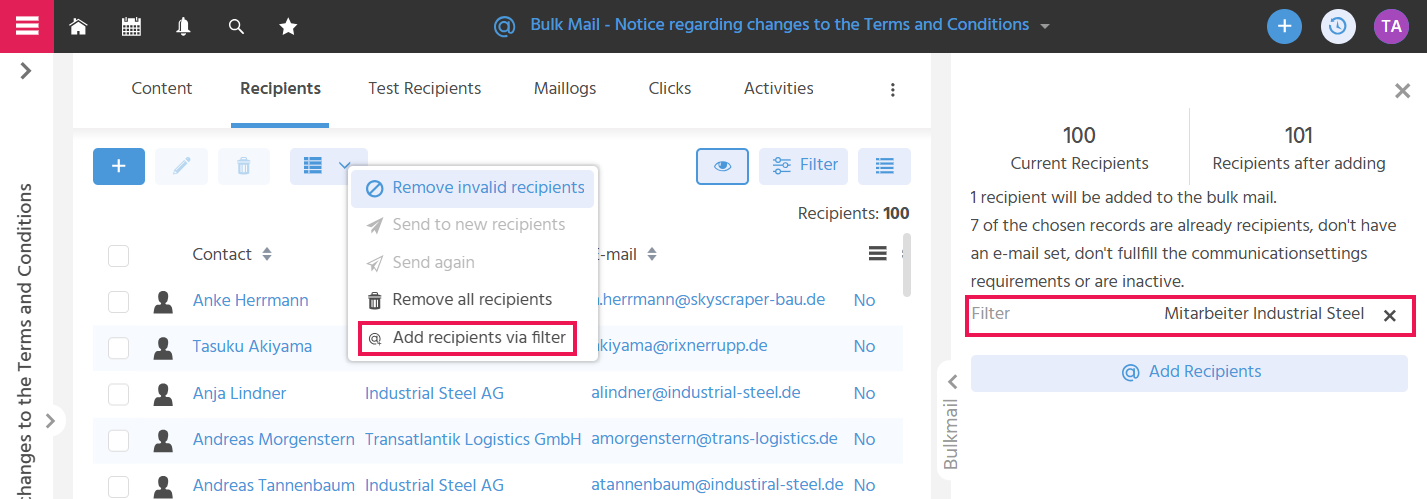
When the Action "Add Recipients via Filter" is executed, a SmallEdit opens in which all saved filters from the Contexts "Contact" and "Company" are available. When a filter has been selected, the SmallEdit informs how many contacts/companies from the filter will be added as recipients, how many will not, and for what reasons they will not be added. With more than 10,000 selected contacts, the recipients are processed asynchronously in the background, so that the ADITO client is not blocked even with large recipient groups.
Removing Invalid Recipients
With the Action "Remove Invalid Recipients", all recipients for which a prohibition icon is displayed are removed from the recipient list. This can speed up the sending process if very many invalid recipients are contained in the bulk mail.

A recipient becomes invalid if no e-mail address or no matching communication setting is stored on the contact/company. This also applies to recipients whose existing communication settings/interests are revoked.
Checking the Recipient List for Duplicate E-Mail Addresses
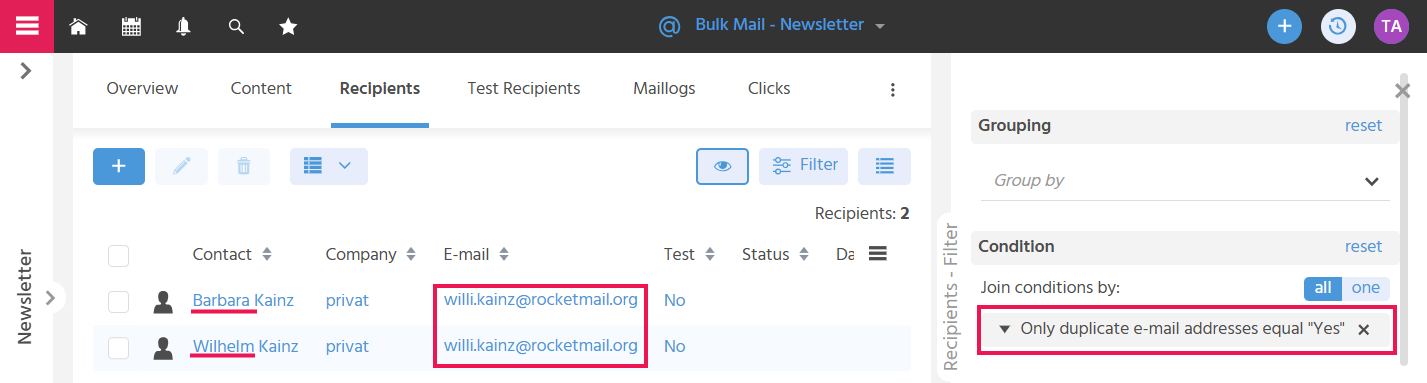
There is the option to check whether an e-mail address appears multiple times in the recipient list, so that the bulk mail is not sent multiple times to the same recipient. To do this, the filter condition "Only duplicate e-mail addresses equal Yes" is entered and superfluous recipients are deleted.
Removing All Recipients
The Action "Remove All Recipients" is used to quickly remove all recipients from the bulk mail when dealing with large amounts of data. Deleting all recipients using the Action is preferable to selecting all recipients and deleting them with the delete button, as performance is better when using the Action.
The Action is used, for example, when the wrong recipient group was accidentally added, or when a bulk mail was copied including its recipients.