Creating Content
Marketing Managers can create various types of bulk mails, such as promotional e-mails or informational e-mails. To give them flexibility when creating content, various methods are available for this purpose.
Option 1: Creating Content in a Structured and Quick Way with a Design Template
The content of a bulk mail can be created in a structured and quick way using predefined design templates, so that the company's external appearance can be designed in a consistent manner. To do this, the value "with the Mosaico Editor (structured creation)" is selected in the "How would you like to create the content?" field, and then one of the available design templates.

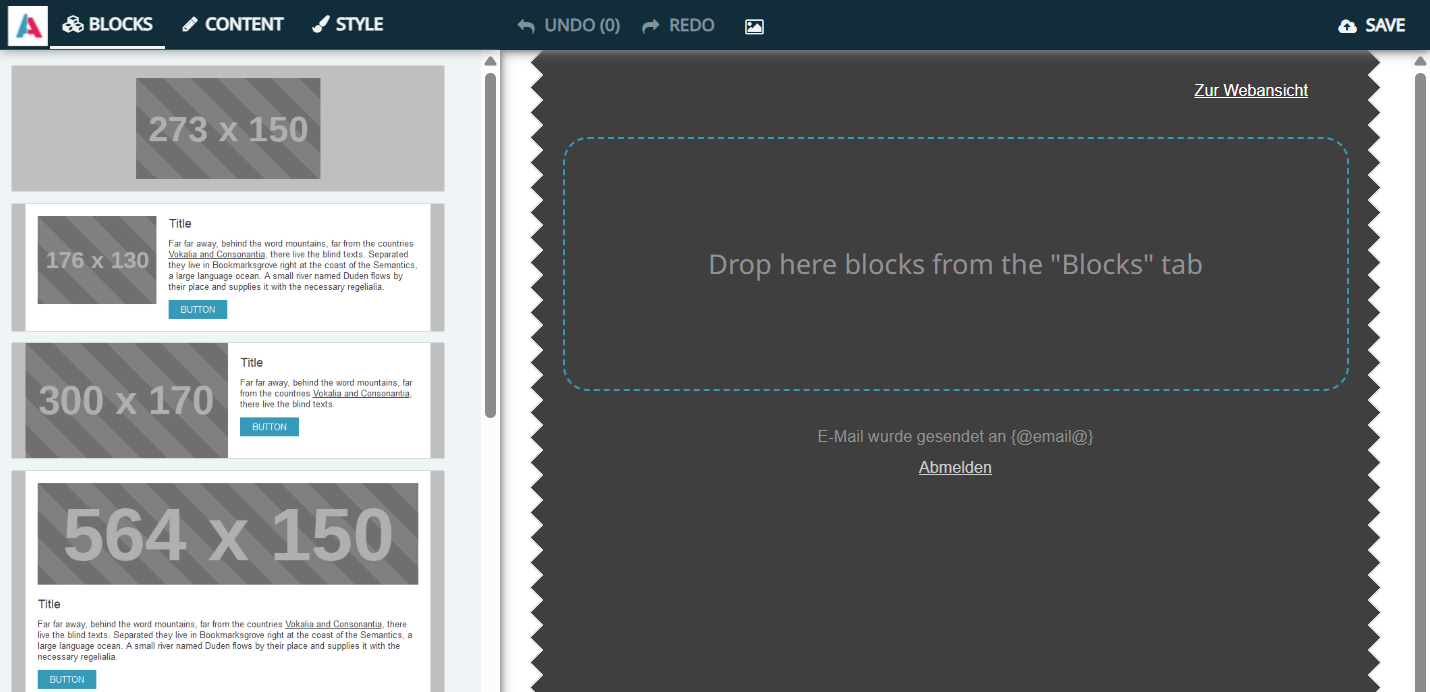
With the Action "Edit in Mosaico" in the preview of the bulk mail, the Mosaico Editor is opened. In the editor, the blocks defined in the selected design template are available. These can be easily arranged via drag & drop and the content of the blocks can be edited as desired.
Mosaico Editor with selected design template
📖 → Further information on the Mosaico Editor and the design template can be found here.
Option 2: Creating Content Flexibly with the HTML Editor
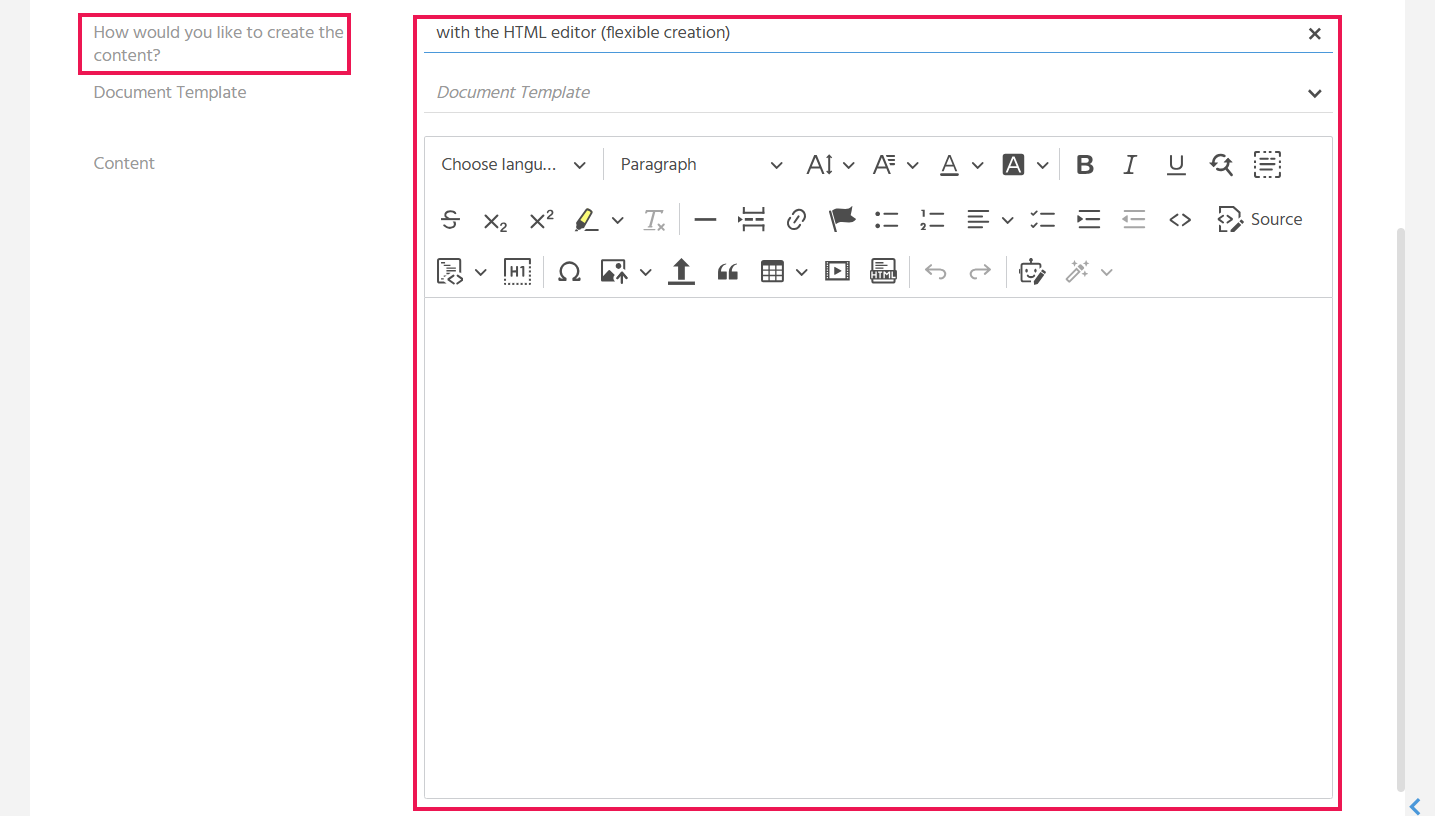
The content of a bulk mail can be created flexibly without predefined design templates, so that short informational mailings can be created without a great deal of design effort. To do this, the value "with the HTML Editor (flexible creation)" is selected in the "How would you like to create the content?" field, which displays an HTML-Editor in which the content can be captured.
Option 3: Using Internally Predefined Content During Creation
When creating the content of a bulk mail, internally predefined content can be accessed, so that recurring content does not always have to be recreated from scratch, but can still be adjusted as needed.
The following template types are available for this:
- Content template
- Document template
Content Template
In the "How would you like to create the content?" field, the value "with the Mosaico Editor (structured creation)" is selected, and then one of the available content templates. Content and style are taken from the template.

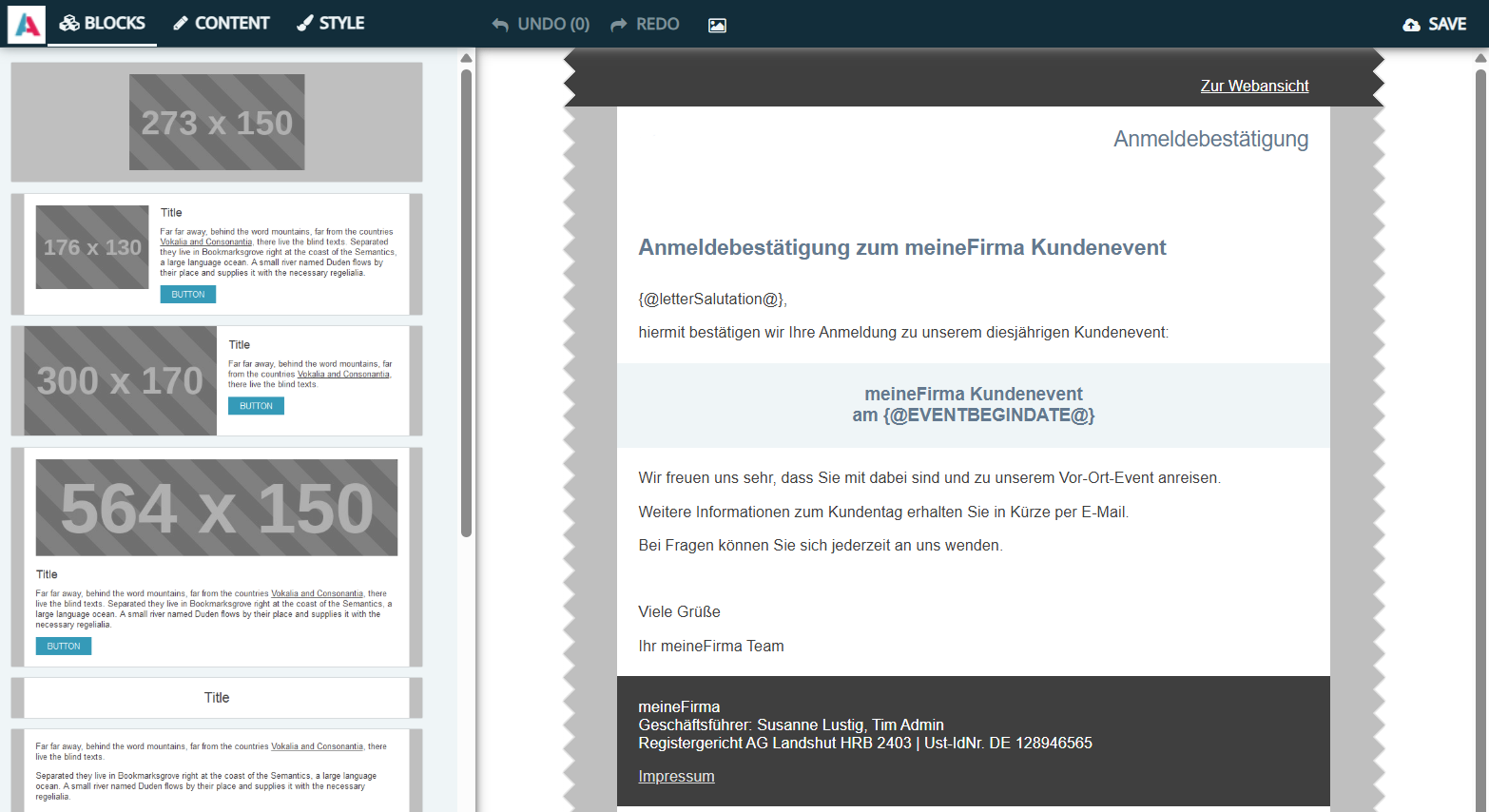
Via the Action "Edit in Mosaico" in the preview of the bulk mail, the Mosaico Editor can be opened. There the selected content is displayed and can be individually adjusted as needed.
Mosaico Editor with selected content template
📖 → Further information on the Mosaico Editor and the content template can be found here.
Document Template
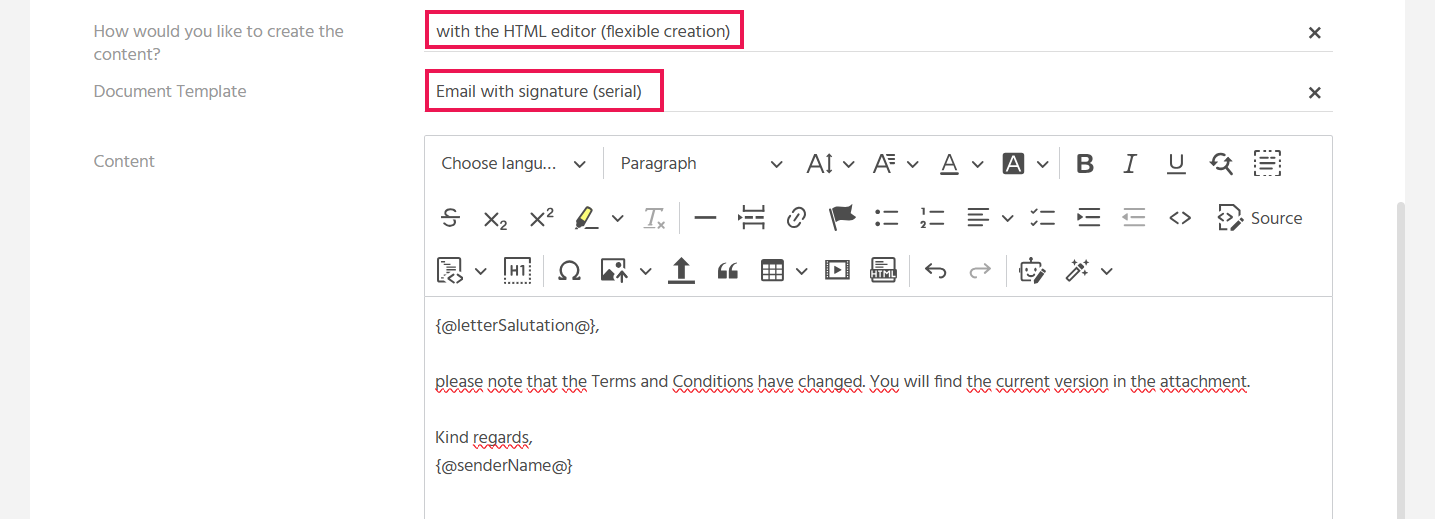
In the "How would you like to create the content?" field, the value "with the HTML Editor (flexible creation)" is selected, and then one of the available document templates (templates with type "E-Mail", classification "Serial", no place of use). The content of the document template is displayed in the HTML-Editor, where it can still be edited if needed.
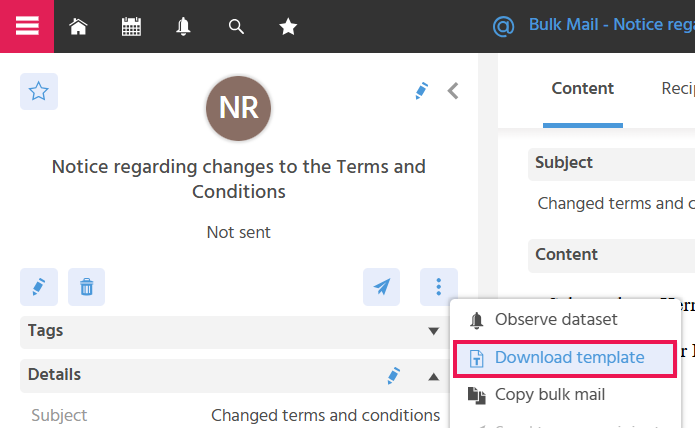
In the preview of the bulk mail, there is the Action "Download Template". When the user executes the Action, the document template used in the bulk mail is saved to the user's download folder.
Option 4: Using External Content During Creation
When creating the content of a bulk mail, content can be used that is provided externally, e.g., by an agency. This can save time and increase the quality of the content.
To do this, the value "by uploading an HTML file" is selected in the "How would you like to create the content?" field. In the area that is then displayed, an HTML file can be uploaded. The content cannot be edited in this case.

Additionally Storing Attachments
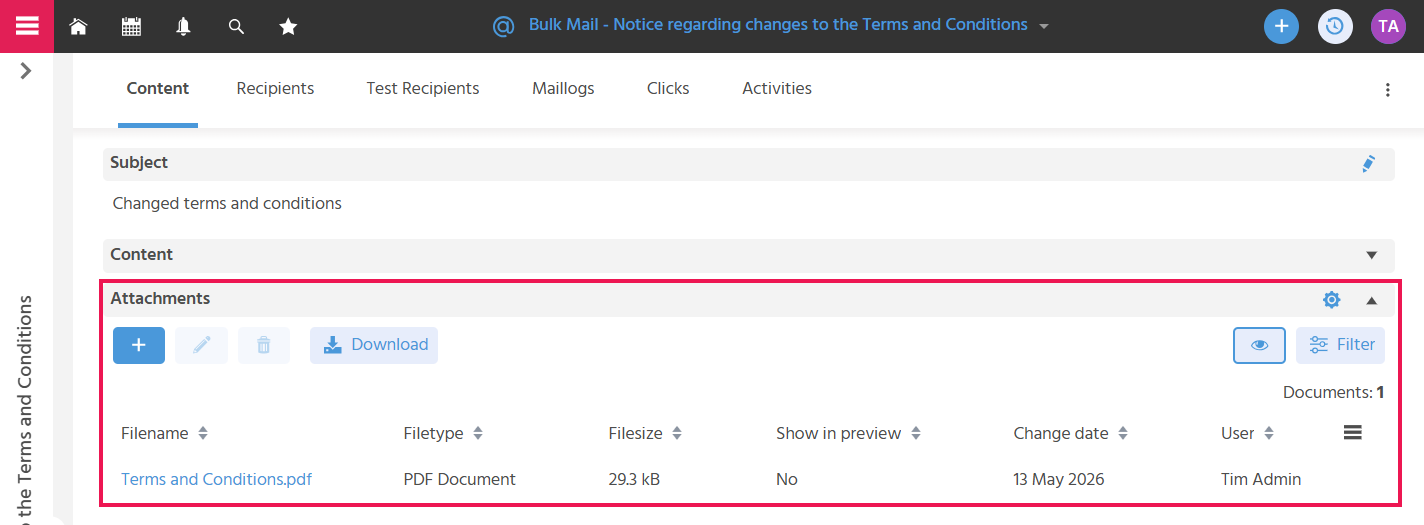
There is the option to store attachments, so that documents can also be sent in addition to the content of the bulk mail.
Selecting the E-Mail Header
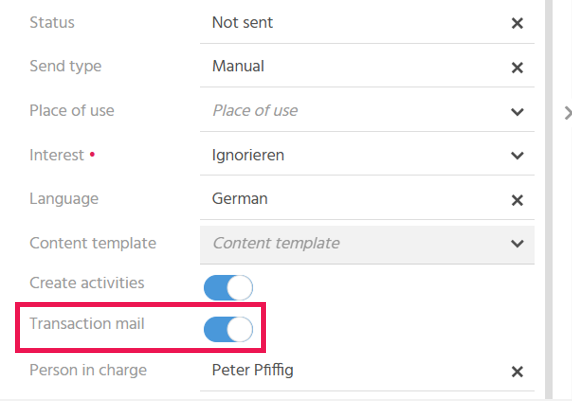
Via the toggle button "Transaction mail" in the preview of the bulk mail, you can specify whether a "List-Help-Header" or a "List-Unsubscribe-Header" should be included in the e-mail, in order to meet the requirements of e-mail service providers that follow related guidelines (e.g., CSA guidelines https://certified-senders.org/).
The button is activated when it is a transactional mailing (e.g., changes to general terms and conditions, etc.). A "List-Help-Header" with the URL stored in the Designer is thereby sent in the header of the e-mail. For promotional bulk mails, such as newsletters, the "Transaction mail" button remains inactive. A "List-Unsubscribe-Header" is thereby sent in the header of the e-mail.
🛠️→ The following settings must be configured in the Designer for the "Transaction mail" button to be displayed in the bulk mail:
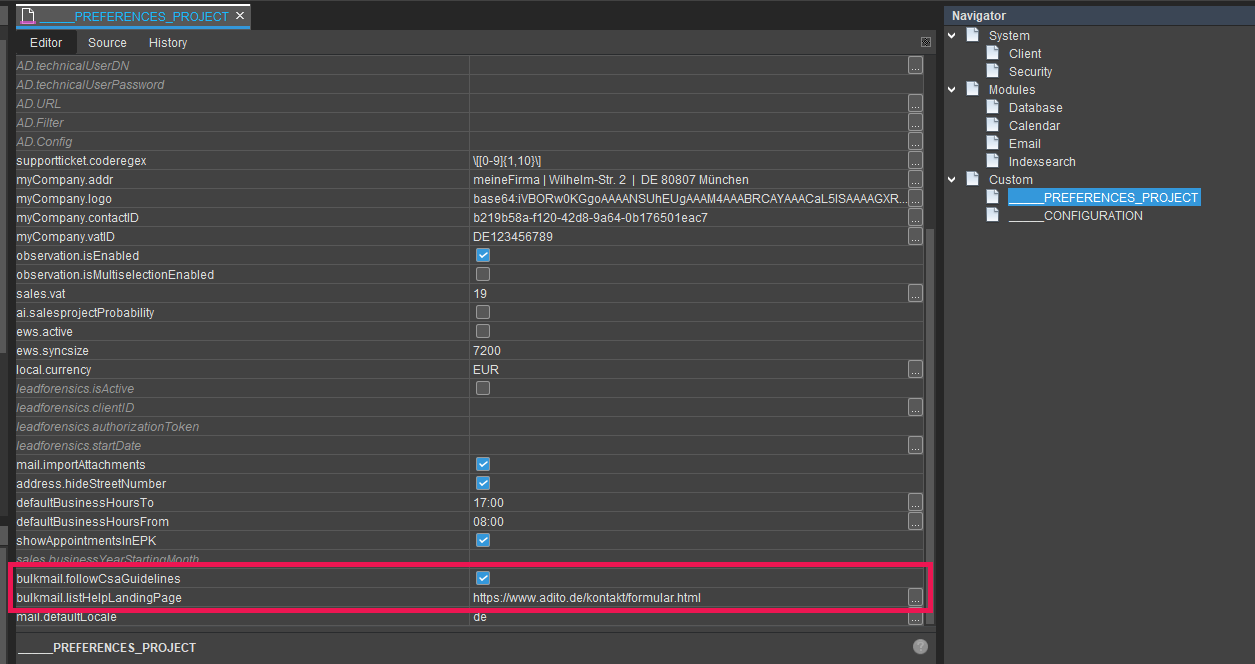
If no URL is stored in the Designer, no List-Help-Header is sent.