Introduction - xRM-Help
ℹ️ General Information
For the purposes of readability, the generic masculine form is used in this documentation. All references to people apply equally to all genders.
ADITO’s UX design is continuously being optimized for you. As a result, there may be differences between the screenshots and the actual interface.
🛟 Migrating Existing Documentation to xRM-Help
During the transition period, until we have migrated all existing documents to xRM-Help, you will continue to find the familiar presentations in PDF format. We are integrating these into the new structure under the “Documentation” section.
A link in xRM-Help will take you to the presentation’s agenda, from which you can navigate further.
Once a topic has been transferred to xRM-Help, we will mark it with a lifebuoy 🛟 in the presentation’s agenda and remove the affected pages.
However, you can also find the previous documents in the “Downloads” section in the structure we have used up to now.
Once we have finished the migration, this section will be replaced.
✅ Topics Already Migrated
The topics we have migrated so far are:
- Contact Management: Manage Master Data
- Marketing: Reaching target audiences with Bulk E-Mails
- System Management: Configure the System: Define Duplicate Scan Patterns
In doing so, the previous documentation regarding “duplicates” has already been fully migrated to xRM-Help.
🎯 Structure of xRM-Help - How is the information organized?
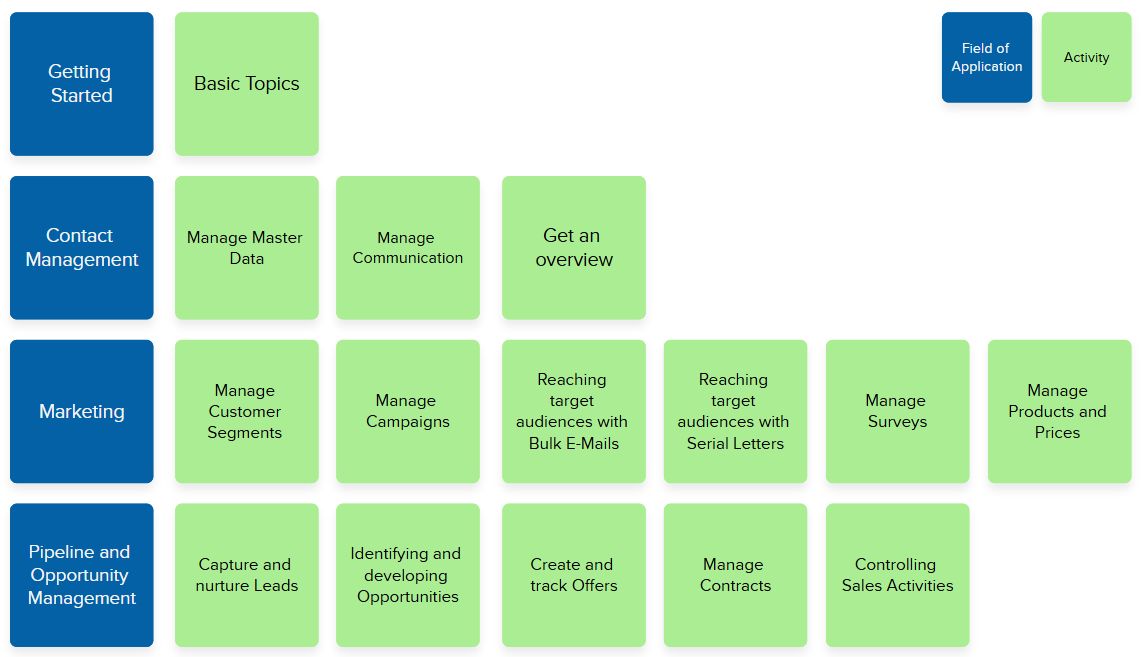
The way we organize information in xRM-Help follows the basic principle of story mapping.
A story map is created starting with the so-called “activities” (green cards), which are then divided into “steps,” with the individual “user stories” arranged beneath them. For example, the activity “Reach target groups with bulk emails” includes all the steps a user goes through in the system: Creating the mass email → Adding recipients → Sending → Analysis
To document the technical information about xRM, we organize all functions according to this principle, thereby mapping out the story maps for the various application areas (blue cards). We have derived the structure and layout of the navigation and pages in xRM-Help from this.
Navigation
- In the left navigation, you'll find the application areas at the top level. For example, contact management, marketing automation, ...
- When you expand the application areas, you'll find the activities.
- At the next level, you can open the steps that describe the user stories.
- When you expand the application areas, you'll find the activities.
- In the right navigation, you will find the user stories that represent the structure of a page.
Page Layout
To ensure the content is well-structured and easy to read, we use various formatting styles:
At the beginning, you will find the user story that describes what information is recorded in the system and why. Next, you will find a description of the feature, complete with images and various notes.
Some information or images are displayed in collapsible sections so they can be viewed only when needed.
Click here to expand
Special cases or screenshots may be documented here.
🏷️ Tags
To provide an overview by topic or persona, tags have been created in the system.
You’ll find the tags at the bottom of each page, allowing you to locate all entries related to a specific topic.

Are you looking for everything related to the topic of “duplicates,” for example? Then use the tag “duplicates”.
Here you will find an overview of all tags that have been set in xRM-Help: All Tags
Explanation of the Information Boxes
Examples of how something is or should be handled in the system are described in the green boxes.
This information box contains details that require special attention.
Or
📖→ Links to chapters where you can find more information on the topic.
Or
🛠️→ Notes on how something is currently implemented but could be customized.
The yellow notes with a warning triangle describe particularly important information.
The red notes with a flame icon describe extremely important information.
The blue notes are intended for system managers and system administrators. For example, they explain which keywords, properties, etc., they can adjust in this context or which processes are involved.