Capturing Activities or Tasks via AI
Customer communication can be captured as a structured Activity or Task with the help of AI, without the report having to be recorded and prepared manually. In addition, relevant CRM objects can also be linked to the Activity or Task via AI. Sales Executives use this function to capture Activities or Tasks efficiently.
Capturing Text and Structuring It Automatically
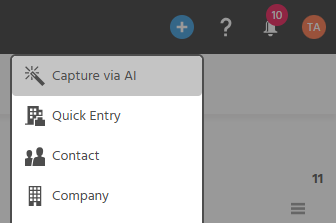
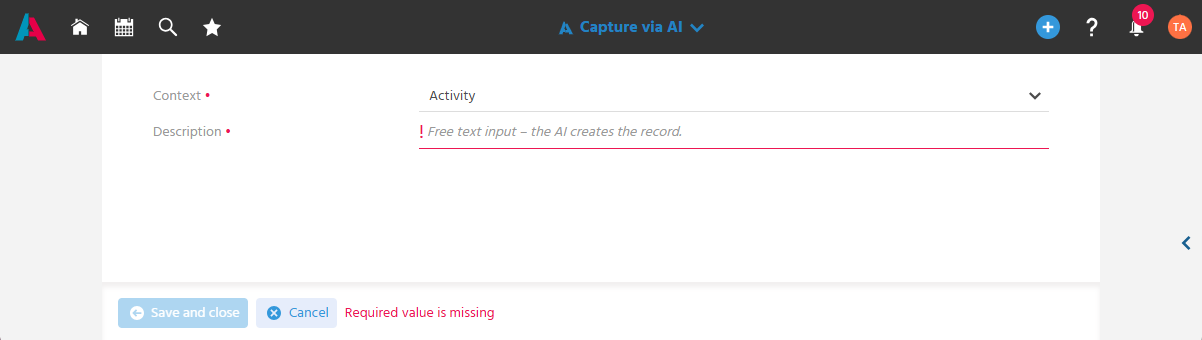
To have the text created as an Activity or Task via AI, the Action "Capture via AI" is executed in the Quick Entry to open the input:
-
Context – In the first step, you select whether an "Activity" (default selection) or a "Task" is created.
ℹ️ The values available for selection depend on the user's permissions. -
Description – In the second step, the information (report, phone call, task, etc.) is entered as free text in the "Description" field.
The AI extracts participants, results and next steps from the content. It structures the report so that this does not have to be done manually, correctly fills in the fields of the Activity or Task and captures potential links to other CRM objects.
Creating an Activity - The Following Information Is Captured
If an Activity is created, these fields are filled in by the AI:
- Title
- Date - the current creation date is used
- Direction
- Category
- Responsible - the user who performed the creation is entered
- Key Activity - the value "No" is always set; if it is in fact a key activity, this flag would need to be changed afterwards
- Links
- Description - the description is created from the free text and additionally supplemented with the note "Generated by AI"
Creating a Task - The Following Information Is Captured
If a Task is created, these fields are filled in by the AI:
-
Subject
-
Status - if no other information is provided, the value "New" is set
-
Due Date - if no other information is provided, the date is set to one week from now
-
Progress - if no other information is provided, the value is set to 0%
-
Priority - if no other information is provided, the value "Normal" is set
-
Requester - the user who performed the creation is entered
-
Private - if no other information is provided, the flag is set to inactive
-
Create Individual Task - the value "No" is always set; if it is in fact required, this flag would need to be changed afterwards
-
Editor - if no other information is provided, the user themselves or the named employee or named department is entered
NoteIf a department or employee is explicitly assigned to carry out the task in the text, this person/department is automatically set as the Editor. Otherwise, the current user remains the Editor – even if other people or departments are mentioned in the text only in terms of content, e.g. as an appointment participant or optional contact person.
-
Links
-
Description - the description is created from the free text and additionally supplemented with the note "Generated by AI"
Creating Links to CRM Records
In addition to Contact and Company, other contextually matching records are also automatically linked, provided they are mentioned in the text and are already connected to the recognized Contact/Company via the 360 Degree view.
The following are linked:
- opportunity,
- offer,
- receipt or
- contract
Manually Correcting AI-Generated Activities/Tasks
After automatic creation by the AI, the respective record (Activity or Task) opens for review by the user (human-in-the-loop), so that the content generated by the AI can be edited before final acceptance and errors or misunderstandings by the AI can be corrected.
Sales Executive Visit