Searching for Datasets
Records can be searched for at the central location in the system - the Global Bar - in order to find records quickly and efficiently across Contexts.
The search is started via the magnifying glass icon in the Global Bar. After entering a search term and confirming with ENTER, a maximum of the 6 best search results are displayed. Clicking a result opens the respective record.
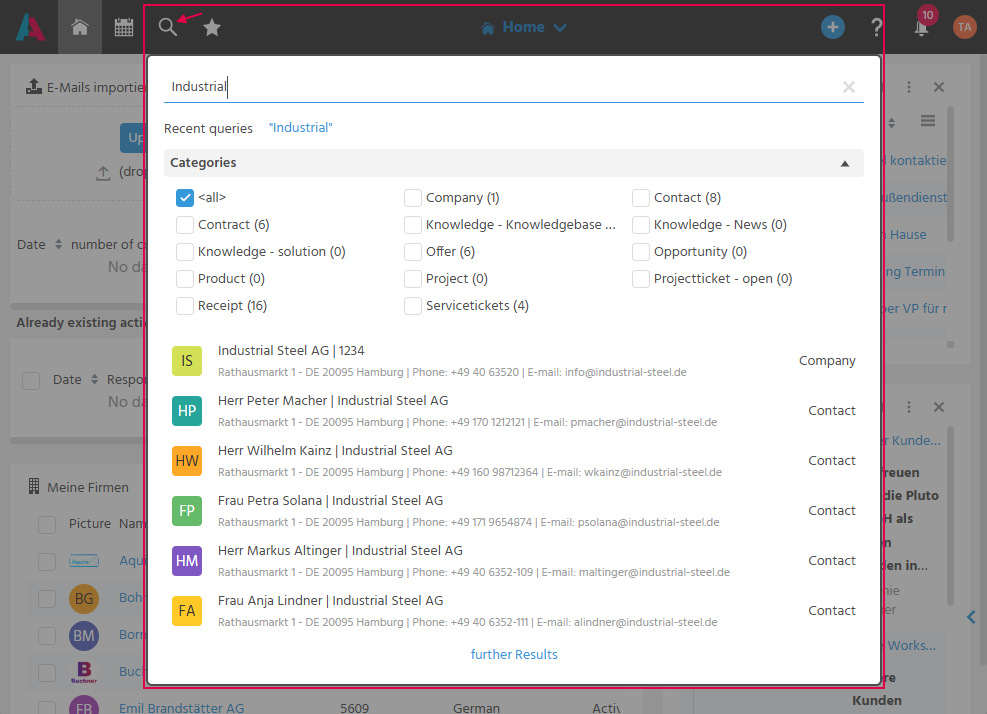
Restricting to Specific Categories
Records of a category can be searched for. For this, the result can be restricted to one or more categories using checkboxes (e.g., Offer, Receipt, Company, Contact, Opportunity, Product, Project, Project Ticket, Service Tickets, Contract, Knowledge). Via <All>, the restriction is reset again.
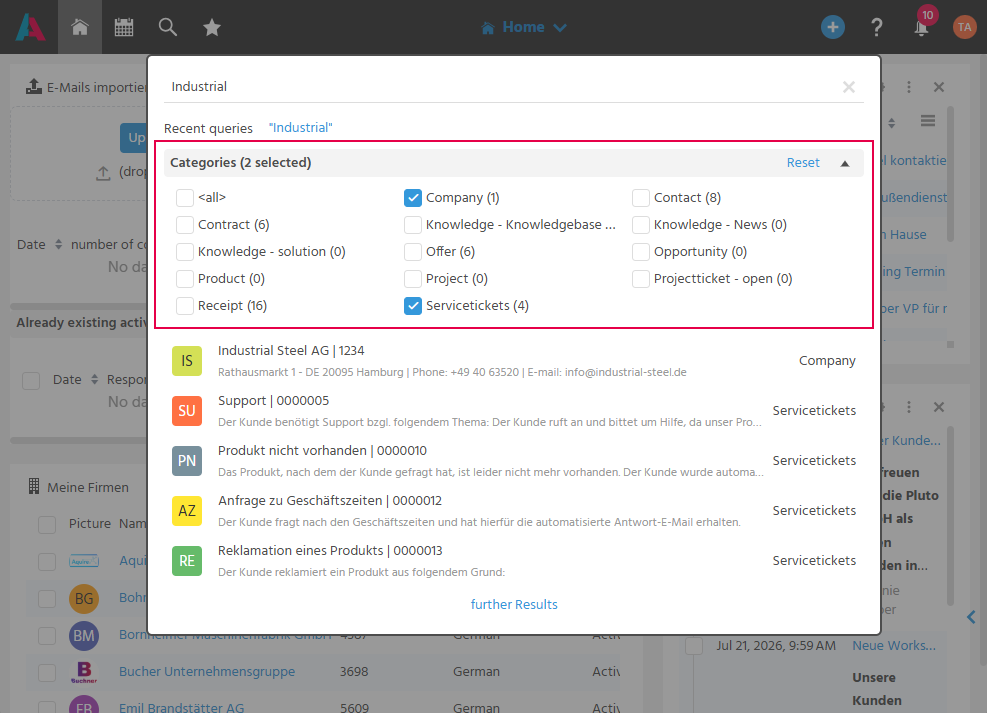
Displaying More Results
Via the "more results" link, a results view opens listing all search results in table form, in order to get a better overview of the entire result. In this view too, the search can continue to be restricted to selected categories.
Leading Wildcard
It can be activated that a wildcard (*) is automatically placed before the search term for search queries, in order to more easily find incomplete or partially known terms as well. By default, the wildcard is only appended at the end of the search term.
📖→ See also Configuring Search Behavior.
Using Wildcards in the Search
In the search, the wildcard characters ? and * can be combined as needed, so that matches are found even when the exact search term is not known.
?replaces exactly one character,*replaces any number of characters, or none
-
Using the wildcard
?- "Ma?er" finds "Maier" and "Mayer"
- "M??er" finds "Maier", "Mayer", "Meier", and "Moser"
-
Using the wildcard
*- "Maier*" finds "Maier" and "Maierhofer"
- "*Maier" finds "Maier" and "Obermaier"
Using Search Syntax with Boolean Operators
Boolean operators can be used in the search, so that the search can be specified precisely and irrelevant results excluded:
-
Search for one or more terms without an operator (this is the most common input syntax)
Input:Term1 Term2 Term3
corresponds to the input:Term1 OR Term2 OR Term3Notes🛠️→ If, on a project-specific basis, linking should be done with
ANDinstead ofOR, this can be adjusted via customizing. -
Search with "And" - input:
Term1 AND Term2 -
Search for a term that must be included - input:
+Term -
Search for a term that should be excluded - input:
-Termor!Term -
Search for combined terms using parentheses:
Input:(Term1 AND Term2) (Term3 AND Term4)
corresponds to(Term1 AND Term2) OR (Term3 AND Term4)
The following should be noted when using special characters:
-
Special characters such as parentheses, quotation marks, plus/minus, and exclamation marks are interpreted as operators.
-
However, if they appear directly within a word (with or without a space), they are treated as normal characters (example: "Holz-Wurm Maschinen GmbH").
-
For parentheses, it is checked whether an opening parenthesis/quotation mark is also closed again. To prevent this check, a
\is placed in front.