Ensuring Data Protection Compliance
To ensure that Sales Executives can be certain that data is captured in compliance with data protection regulations during master data entry, the following features are implemented:
- Capturing data protection-relevant data with justification.
- Documenting a privacy notice.
- Generating the information report to inform the contact about their stored data.
- Flagging for deletion to remove data that may no longer be stored from the system.
The information contained herein does not constitute advice on the GDPR and is therefore not legally binding and does not represent templates or guidelines from ADITO.
Please consult the data protection officer responsible for your company if you plan to use this functionality in your system.
Storing Data Protection-Relevant Data with Justification
When data protection-relevant data is captured, the following is documented:
- which data is actually data protection-relevant,
- on what legal basis it is stored,
- for what purpose, and
- for how long the data is stored.
This ensures compliance with GDPR requirements and guarantees transparent and regulation-compliant data processing.
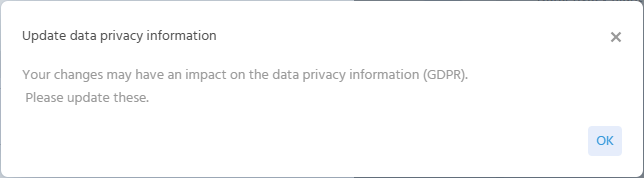
As soon as a contact is newly created or modified, the system issues a notification that data protection-relevant information must be stored or kept up to date.
Notification
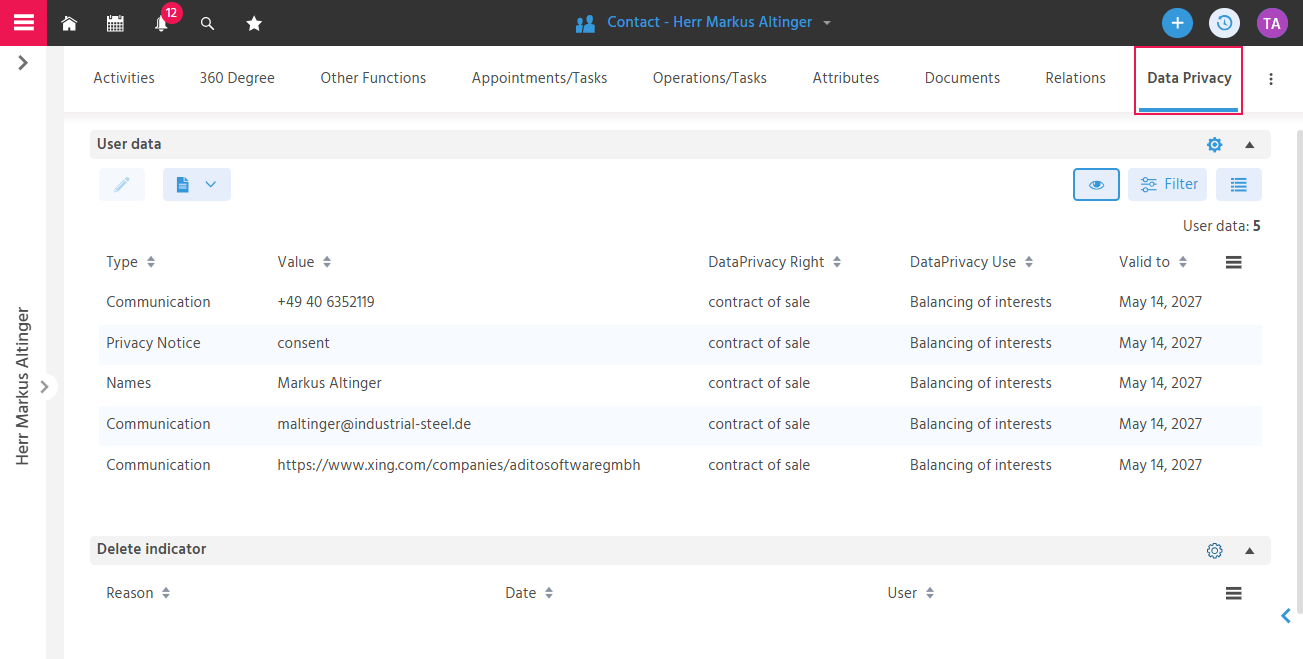
The information is captured in the MainView in the "Data Privacy" tab.
Data Protection-Relevant Data
Data protection-relevant data includes:
- 🪪 Names (Salutation, First and Last Name)
- 📫 Address (usually the private address, not the company address)
- ☎️ Communication (E-Mail, phone, mobile)
- 🎂 Date of Birth
- 🏷️ Attributes that are flagged as data protection-relevant
- 📝 Privacy notice, for capturing a privacy notice
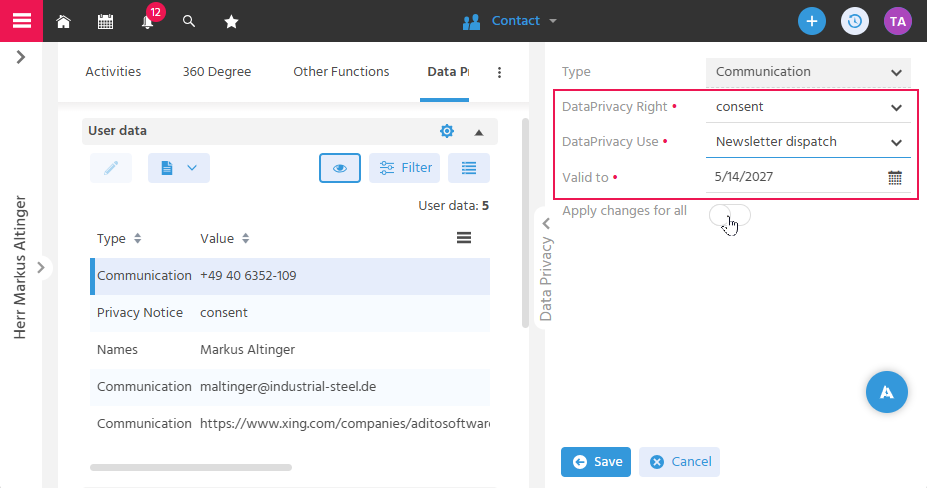
All data protection-relevant data that can be captured on a contact record is listed in the MainView in the "Data Privacy" tab. For each item, the legal basis, purpose of use, and validity period must now be captured.
Legal Basis
The legal basis (see GDPR Art. 6) forms the foundation of data protection-compliant data capture. It is captured in the "Data Protection Law" field.
- "Consent" - It is documented whether the person has consented to the processing of their data for a specific purpose.
- "Purchase Contract" - It is documented whether the personal data is required for the processing of a purchase contract.
Purpose of Use
The purpose of use (e.g., balancing of interests, newsletter distribution, advertising consent) documents why the information was captured and that it may only be used within that scope. The purpose of use is captured in the "Apply Data Protection" field.
Validity Period
Personal data may only be stored in accordance with the GDPR for as long as necessary for the respective purpose.
Retention periods can thus also be documented, for example, when personal data must be stored for a certain period to comply with deletion deadlines or retention obligations (e.g., application documents of a successful applicant must be retained for 3 years).
"Apply Values to All Information"
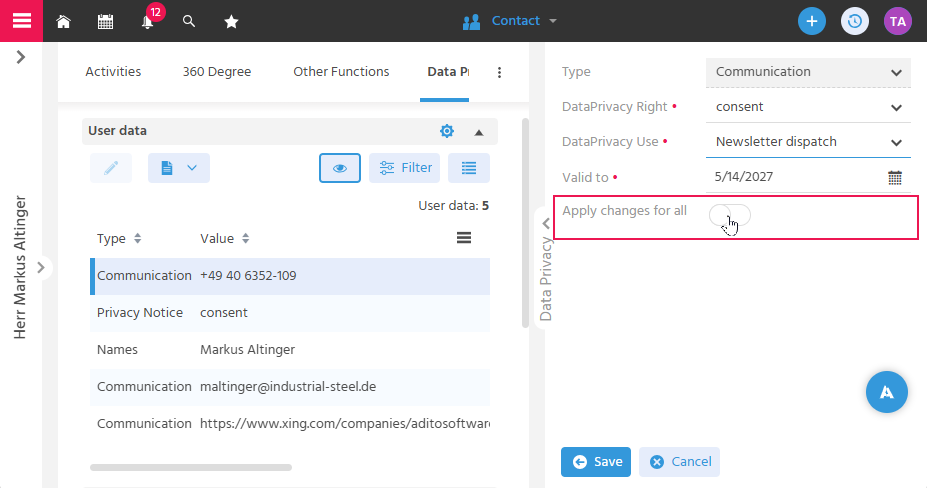
To reduce duplicate maintenance effort when documenting data protection-relevant information, changes can also be applied to other items.
To achieve this with a single click, use the toggle button "Apply changes for all". When activated, the currently captured legal basis, purpose of use, and validity period are applied to all data protection-relevant data in the "User Data" table.
Documenting the Privacy Notice
A signed privacy notice is stored in the system so that the written proof is documented on the contact.
The privacy notice is uploaded in the "Data Privacy" tab.
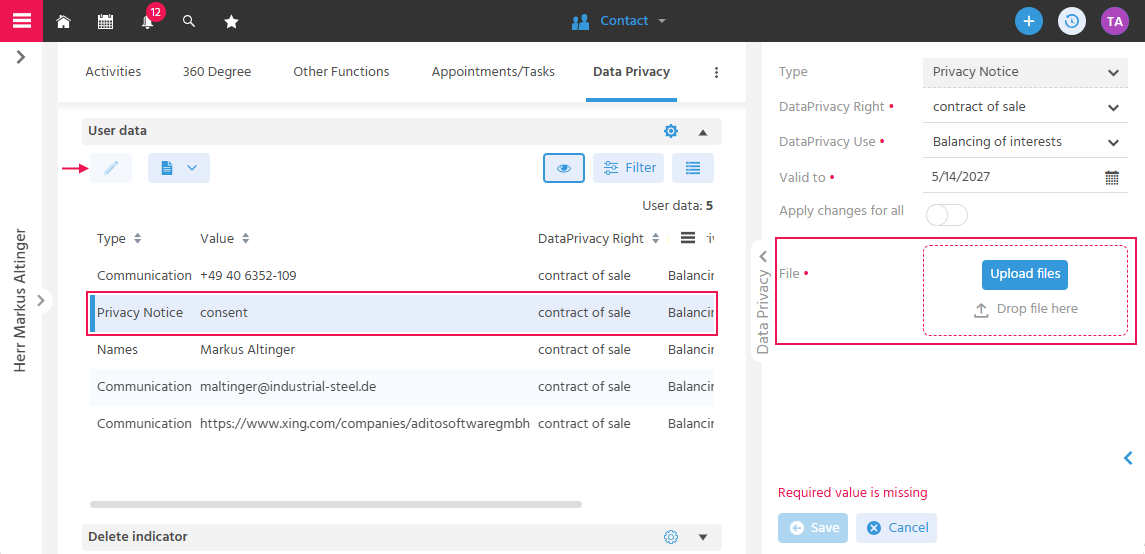
Uploading the Privacy Notice Initially
Initially, the contact receives the value "Consent pending" for the type "Privacy Notice". When the privacy notice is uploaded and saved with information on legal basis, purpose, and validity, the value is set to "Consent".
The uploaded document can be found in the "Documents" tab. The "Display in Preview" flag is automatically set to YES for the document and cannot be edited by the user.
Updating the Privacy Notice
To update the privacy notice, a new document can be uploaded via the same method.
The old privacy notice remains in the "Documents" tab, where the "Display in Preview" flag has been set to NO and is now editable again.
The new privacy notice is stored with the non-editable preview flag set to YES.
Generating the Information Report
To fulfill the obligation to provide information under the GDPR, an information report is generated once a contact has been recorded and provided to the data subject. This ensures transparent communication to the person about what data has been captured about them. The information should also be available in machine-readable format.
The information report on data collection maps all relevant data of a contact person for disclosure in accordance with Art. 13 GDPR. It should also be documented whether the contact data originates from an external source and, if applicable, whether the contact data has been passed on to third parties.
Creating the Information Report
If, for example, the contact details of a private individual are saved in the system during a phone call, there is an obligation to send the contact an information report.
To create the information report, the "Information Report" Action can be found in the "Data Protection" tab above the "User Data" table.
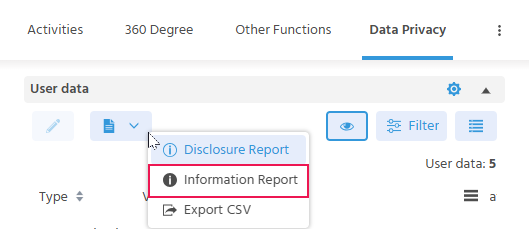
Query Regarding Data Transfer to Third Parties
As part of creating the information report, a query is made as to whether data has been passed on to third parties. The information report can be created for the following three options:
-
The data was not passed on to third parties.
- The value "None" is entered in the "Transfer" field.
- (The "Recipient" and "Guarantees" fields remain inactive.)
-
The data was passed on to domestic recipients.
- The value "Domestic" is entered in the "Transfer" field.
- The recipient to whom the data was transferred is selected in the "Recipient" field.
- (The "Guarantees" field remains inactive.)
-
The data was passed on to recipients abroad.
- The value "International" is entered in the "Transfer" field.
- The recipient to whom the data was transferred is selected in the "Recipient" field.
- In the "Guarantees" field, it is documented whether a data protection agreement or sufficient guarantees have been agreed upon with the destination country.
Query Regarding Data Origin
If contact data originates from external data sources, the origin of the data is specified in the "External Data Source" field.
Transmitting the Information Report
In PDF Format
The information report is generated as a PDF. It can therefore be sent by E-Mail or downloaded to be used in a third-party system.
In CSV Format
Pursuant to Art. 20 (1) GDPR, the contact person has the right to receive their stored data "in a structured, commonly used, and machine-readable format", thus ensuring data portability.
An export of all GDPR-relevant data can be created in a CSV file.
This CSV export is created using the "Export CSV" Action.
- Open the "Data Protection" tab in the contact.
- Execute the "Export CSV" Action.
- The CSV file download begins.
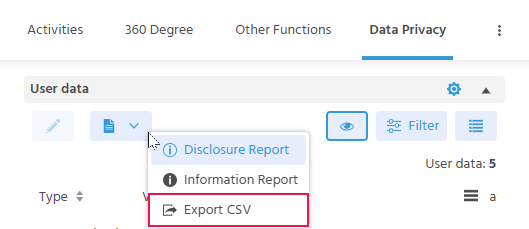
Manually Flagging Contacts for Deletion
If a person exercises their right to erasure under the GDPR, a deletion flag can be manually set on the contact record. This ensures that the contact is marked for deletion.
The "Add Manual Deletion Flag" Action can be found in the "Data Protection" tab. The setting of the deletion flag (who and when) is also documented here in the "Data Protection" tab and in the "Logs" tab.
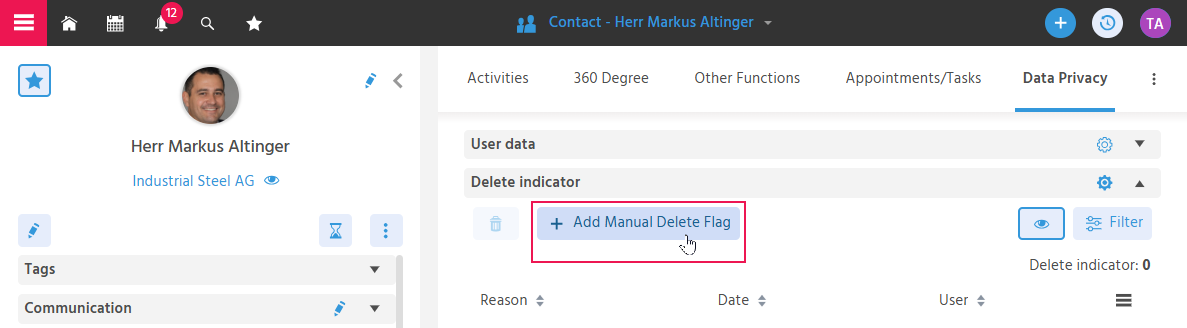
A contact calls and requests that their data be deleted and that they are not contacted again in the future.
Recommended approach:
-
Open the MainView of the contact and go to the "Data Protection" tab.
-
Execute the "Add Manual Deletion Flag" Action.
-
If necessary, also execute the Action for the contact's other functions.
ImportantIf a contact has multiple other functions, a notification is displayed that only this function of the contact will be deleted/anonymized.
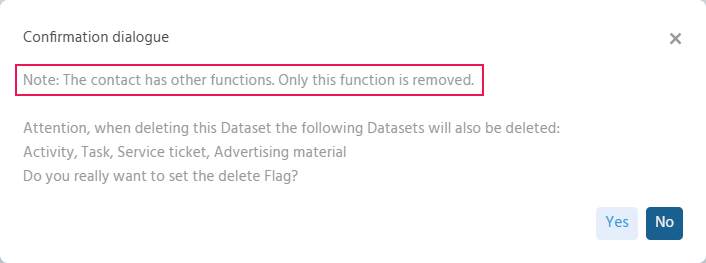
If it is required that all functions of the contact be deleted, the deletion flag may need to be manually set for each function to submit all of the contact's data to the deletion Process.
Automatically Flagging Contacts for Deletion
To ensure that personal data is automatically flagged for GDPR-compliant deletion without manual effort once its retention period has expired or when there is no legal basis, the system can automatically set defined deletion flags.
These deletion flags are set by a Process on contacts that meet the condition.
The setting of the deletion flag (which deletion flag and when) is documented in the "Data Protection" tab and in the "Logs" tab.
Deletion flags set by the system can be defined by users with the "GDPR" role.
Restricting Interaction with a Contact Flagged for Deletion
The interaction options (e.g., the "Write E-Mail" Action) on a contact record are restricted when that contact is flagged for deletion. This ensures that during the time until deletion, only GDPR-compliant interactions can be performed with the record.
When a deletion flag is set,
➡️ the status is set to "Marked for Deletion" and
➡️ the Actions for interaction become inactive, so that no further communication can take place.
The contact is deleted/anonymized as soon as the deletion Process runs the next time after the deletion delay has expired (manually or on a scheduled basis). The deletion delay is a period that must have elapsed from the time the deletion flag was set before the contact can be deleted. Within this period, the deletion flag could be removed again if necessary.