Performing Analyses
Marketing Managers can perform analyses regarding bulk mails, e.g., to check whether the bulk mail has been sent successfully, to better understand the target group, or to inform stakeholders about the success of the measure.
When bulk mails are deleted, all associated data from the statistics is also deleted. Bulk mails should therefore only be deleted when the data in the statistics should not be taken into account, e.g., when a bulk mail was created for test purposes. It is recommended to map via the authorization concept who should be able to delete bulk mails.
Identifying Undeliverable E-Mails and Error Causes
It is possible to identify which recipients did not receive the e-mail and why, so that the causes of the delivery failure can be resolved.
Tab "Maillogs"
Maillogs Record
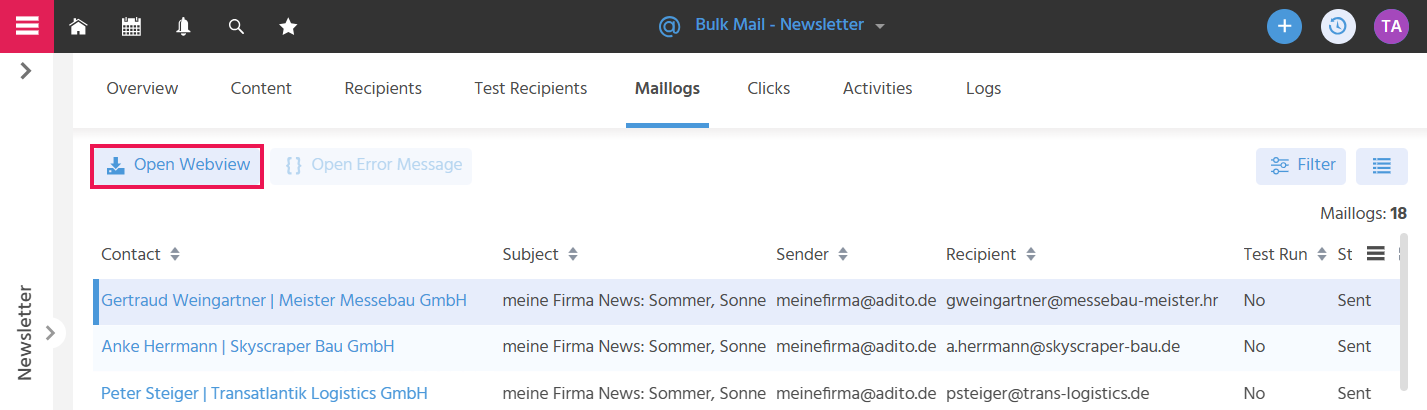
In the "Maillogs" tab, a record is stored for each sent e-mail - whether test e-mail or regular e-mail - that informs whether the delivery was successful or not.
The following status values exist in the Maillogs record:
- Sent: The sending process is complete and the e-mail has been sent to the recipient.
- Failed: The sending process aborted due to technical problems; the e-mail could not be sent to the recipient.
- Invalid communication setting: The sending process was not executed because it was recognized that the communication setting/interest prohibits sending the e-mail.
- Blacklisted: Before the message was sent, it was detected that the recipient is on a sender blacklist (defined in the Context "Email Filter" Type: Blacklist).
- Bounce (Hard/Soft): After the e-mail was sent, a hard or soft bounce was reported.
The recipient always displays the status of their most recent Maillogs entry.
📖 → Further information on communication settings and e-mail filters (blacklist, bounce) can be found here.
Opening the Error Message for a Failed Delivery
In the "Maillogs" tab, the Action "Open Error Message" is available, which becomes active as soon as a Maillogs record with status "Failed" has been selected. If the entire bulk mail has failed, the log can be found in the Dashlet "Bulk Mail Error Log".
Key Figures
In the "Overview" tab,
- in the "Key Figures" area, information can be found on:
- how many e-mails were delivered (absolute and in percent). Clicking on the key figure opens the "Maillogs" tab and only delivered e-mails are displayed that are not assigned to a test run.
- how many bounces were returned (absolute and in percent). Clicking on the key figure opens the "Maillogs" tab and only bounced e-mails are displayed that are not assigned to a test run.
- in the "Bounces" area, an evaluation of the bounces as a pie chart can be found.
Checking the Success of the E-Mail Subject
In the "Overview" tab, in the "Key Figures" area, it is evaluated how many recipients opened the e-mail (absolute and in percent), in order to see which topics generated attention. Clicking on the "Opened" key figure opens the "Maillogs" tab and only opened e-mails are displayed that are not assigned to a test run.
In order to evaluate whether an email has been opened by the recipient, the tracking pixel must be activated in the E-Mail-Editor. Information on this can be found here.
Checking the Success of the E-Mail Content
There is the option to evaluate which links were clicked how often, in order to see which content convinces which recipients and thereby fully exploit revenue potential with customers through more targeted customer support.
Tab "Clicks"
In the "Clicks" tab, all clicks by recipients on links within the bulk mail are listed. The grouping options can be used to find out, for example, how often a specific link was clicked and whether it was clicked multiple times particularly often by recipients.
Key Figures
In the "Overview" tab, in the "Key Figures" area, information can be found on how many clicks and unique clicks there were (absolute and in percent).
- Clicking on the "Clicks" key figure opens the "Clicks" tab.
- Clicking on the "Unique Clicks" key figure opens the "Maillogs" tab and only delivered e-mails are displayed in which a link was clicked and that are not assigned to a test run.
Analyzing Bulk Mail Unsubscriptions
In the "Overview" tab, there is the key figure "Unsubscriptions", which evaluates how many people unsubscribe from promotional e-mails, so that action can be taken in response to the unsubscriptions (e.g., by adjusting the content of a newsletter). Clicking on the key figure opens the "Maillogs" tab and only e-mails are displayed where the unsubscribe link was clicked and that are not assigned to a test run.
Analyzing Opening Times
In the "Overview" tab, in the "Opening hours" area, the system tracks when the e-mails were opened, so that the sending time can be optimized if necessary.
For opening times to be evaluated, the tracking pixel must be activated in the E-Mail-Editor. Information on this can be found here.
Analyzing Opening by "Device Type"
In the "Overview" tab, in the "Device Type" area, there is a graphic showing how many e-mails were opened with which device, so that the structure of the bulk mails can be optimally adapted to the requirements depending on the main device type.
Opening the Web View
For each Maillogs record, a web view can be opened in order to understand how the e-mail looks for the respective recipient. For this, the Action "Open Webview" is available, which becomes active as soon as a Maillogs record has been selected.
Placeholders are always replaced with the current state from the system. If, for example, the last name of the recipient was adjusted after sending the e-mail due to marriage, the new last name is displayed in the web view, but the old last name is still found in the sent e-mail.