Using Browser Functions
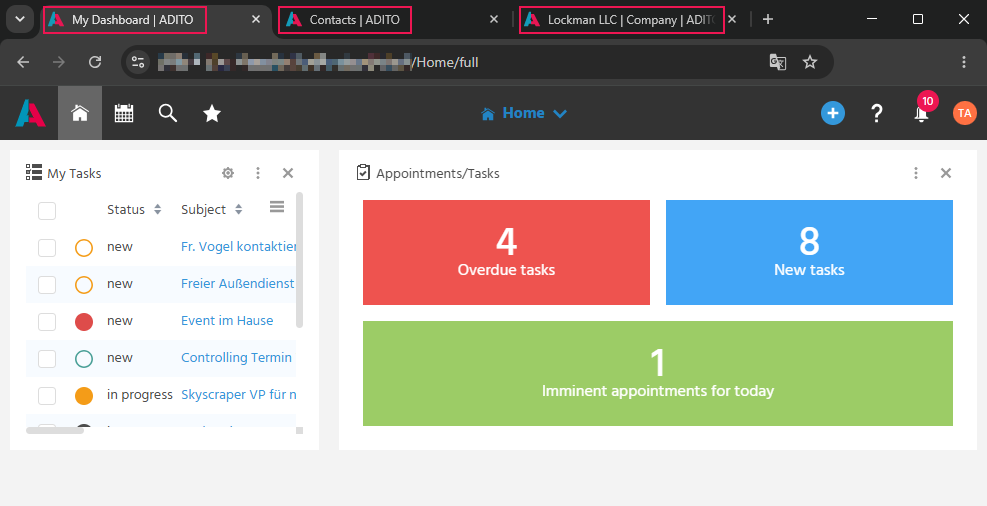
Understanding the Browser Tab Title
The browser tab shows a meaningful title, so that when working with multiple tabs it can be quickly recognized which tab shows which area of the system. In addition, the title in the upper area of the client (e.g., "Company - Bucher Unternehmensgruppe") also indicates the current area in the system.
Copying the ADITO Link of a Record
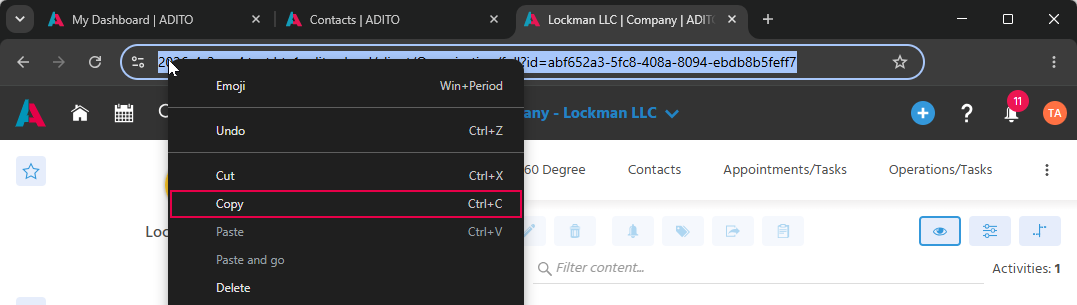
The direct ADITO link (deep link) of a record can be copied, so that it can be forwarded to colleagues via E-Mail or chat, allowing them to go directly to the record or filter. The link is directly visible in the browser's address bar as soon as a record is open in the MainView.
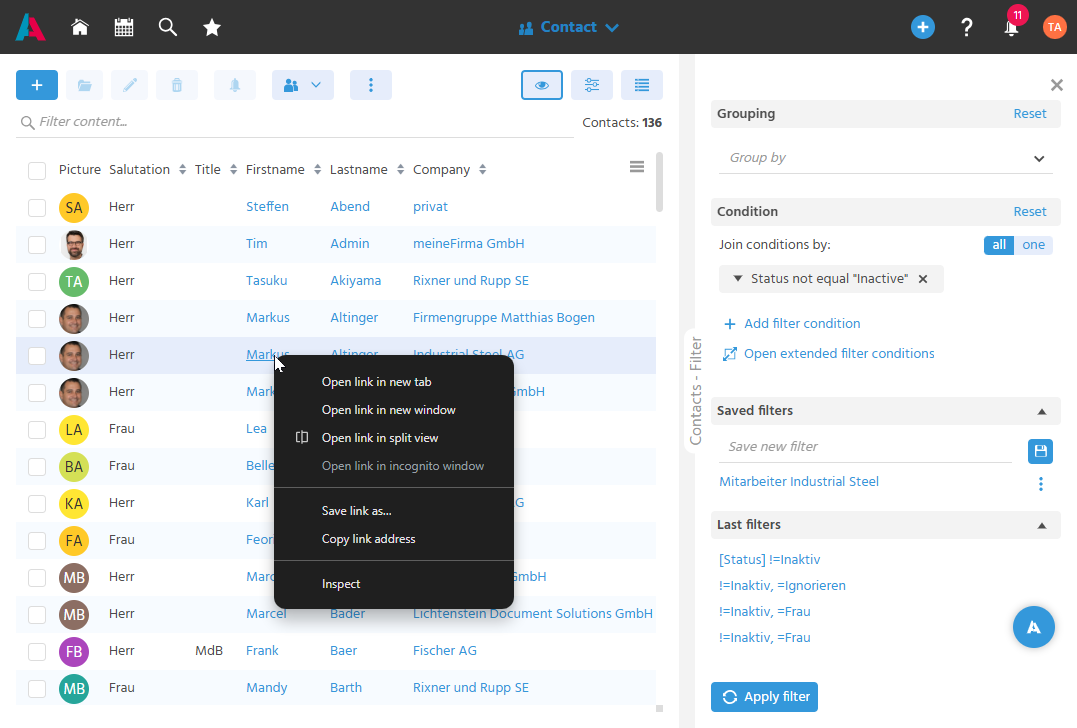
Within the client, ADITO links can be recognized by their blue font color and can be copied via right-click through the context menu ("Copy link address").
This link is also automatically copied when the "Share" Action is used via the Floating Action Button.
Using Multiple Browser Tabs Simultaneously
Multiple records can be opened in parallel browser tabs, so that it is possible to switch between different records and compare information.
A link can be specifically opened in a new tab by right-clicking and selecting "Open link in new tab". Other ways to open ADITO in a new tab are: the middle mouse button, pressing the mouse wheel over the link, or copying the link and pasting it into a new tab, etc.
By default, ADITO can automatically open a new browser tab when a link is clicked. Automatically opening in a new tab can be activated in the settings in the User Menu via the "Open in new tab?" option.
Using the Browser History
Navigation is possible using the browser's forward and back buttons, so that the navigation path in the system can be easily retraced.
Activating Contrast Mode
Contrast mode can be activated in the settings in the User Menu via the color scheme (Light, Dark, Contrast), so that the interface is more readable in poor lighting conditions or for visually impaired users. In contrast mode, gray elements of the interface are displayed darker.
Adjusting the Zoom Level
The zoom level can be adjusted in the browser, so that the interface can be matched to the screen and visual ability, e.g., by holding down the [Ctrl] key and setting the desired zoom factor with the mouse wheel.
Project Manager Sales Executive Marketing Manager Service Agent