Personalizing the Client Appearance
The appearance of the client can be personalized and adjusted in the user settings.
Choosing the Color Scheme
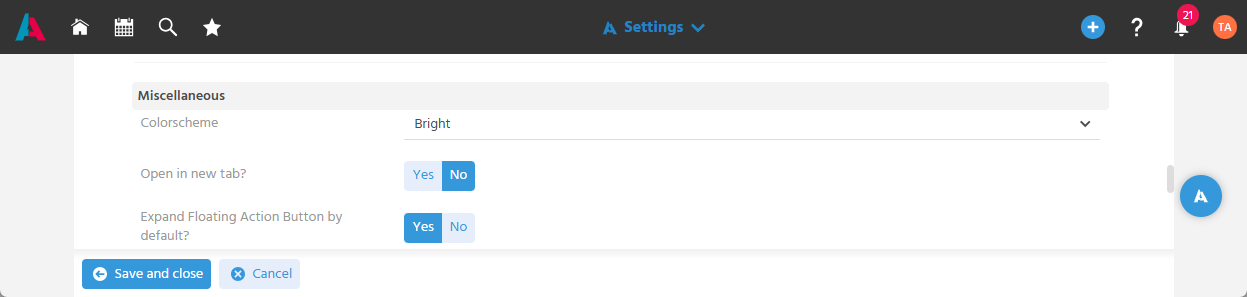
In the settings in the User Menu, different color schemes can be selected, so that the client can be adapted to personal viewing habits and environmental conditions in order to improve readability.
Enabling Opening in a New Tab
So that new browser tabs do not have to be opened using the usual browser method (right-click context menu, clicking with the mouse wheel, etc.), the "Open in new tab?" setting can be activated in ADITO. This means every link that is clicked is opened in a new tab.
Defining the Display of the Floating Action Button
The display of the Floating Action Button can be configured in the User Menu, so that it is always shown expanded or collapsed.
Saving Further Display Settings
In addition to the setting options in the User Menu, further individual display settings are saved for the user as soon as they make these settings directly in the system. This means these display settings can be saved permanently, so that the personal work surface does not have to be reconfigured after every login. These settings are saved automatically per user. The state remains saved until the setting is actively changed again.
Expanding or Collapsing Areas
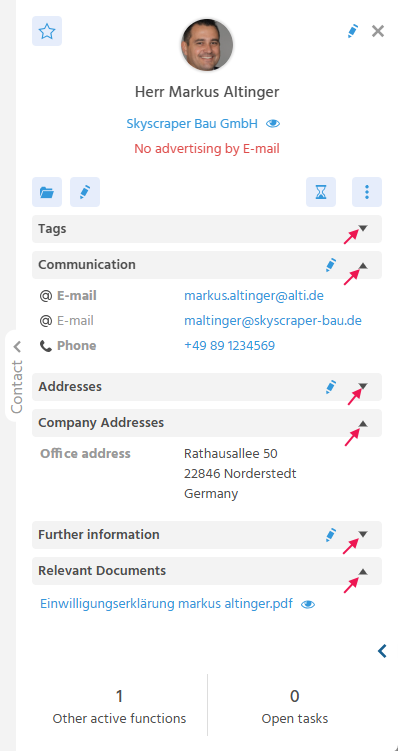
The individual areas that can be expanded or collapsed via arrow buttons in the Preview or in the filter can be permanently expanded or collapsed. This makes it possible to hide information that is not needed for daily work, thereby making better use of the space for other information.
Showing or Hiding Columns
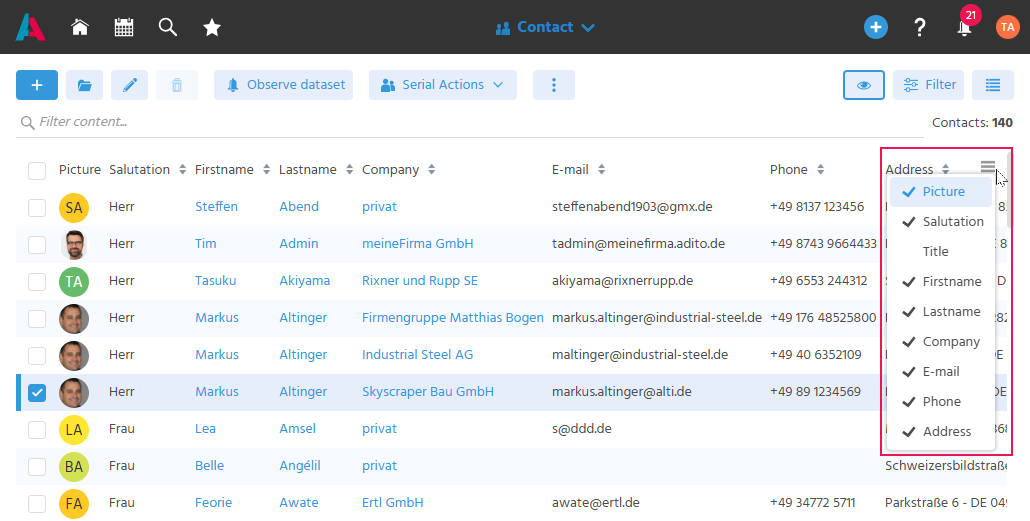
When columns in the FilterView are shown or hidden, this is also saved for the user. This means the tables of the FilterViews can be customized to display only the information that is actually needed.
Showing or Hiding the Action Bar
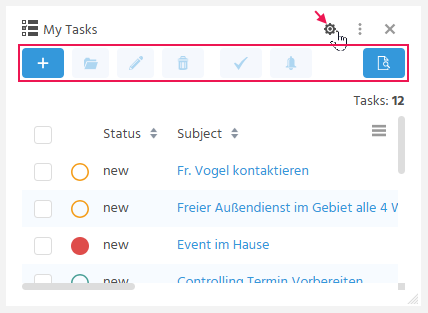
The Action bar generally includes the Actions "Create", "Edit", "Open", etc., and is used, for example, on Dashlets. The Action bar can be shown or hidden using the gear button, in order to display the Actions only when needed and otherwise make maximum use of the space for other information.
Configuring the Topic Tree in the Global Menu
In the User Menu, the topic tree configuration can be used to define which Favorites from the topic tree are displayed or which presets are applied, so that the relevant areas can be accessed more quickly.
📖→ Further Information on using the topic tree