Digitally Sign a Document (SIGN8)
To allow documents to be signed without printing and postal delivery, a digital signature can be requested from ADITO xRM. The signature itself is processed via the partner SIGN8. The signing persons check the document in SIGN8, authenticate themselves via a code, and sign digitally.
In ADITO xRM, the digital signature is available for offers by default. How the signature for an offer is requested and tracked is described under Having the Offer Signed Digitally. In principle, the digital signature can also be integrated in other places in ADITO xRM.
To be able to use the digital signature, SIGN8 must be connected to ADITO xRM. If required, a ticket of the type "SIGN8 License Request" must be created in the xRM pool.
Start the Signing Process and Log In to SIGN8
As soon as the signature has been requested in ADITO xRM, a personal link is created for each signing person, which can be sent by e-mail. Via this link, the signing person reaches a SIGN8 page on which the document to be signed is displayed.
Check Name and Documents
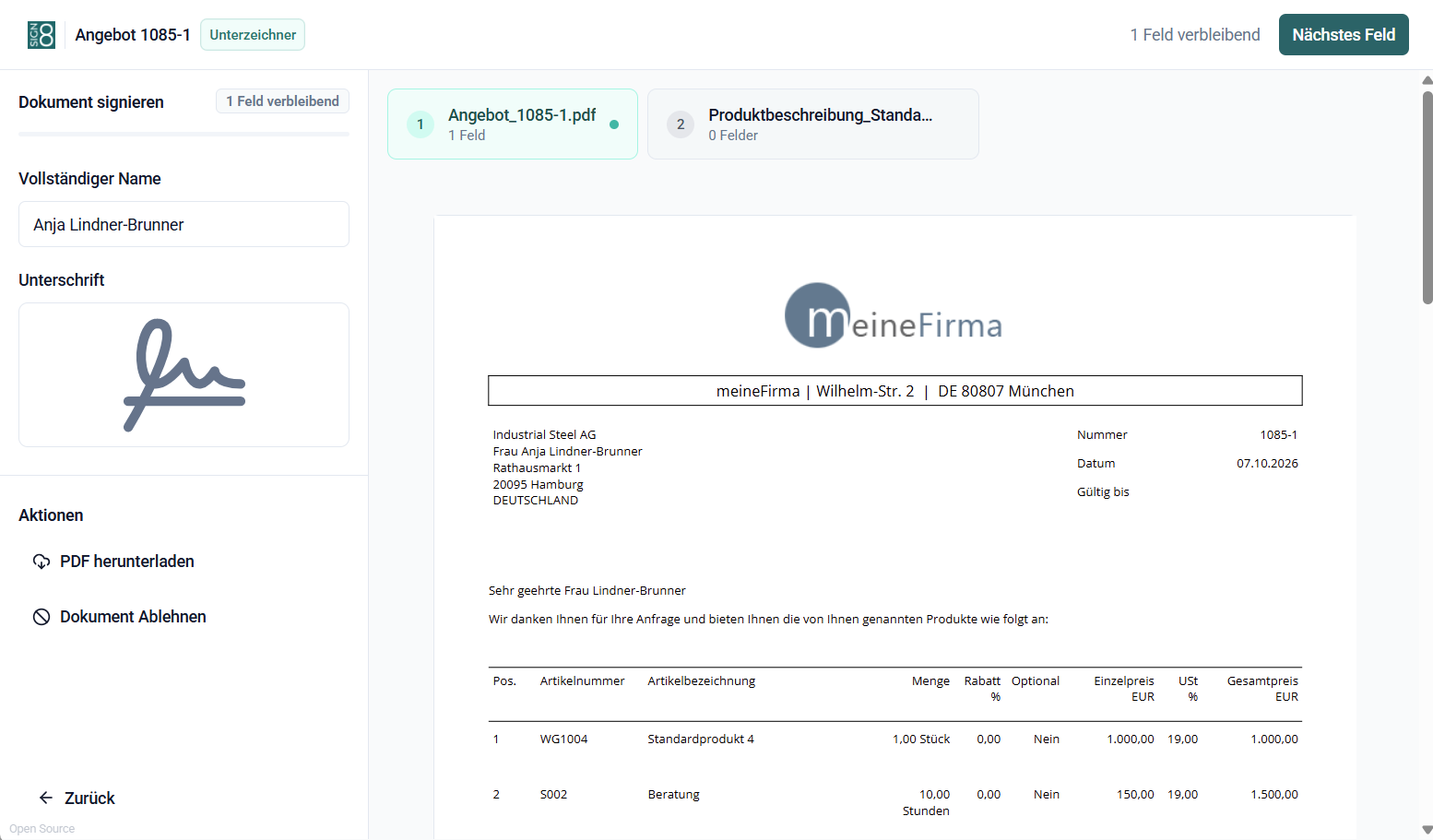
The signing person first checks whether their name is displayed correctly in the "Full name" field. If not, it should be corrected, since the name also appears in the signing certificate at the end, which can be used in legal disputes.
The document to be signed must then be checked for correctness. Further documents with supporting information that do not have to be signed may be available. For offers, these are, for example, all PDF files from the "Documents" tab of the offer record for which "Show in Preview" is enabled. Although they are not signed separately, a signing certificate is also created for these documents once all signing persons have signed.
Sign Document
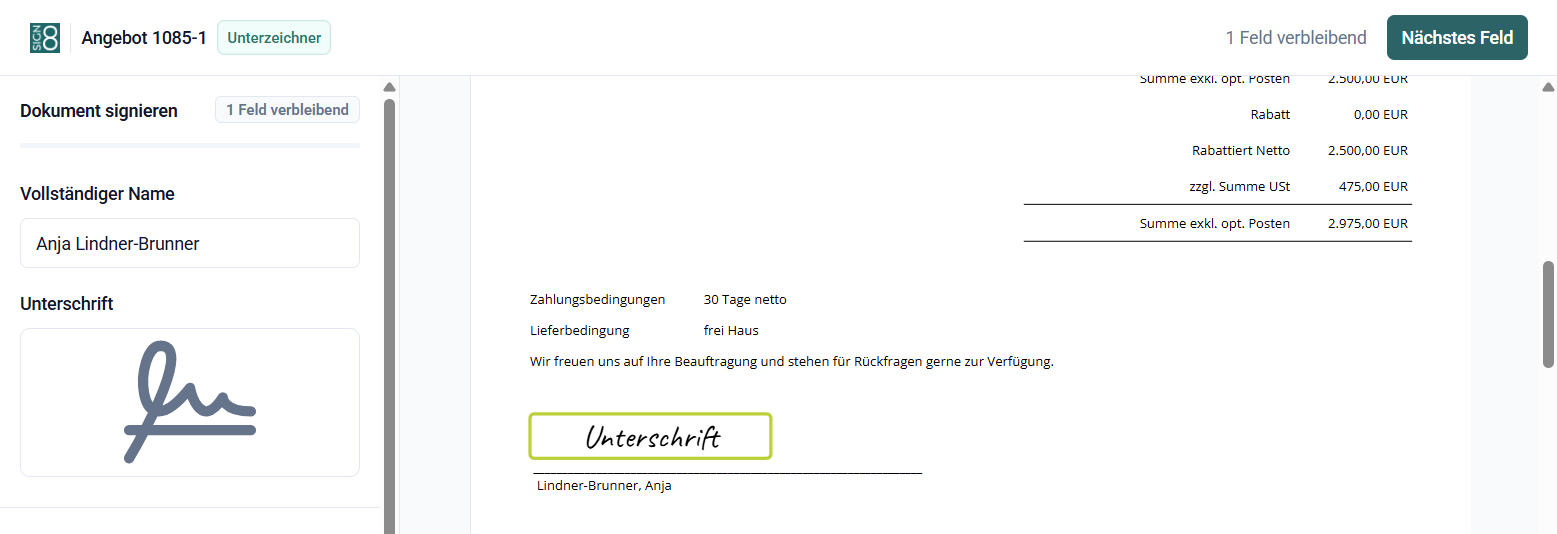
To sign, the signing person clicks "Signature". (Clicking the "Next field" button leads automatically to the signature field.) An overlay opens in which the signing person can decide how they want to sign:
- "Draw" tab: Signing directly with the mouse or touchpad.
- "Type" tab: Handwriting-like signature created by software based on the name.
- "Upload" tab: Uploading a scan or photo of one's own signature.
The overlay is completed with the "Sign" Action. This transfers the signature from the overlay to the signature field on the document. The "Sign" Action is then executed at the top right of the SIGN8 main page. Depending on the selected type of signature (simple, advanced, or qualified electronic signature) and the authentication method, the signing person is asked to confirm their identity by e-mail, by phone, or with an identity document. Once all signatories have completed this step, all signatories receive an e-mail with the signed document as a PDF.
The authentication must be completed within the specified time of 5 minutes. If this is not possible, the signing process can be restarted in the overlay with the "Resend code" Action.
Download Document
All displayed documents can be downloaded as PDF. The document to be signed is always downloaded without a signature, even if the signature field on the document has already been filled, since at this point the document with the signature has not yet been finally confirmed.
Reject Signature
If a signing person does not want to sign the document, they execute the "Decline document" Action. In an overlay that opens, they can give a reason why they do not want to sign. The rejection and the reason given are transmitted to ADITO xRM.
Where this information is displayed for offers is described under Following Up on the Digital Signature.
SIGN8 Digital Signing