Follow Up on Offer
The Sales Executive can keep track of open offers, create versions of offers based on customer feedback, and get an overview of linked receipts.
Keeping Track of Open Offers
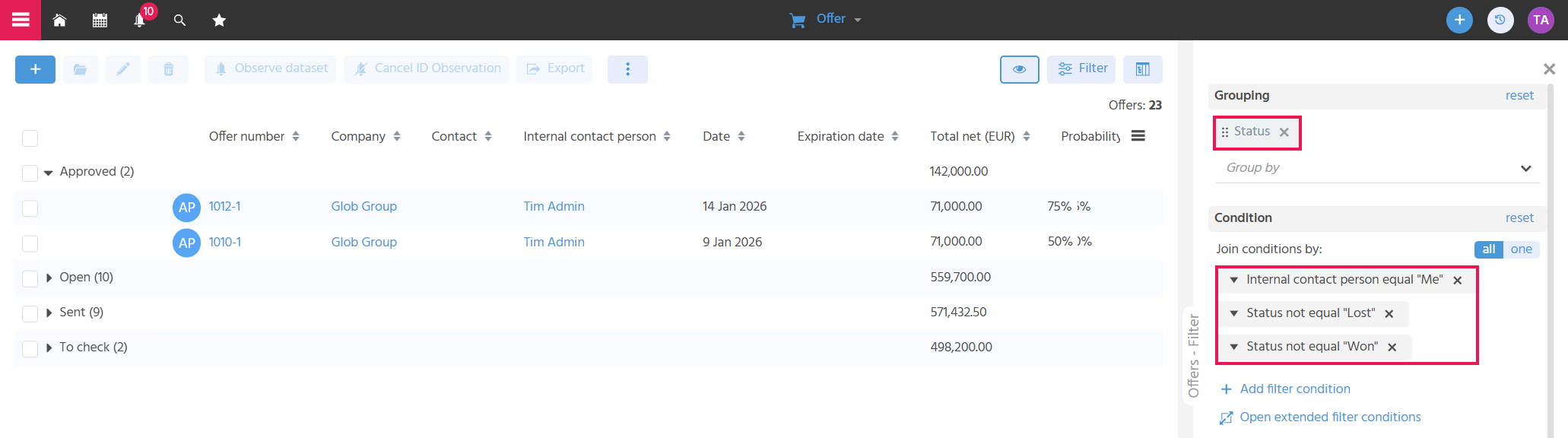
Grouping and filters can be used to display open offers clearly.
To keep a clear overview of your own open offers, it is best to group by status and filter as follows:
- "Internal Contact Person" equal "Me"
- Status not equal "Won"
- Status not equal "Lost"
Following Up on the Digital Signature
Status on the signatory
The signature status is displayed for each stored contact in the "Digital Signature" tab/"Signatories" area.
- Pending: The signatory has neither signed nor rejected the offer yet.
- Done: The signatory has signed the offer via SIGN8.
- Refused: The signatory has rejected the offer via SIGN8.
If a signatory rejects the signing process, the reason they provided is additionally displayed in the "Reason for Rejection" column.
Status of the digital signature
The overall signature status is displayed in the "Digital Signature" tab/"Digital Signature" area.
- Draft: before sending.
- Active: after sending, before the signatures have been completed.
- Finished: All signatories have signed.
- Refused: At least one signatory has refused.
Status on the offer
The following offer statuses are set automatically by the digital signature:
- Won: All signatories have signed the offer.
- Lost: At least one signatory has rejected the offer.
Viewing the signed offer
As soon as all signatories have signed the offer, the signed version of the offer including the signing certificate is automatically filed as a PDF on the offer in the "Documents" tab.
Creating a New Offer Version
The "New Offer Version" Action can be found in the "Further Actions" in the Preview of an offer, so that renegotiated offers can be sent and filed with the same offer number, but a new version number. All master data of the previous version is applied, except for probability and expiration date. The status is set to "Open". In addition, all offer items are applied.
If a new offer version is not created from the most recent version, the system indicates this and it must be confirmed that the older version is to be used to create the most recent version. The respective previous and next version are linked in the Preview of an offer.
When a new offer version is created, the offer number does not change, but the version number does. For example, creating a new version from the offer 1037-1 results in the offer 1037-2.
If the function for displaying the previous and next version in the Preview is implemented in a system subsequently, it only works for newly created offers. For existing offers with several offer versions, the previous and next versions are still not displayed.
Viewing and Opening Receipts Linked to the Offer
Receipts linked to the offer can be viewed in the "Receipts" tab, so that it is immediately clear which receipts already exist for this offer. The desired receipt can be opened directly if necessary.
The Action bar in the "Receipts" tab is only active if the offer has the status "Won".
Closing an Offer
An offer is marked as "Won" or "Lost", so that it is clear that the offer is closed and whether the sale was successful or not.
As soon as the offer status is set to "Won" or "Lost" and no other open offers are linked to the linked opportunity, an overlay is displayed asking whether the linked opportunity should also receive the status "Won"/"Lost". If the overlay is confirmed with "Yes", the EditView of the opportunity opens, in which the reason for closing must still be selected. If the opportunity has both won and lost offers, the status of the opportunity is set to "Partially won".
Won and lost offers can no longer be edited.