Send Offer Document
The Sales Executive can send the offer document either by post or by e-mail, or they can send a link via which the recipient can sign the document digitally.
Offers with the status "Sent" cannot be edited, but the status can be set to "Won" or "Lost".
Sending the Offer by Post
The offer can be sent by post, so that it can be delivered by post to customers who prefer postal delivery. To do this, the offer is either downloaded via the "Documents" tab and printed, or printed directly via the "Offer Document" tab. As soon as the offer has been sent, the status must be set to "Sent" manually in the Preview of the offer.
Sending the Offer by E-Mail
The offer can be sent by e-mail directly from the system, so that it can be delivered digitally without having to download it manually and insert it into an external e-mail program.
The "Dispatch as E-Mail" button in the offer Preview opens a SmallEdit in which details about the e-mail can be entered and in which the e-mail text can be predefined either via a document template or via AI. An overlay opens in which the recipient, signature, subject, and content can be checked and revised if necessary. The offer is automatically attached as a PDF attachment. Via the "Download Generated E-Mail" Action in the overlay, the e-mail with the offer as an attachment is opened in the regularly used e-mail program and the status of the offer is set to "Sent".
The "Dispatch as E-Mail" button is only active if an offer document exists.
Having the Offer Signed Digitally
A digital signature can be requested for an offer and the signature status can be tracked. The signed version is filed automatically on the offer and sent to the signatory by e-mail.
The digital signature is processed technically via the partner SIGN8.
Preparing the Digital Signature
Before requesting the digital signature, various details can be entered in the "Digital Signature" tab, so that information relevant for sending can be provided.
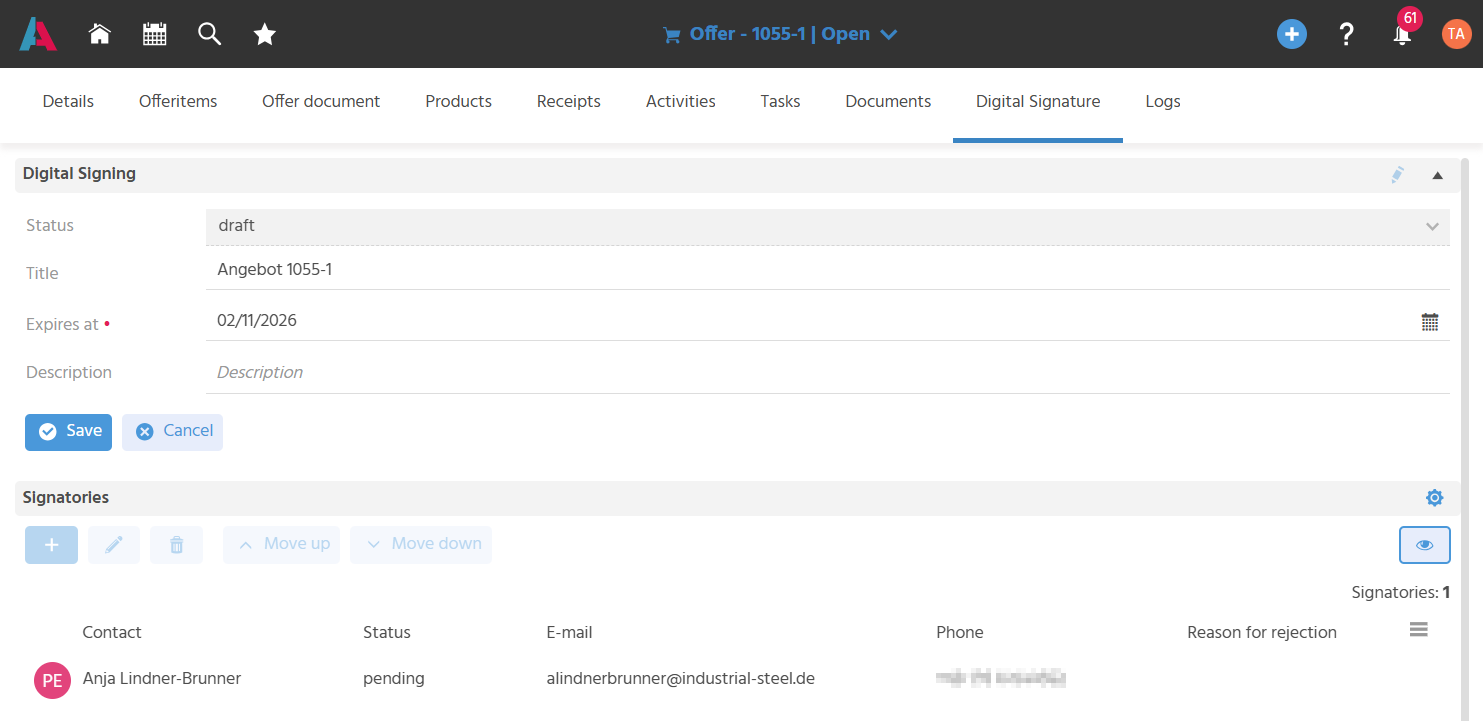
1. Fields related to the digital signature
- Status: The status is set exclusively automatically.
- Title: Initially, the text "Offer offer number" is prefilled here. The title can be edited and is used later as the subject of the e-mail with which the offer is sent.
- Expires at: Initially, the offer date + 4 weeks is entered here. However, the date can be adjusted if necessary. The digital signature can be requested up to and including this date. The offer can be edited in SIGN8 up to one day before that date.
- Description: Information that the signing persons should receive at the beginning of the signature process can be entered in the "Description" field.
2. Signing contacts
In the "Digital Signature" tab, the contacts who are to sign the offer are captured in the "Signatories" area. If a valid e-mail address and a valid mobile number are already stored for the contact listed as the recipient in the offer, this contact is automatically applied as a signatory when the offer is created. Further signatories can be added via the create button.
3. Add further documents for review
All PDF files in the "Documents" tab for which "Show in Preview" is enabled are additionally displayed to the signatories for review during the signing process.
Requesting the Digital Signature
The "Request Signature" Action in the Preview of the offer opens a SmallEdit in which a template for the e-mail to be sent is selected. After saving:
- The status of the offer is automatically set to "Sent". The Action bar in the "Signatories" area is grayed out in the status "Sent", which means that contacts can no longer be added, edited, or deleted.
- The overall signature status in the "Digital Signature" tab/"Digital Signature" area is set to "Active" (before the signature is requested, the status is "Draft").
- The status on the signatory records remains "Pending", as it was before the signature was requested.
- An e-mail is created for each signatory, containing a link that can be used to start the signing process at SIGN8.
-
Information on creating an e-mail template including a signature link can be found under the links.
-
A download is created for the e-mails. If the "Always open files of this type" Action is executed, the automatically created e-mail will in the future open straight away if there is only one signatory. If there are several signatories, a ZIP folder will be created in the downloads. In this case, the e-mails in the folder must be opened manually.
If the recipient loses the link, the contact whose link is needed can be selected in the offer in the "Digital Signature" tab, and the link can be copied to the clipboard using the "Copy Signinglink" Action (Further Actions button in the Preview of the signatory).