Using the Preview
The Preview displays important or frequently used information of a record that should be quickly accessible for efficient work.
It is structured so that the header area contains an image (or icon), important data such as name and customer number, as well as the Further Actions needed to directly perform upcoming tasks such as editing or creating a new Activity. This is followed by a middle section with various areas. The Preview concludes with the footer area, which is used to display calculated key figures.
Toggling the Preview On and Off
The Preview of a record can be toggled on and off using the preview button with the eye icon in the Action bar of a FilterView, so that more space is available for the table or the detailed information as needed.
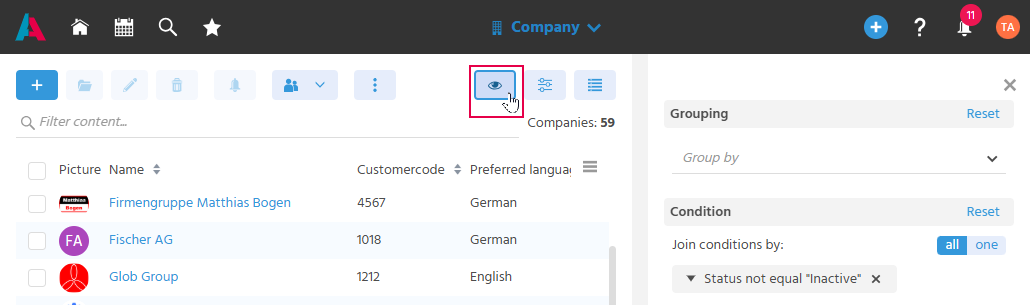
Opening the Preview
The Preview of a record is opened by clicking once on the desired row in the table of a FilterView.
Caution: do not click the link in the row, otherwise the MainView opens.
However, it is also possible to open the Preview of another record from within the Preview itself, by clicking the eye button there.
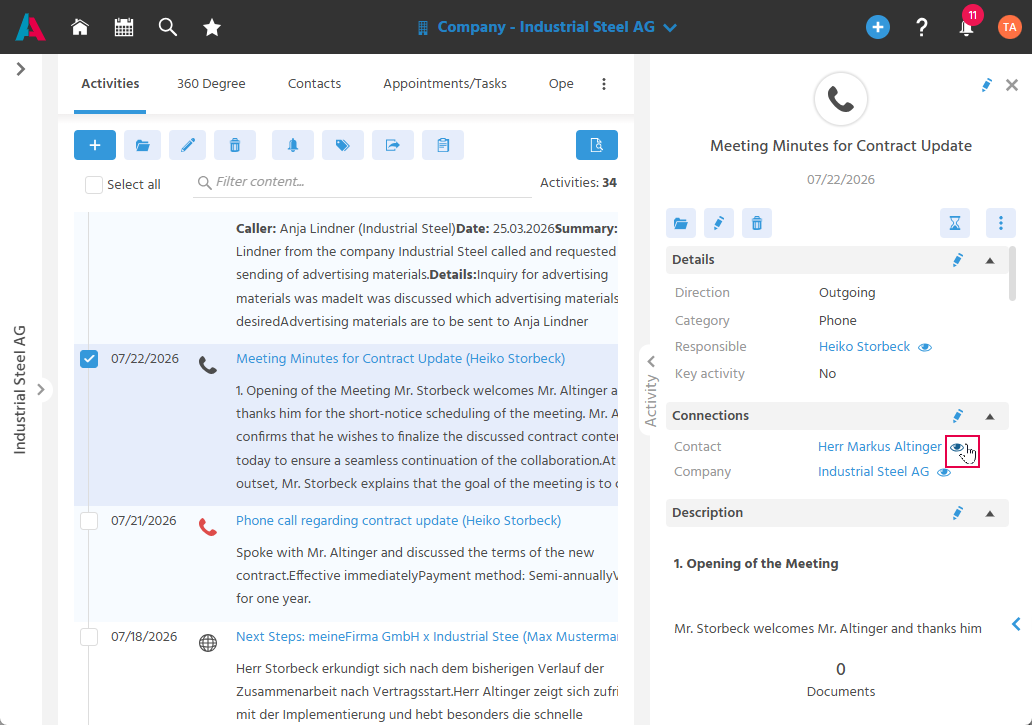
Enlarging the Preview
The Preview can be enlarged or reduced using the arrow button on the side of the Preview, so that detailed information can be read more easily without having to fully open the record.
Enlarging/Reducing the Preview
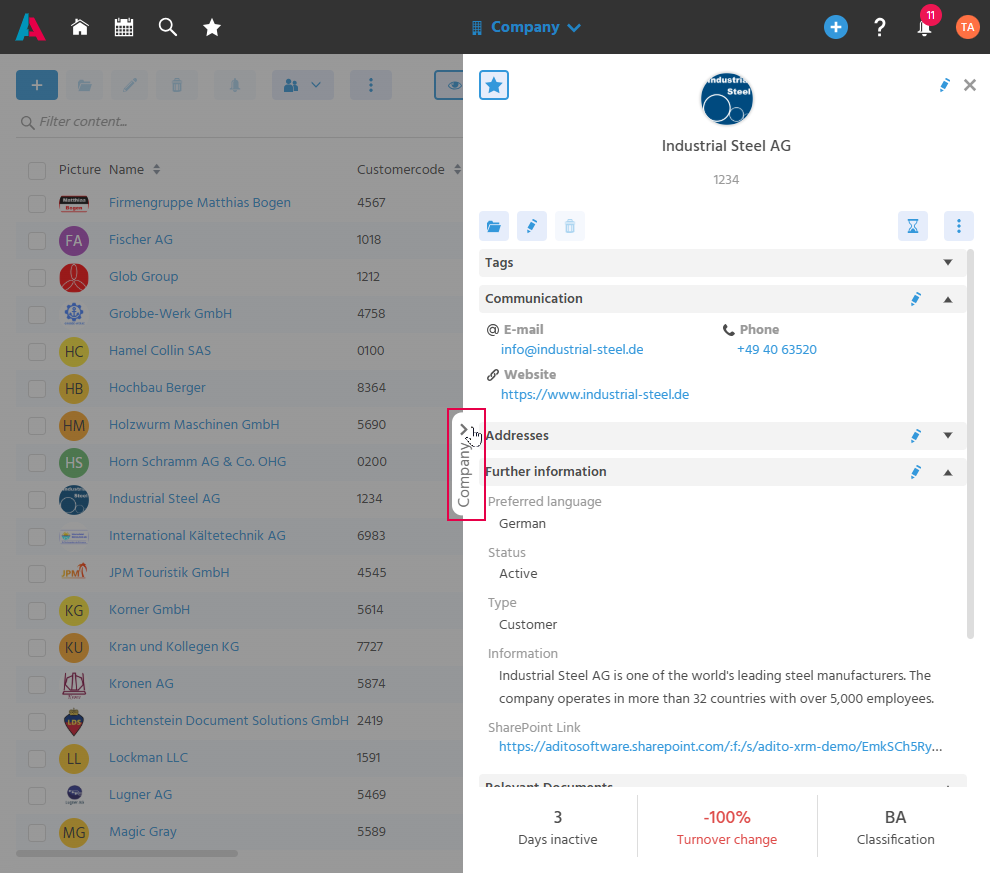
Opening a Record from the Preview
A record can be opened directly in the MainView via the folder button in the header area of the Preview, so that the complete information of the record can be accessed seamlessly from the brief overview.
Editing a Subsection in the Preview
Individual subsections of a record (e.g., communication, addresses) can be edited directly in the Preview using the pencil button on the respective area, so that quick changes can be made without having to open the full EditView.
Editing Master Data Directly
The master data of a record can be edited using the pencil button in the header area of the Preview. This opens the EditView, so that corrections can be made quickly and without detours.
Project Manager Sales Executive Marketing Manager Service Agent