Recording Business Trips
In the "Absences" tab, the SmallEdit for recording business trips can be opened. This function is only available to the creator of the settlement. There, the fields described below are available.
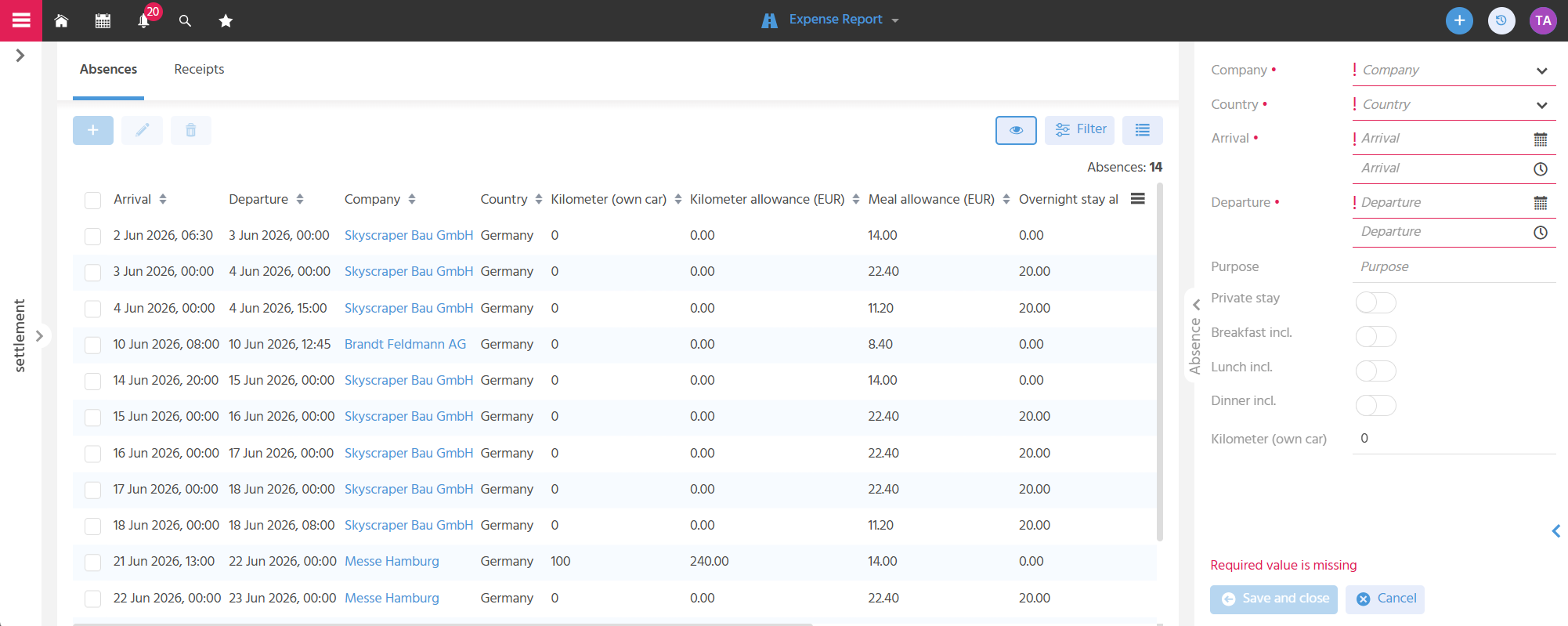
Selecting the Company and Country of the Visit
The Company is recorded so that it remains traceable later who was visited.
The Country in which the visit took place must be recorded, as this information is required to calculate the meal and overnight stay allowance.
Meal and overnight stay allowances vary in amount by country. This means that without specifying the country, the allowances cannot be calculated correctly.
§§→ Legal bases regarding the allowances can be found, among other things, under § 9 of the German Income Tax Act (EStG) and in the BMF circular on travel expenses abroad.
📖→ Information on how the allowances are stored in the system can be found here.
Specifying Arrival Date/Time and Departure Date/Time
The Arrival Date and Arrival Time as well as the Departure Date and Departure Time must also be recorded so that meal and overnight stay allowances can be calculated correctly. For the arrival and departure day, as well as for the days in between, individual records are created when saving.
Documenting the Purpose of the Trip
In the "Purpose" field, the business reason for the trip can be recorded (e.g. "Customer Appointment" or "Trade Fair Visit"), so that it can be proven in the event of a tax audit.
Specifying Overnight Stay Information
The "Private Stay" button must be activated if no overnight stay allowance should be calculated. If it is not activated, the overnight stay allowance stored for the respective country is taken into account per night in the payout amount.
For overnight stays paid for by the company, the "Private Stay" button must also be activated so that the overnight stay allowance is not included in the amount to be paid out.
📖→ Information on the "Expense Administration" Context and thus on recording the allowances can be found here.
Specifying Meal Information
The "Breakfast incl.", "Lunch incl.", and "Dinner incl." buttons must be activated if the respective meal was provided, i.e. not paid for by the traveler, so that the legally required deductions are correctly applied to the meal allowance. The information regarding meal allowance and deductions is stored in the "Expense Administration" Context. This allows the payable meal allowance to be calculated automatically, taking the trip duration into account.
§§→ Legal provisions regarding meal allowances result from § 9 paragraph 4a of the German Income Tax Act (EStG). For trips abroad, the BMF circular on travel expenses abroad must also be observed.
📖→ Information on the "Expense Administration" Context and thus on recording the allowances and deductions can be found here.
The Sales Executive travels within Germany for three days, e.g. June 2–4. This results in the following meal allowances:
- €14 for June 2 and June 4, as arrival and departure days
- €28 for June 3, as 24 hours of absence
This means that without deductions, the meal allowance would total €56.
In our example, however, breakfast is included in the hotel booking and the costs are covered by the employer. The legal deduction of the meal allowance for a provided breakfast is 20%. Since the Sales Executive stays two nights at the hotel and has breakfast there on June 3 and June 4, the following amounts result after deducting the reduction:
- June 2: €14
- June 3: €28 minus 20% equals €22.40
- June 4: €14 minus 20% equals €11.20
In total, €47.60 is therefore payable as the meal allowance.
Recording Kilometers Driven with Your Own Vehicle
The kilometers driven with your own vehicle are recorded so that the kilometer allowance can be calculated automatically accordingly.
📖→ Information on the "Expense Administration" Context and thus on recording the allowances can be found here.
Editing Day Entries
The records in the "Absences" tab can be edited afterwards to adjust data such as meal information, for example.
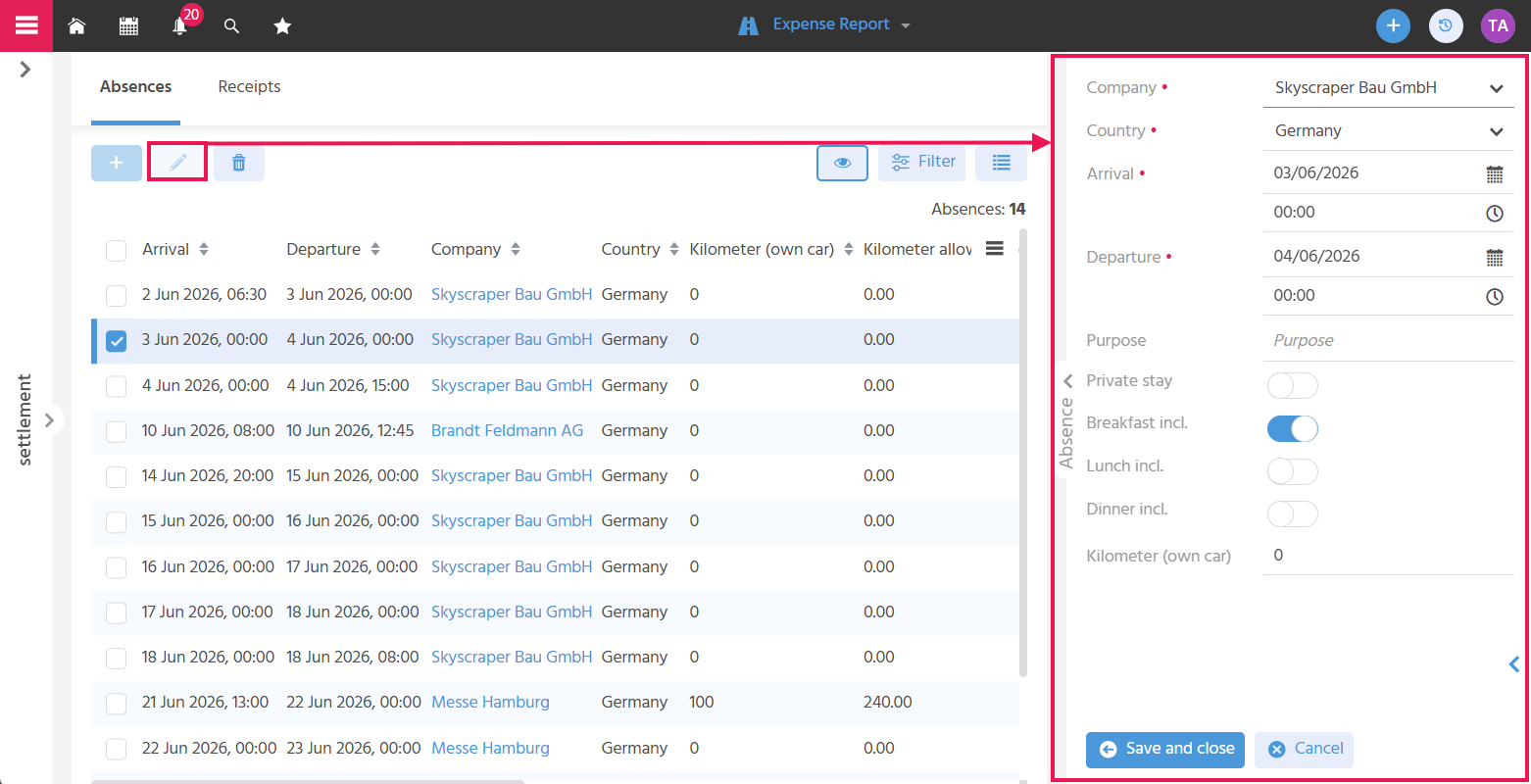
Since for multi-day trips a record with identical information regarding purpose, overnight stay, meals, and travel with a private vehicle is automatically created for each day, the individual records must be edited afterwards if these points differ.