Create Templates
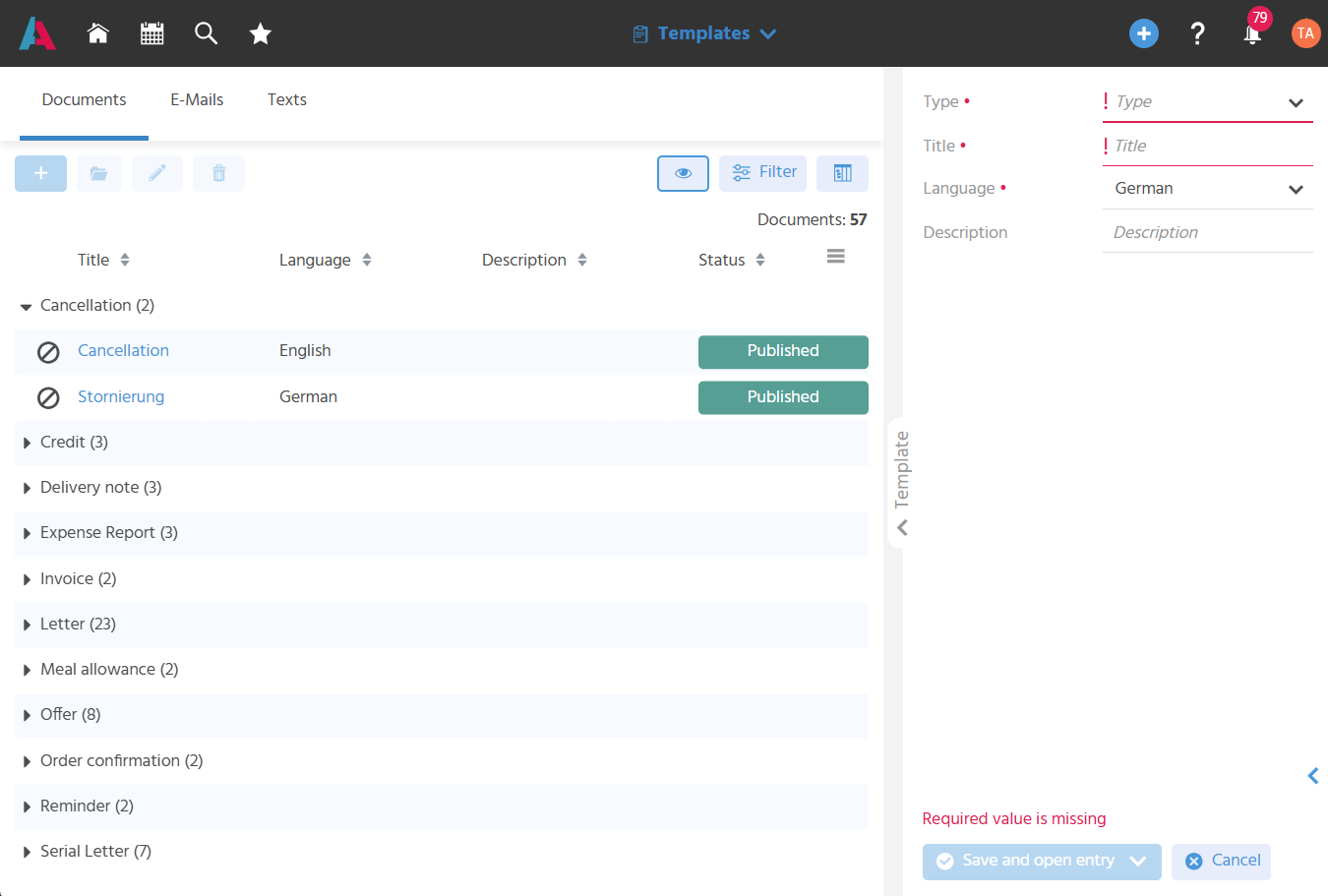
System Managers create templates here with their basic properties – type, title, and language – in the "Draft" status before their content is captured.
Both the basic properties of the templates and their content can only be edited in the "Draft" or "Inactive" status.
Define Template Type
When a template is created, its type is specified. The selected type determines where in the system – for which process – the template is available.
Depending on the opened tab, the respective types can be selected:
Template Types in the "Documents" Tab
-
Letter
⇒ This template type is used to define templates for letters.
⇒ The template is available in the "New letter" Action for contacts, companies, and in the service ticket. -
Serial Letter
⇒ This template type is used to define templates for serial letters.
⇒ The template is available in the Context "Serial Letter". -
Service Letter
⇒ This template type is used to define templates for service letters.
⇒ The template is available in the Context "Service Ticket" in addition to the regular letters. -
Offer
⇒ This template type is used to define templates for offer documents.
⇒ The template is available in the Context "Offer". -
Order Confirmation/Invoice/Delivery Note/Reminder/Cancellation/Credit
⇒ These template types are used to define templates for documents of the various receipts.
⇒ The templates are available in the Context "Receipt". -
Expense Report/Meal Allowance
⇒ These template types are used to define templates for documents regarding meal allowances or expense reports.
⇒ The templates are available in the Context "Expense Report".
Template Types in the "E-Mails" Tab
-
Single
⇒ This template type is used to define templates for e-mails, optionally with a subject.
⇒ The template is available in the "Write E-Mail" Action in the Contexts that were specified in the places of usage. -
Series
⇒ This template type is used to define templates for bulk mails.
⇒ The template is available in the Context "Bulk Mail". -
Digital Signature
⇒ This template type is used to define templates for e-mails for sending documents that are to be digitally signed.
⇒ The template is available in the Context "Offer". -
Single (Service/All)/Single (Service/Automatic Reply)/Single (Service/External)/Single (Service/Internal)
⇒ These template types are used to define templates for e-mails from service tickets that are required for internal and external communication and depend on the service ticket category.
⇒ The templates are available in the Context "Service Ticket".
Template Types in the "Texts" Tab
-
Content Template (Activity)
⇒ This template type is used to define templates for activities; this allows the description of the activity to be captured more efficiently and, if necessary, directly enriched with topics.
⇒ The templates are available in the Context "Activity". -
Content Template (Visit)
⇒ This template type is used to define templates for visit reports; this allows the preparation of the visit to be organized more efficiently.
⇒ The templates are available in the Context "Visit". -
Content Template (Project Ticket Comment)
⇒ This template type is used to define templates for project ticket comments. These can be stored in the ticket type definition. This allows the template to be selected in every comment of a project ticket. -
Project Description
⇒ This template type is used to define templates for project descriptions. These can be stored in the project type definition. The template is then entered in every project of this project type. -
Project Ticket Description
⇒ This template type is used to define templates for project ticket descriptions. These can be stored in the ticket type definition. The template is then entered in every project ticket of this ticket type. -
Signature
⇒ This template type is used to define templates for e-mail signatures.
⇒ The template is available in the "Write E-Mail" Action depending on the defined place of usage or placeholder. -
Text Modular
⇒ This template type is used to capture HTML text modulars centrally once and to call them in other HTML templates using placeholders.
Define Template Title
The title and description of a template are stored so that it can be found in the system and its purpose is recognizable. The title is displayed to users together with the language at the respective place where they select the template.
Define Template Language
The language of a template is stored to ensure that documents are created in the recipient's language. Templates can be created in German, English, French, and Spanish.
The language in which communication (written/by phone) with the customer takes place is captured on the company or contact record in the "preferred language" field. For written communication (letters, e-mails), templates are selected in the respective languages that correspond to the preferred language of the contact/company, for example, to correctly fill the placeholders of the template in a letter.
Placeholders that contain keywords or attributes from the xRM are resolved in the language of the template stored here if translations for this language exist (currently only de and en are supported).
Specific Functions for Templates
Capture the Subject for E-Mails
For e-mail templates, the "Subject" field is available regardless of the type. The e-mail subject can already be captured there in the template.
Placeholders such as {@letterSalutation@} can be used in the subject for personalized addressing.
Define Places of Usage for E-Mails
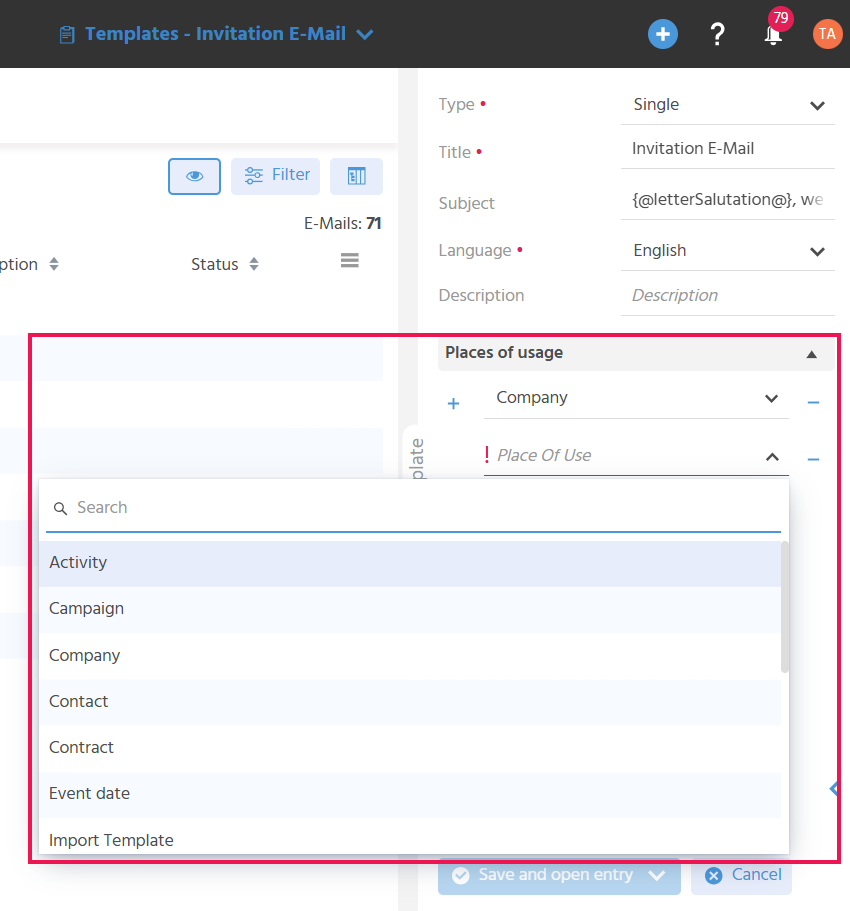
For e-mail templates of the type "Single" and "Digital Signature", the "Places of usage" area is displayed.
This allows one or more places of usage to be specified in order to use the template in different Contexts. For example, an e-mail template for single e-mails is required in the contact and in the company.
Select places of usage for e-mails
Define the Service Ticket Category for Service E-Mails
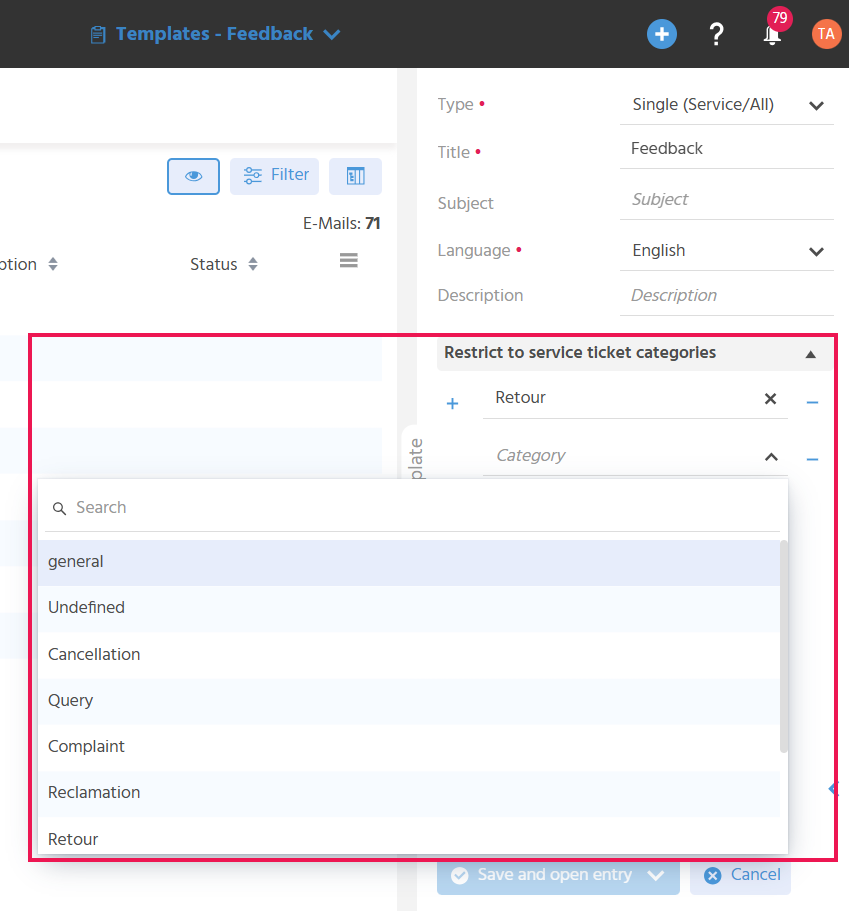
For e-mail templates of the type "Single (Service/All)", "Single (Service/Automatic Reply)", "Single (Service/External)", and "Single (Service/Internal)", the "Restrict to Service Ticket Categories" area is displayed. This makes it possible to specify whether an e-mail template is only available for selection in selected service ticket categories.
Select service ticket categories for service e-mails
Define Usage for the "Signature" Type
If a template of the type "Signature" is created, it can be used in three different places via the place of usage and a placeholder:
-
If "Service Ticket" is specified as the place of usage, the signature can be stored on the mailboxes in the inbox. The placeholder
{@Service@}is inserted in the content of this template. It is used exclusively in the Context "Service" for signatures. It marks the place in the e-mail where the employee can later write or insert other templates as modulars. -
If "Contact" is specified as the place of usage, this signature can be selected when an e-mail is created using AI from a contact, a company, or an offer.
-
If a placeholder is also specified, this signature can be integrated into other e-mail templates with the placeholder.
The name of the placeholder is captured in the "Placeholder" field without{and@.
As usual, the content of the template can be captured using the HTML Editor. Images (logos etc.) are integrated into the source code as Base64.
Define Placeholders for the "Text Modular" Type
To insert text modulars in HTML format into other HTML-based templates, they can be provided with a placeholder and called up.
The placeholder name of this "sub-template" is captured in the "Placeholder" field without { and @ when the template is created.
This allows, for example, advertising banners or recurring text blocks (e.g. notes regarding the terms and conditions) to be maintained centrally in separate text modulars and called in various e-mail templates.
Define Topics in Templates for Activities
Topics can be added to a template of the type "Content Template (Activity)". They are transferred to the activity as soon as the template is selected.
To be able to select topics in the template, there is a prerequisite: In the Context "Topic Tree", the usage "Template" must be stored on the respective topic.
Copy Templates
Templates can be duplicated using the "Copy Template" Action instead of creating them manually. This allows changes to templates to be made based on the source template.
The new template takes over the type, title, language, and description of the source template as a suggestion that can be adjusted before saving. For templates from the "E-Mails" tab, any existing subject is also copied. The actual content (document, e-mail, or text) is also copied 1:1 from the source template and serves as the starting point for the new template.
The other information on the specific functions regarding places of usage, service ticket categories, or placeholders is not copied and must be captured again.