Create Template Content
For templates, the content is created in the company's corporate design so that generated documents or e-mails have a consistent and professional appearance. The content is captured in the MainView in the "Content" tab.
System Managers edit the content of a template here as long as it is in the "Draft" or "Inactive" status.
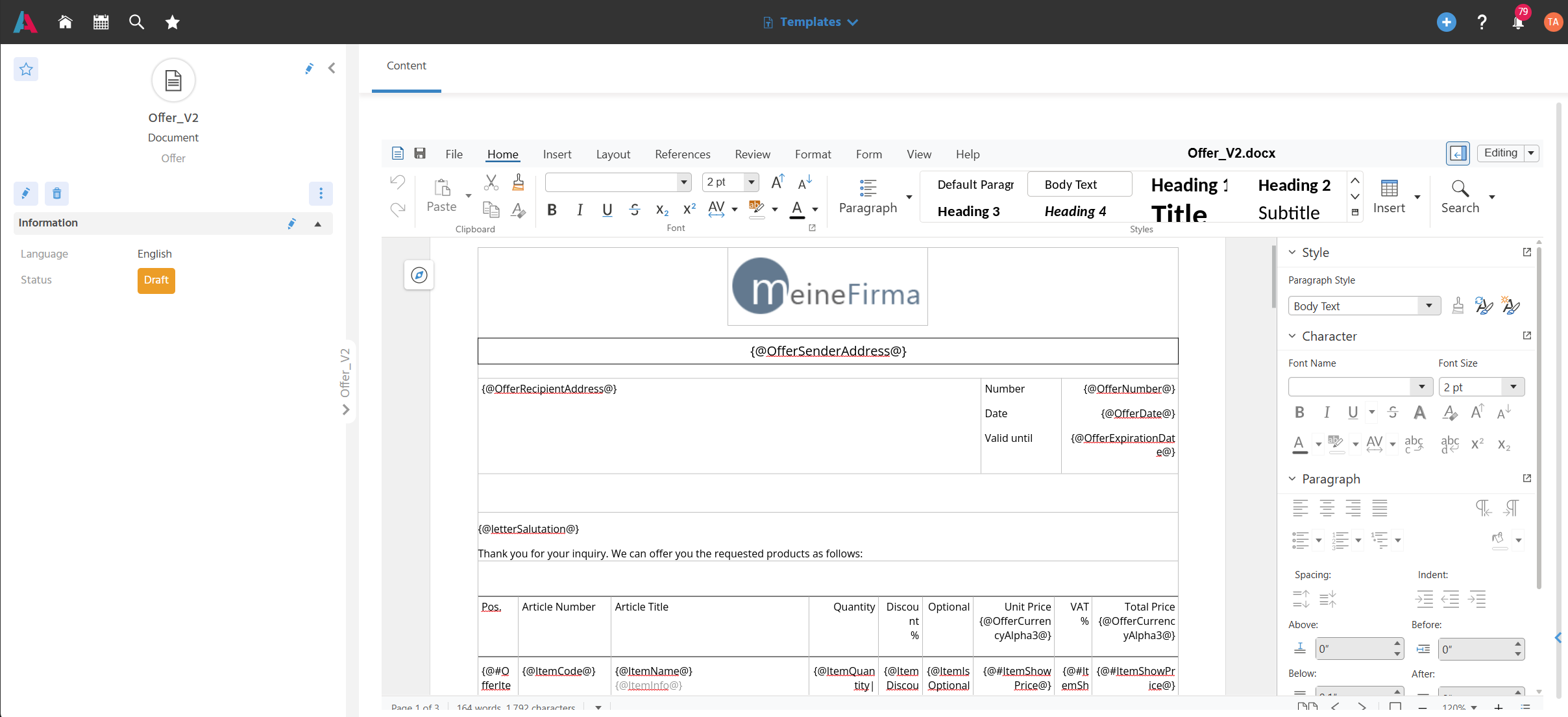
Create the Content of a Document Template
The Document Editor is used to create the content for documents (letters, documents for offers, etc.). The corresponding placeholders are set at places with variable content and are later filled with information from ADITO.
- File size: Templates may have a maximum of 10 MB.
This must be taken into account especially for documents with many or large images. - File format: Documents created with the Document Editor are created in docx format.
Define read-only areas in the document – to prevent users from changing essential information and content later, areas of a document template can be made read-only.
📖→ Further information on the functions of the Document Editor
Create the Content of the E-Mail Template
The HTML Editor is used to create the content of e-mails. The corresponding placeholders are set at places with variable content and are later filled with information from ADITO.
- File size: Templates may have a maximum of 10 MB.
- File format: E-mails are stored in HTML format.
Insert images in HTML – to insert a logo in a signature, for example, the image can be integrated into the HTML in Base64 format.
📖→ Further information on the functions of the HTML Editor
Add Attachments to the E-Mail Template
Files in any format can be uploaded to the e-mail template in the "Attachments" tab in order to send them as attachments with the e-mail.
📖→ Further information on the functions of the "Attachments" tab
Create the Content of the Text Modular Template
The HTML Editor is used to create the content of text modulars. The corresponding placeholders are set at places with variable content and are later filled with information from ADITO.
- File size: Templates may have a maximum of 10 MB.
- File format: Text modulars are stored in HTML format.
📖→ Further information on the functions of the HTML Editor
Placeholders
Placeholders are inserted into a template so that the corresponding values are automatically taken from the record when a document is created from a template. Only placeholders that are available in the Context can be inserted.
Insert Placeholders
-
Placeholder call: Placeholders are inserted in the form
{@placeholdername@}, e.g.{@employeeName@}.Best PracticePlaceholders must always be inserted "from scratch" by typing the brackets, @-characters, and placeholder name.
Copy & paste from other documents can transfer formatting (bold etc.) in the background, which can lead to resolution problems. The placeholder is then not filled with the correct value.
-
Allowed characters: Placeholders may only contain the characters
_ a-z A-Z 0-9and are case-insensitive, so upper and lower case do not need to be taken into account. -
Text formatting: Placeholders are formatted with regard to font color, font, and font size so that the text is later displayed with this formatting.
-
Number formatting: Numerical values can be formatted in placeholders
{@[Placeholder]|format:[Digits]:[Locale]@}so that the numbers are displayed correctly formatted in the finished document.
ℹ️ The following characters are not allowed in placeholder names, as they are used for evaluation:. | or -.Example{@offerNet| format:"2":"de-DE"@}
In this German-language template, numbers are displayed with two decimal places, using a period as the thousands separator and a comma as the decimal separator. -
Loop: Recurring rows are mapped using a start element
#and an end element/, e.g.{@#employee@} ... {@/employee@}for a repeating row per record. How the recurring rows are displayed in the document is part of the formatting. They can be displayed, for example, as a table or simply one below the other.Example{@#offerItems@}...{@/@}
Further placeholders that represent further information are placed in between.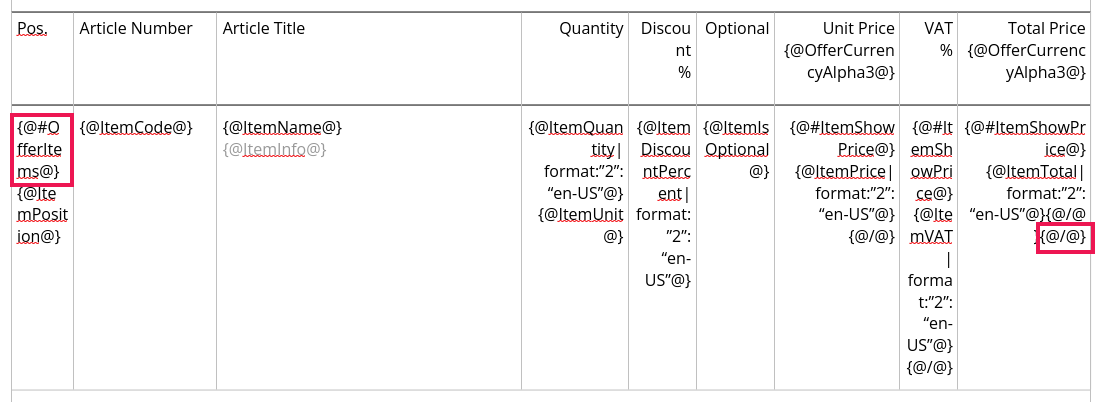
-
Conditional display of placeholders: To show or hide information that is only displayed under certain conditions, conditions can be specified that are checked when the placeholder is resolved.
Example{@#Item.ShowPrice@}{@ItemPrice@}{@/@}if Item.ShowPrice = true, everything up to{@/@}is displayed.{@#Offer.OptionalGross > 0@} ... {@/@}if optional items exist, they are displayed.
-
Placeholders are not resolved in the Context "Templates", but only when the user generates the "final document", e.g. when the letter or e-mail is created or the offer document is generated in the offer.
CriticalThe placeholder cannot be filled because …
No data exists for this placeholder.
For example, a contact was created without an address.
⇒ In this case, the placeholder is replaced by a space.A template uses an undefined placeholder,
the placeholder is misspelled, or
the placeholder belongs to a different Context and therefore returns no results.
⇒ In this case, "undefined" is displayed.
Placeholders for the Recipient
These placeholders can be used in all template types (letter, e-mail, serial letter, bulk mail, activity, offer/receipt document, etc.) if contact information is to be inserted into a template via a placeholder.
| Placeholder | Placeholder Call | Description | Example |
|---|---|---|---|
| fullAddress | {@fullAddress@} | Name, company name, and postal address | |
| orgname | {@orgname@} | Company name with legal form | Baufirma GmbH |
| address | {@address@} | Street and house number | Hauptstraße 12 |
| zipCode | {@zipCode@} | Postal code | 84034 |
| city | {@city@} | City | Landshut |
| district | {@district@} | District | |
| region | {@region@} | Region | |
| country | {@country@} | Country | Germany |
| date | {@date@} | Current date | |
| name | {@name@} | Salutation, first, middle, and last name | Ms. Birgit Leicht |
| salutation | {@salutation@} | Salutation | Ms. |
| letterSalutation | {@letterSalutation@} | Letter salutation | Dear Dr. |
| letterSalutation2 | {@letterSalutation2@} | Informal letter salutation | Hi |
| firstname | {@firstname@} | First name | Birgit |
| middlename | {@middlename@} | Middle name | |
| lastname | {@lastname@} | Last name | Leicht |
| title | {@title@} | Title | Dr. |
| phone | {@phone@} | Phone number | |
{@email@} | b.leicht@baufirma.de |
🛠️→ These placeholders can be found in the Placeholder_Lib.
Placeholders for the Sender
The sender is the user logged in to the system.
| Placeholder | Placeholder Call | Description | Example |
|---|---|---|---|
| senderName | {@senderName@} | Name | Mr. Tim Admin |
| senderOrgname | {@senderOrgname@} | Company name with legal form | |
| senderAddress | {@senderAddress@} | Street and house number | |
| senderZipCity | {@senderZipCity@} | Country - postal code city | Germany - 53111 Bonn |
| senderFullAddress | {@senderFullAddress@} | Name, company name, postal address | |
| senderPhone | {@senderPhone@} | Phone number | |
| senderEmail | {@senderEmail@} | tadmin@meinefirma.adito.de | |
| date | {@date@} | Current date |
🛠️→ These placeholders can be found in the Placeholder_Lib.
Placeholders for Text Modulars
| Placeholder | Placeholder Call | Description |
|---|---|---|
| customName | {@customName@} | Inserts a text modular template (HTML) with this placeholder name into an e-mail or text modular template (HTML templates only). Placeholders must not be nested. |
Placeholders for the Offer
| Placeholder | Placeholder Call | Description |
|---|---|---|
| OfferSenderAddress | {@OfferSenderAddress@} | Own company address (setting custom.myCompany.addr) |
| OfferRecipientAddress | {@OfferRecipientAddress@} | Recipient address of the offer |
| OfferNumber | {@OfferNumber@} | Offer number with version |
| OfferDate | {@OfferDate@} | Offer date |
| OfferExpirationDate | {@OfferExpirationDate@} | Valid until |
| OfferSalutation | {@OfferSalutation@} | Letter salutation of the recipient |
| OfferDiscountPercent | {@OfferDiscountPercent@} | Discount in % |
| OfferCurrencyAlpha3 | {@OfferCurrencyAlpha3@} | Currency |
| OfferPaymentTerms | {@OfferPaymentTerms@} | Payment terms incl. cash discount |
| OfferDeliveryTerms | {@OfferDeliveryTerms@} | Delivery terms |
| OfferMandatoryTotal | {@OfferMandatoryTotal@} | Total of mandatory items, net before discount |
| OfferMandatoryDiscountAmount | {@OfferMandatoryDiscountAmount@} | Discount amount of mandatory items |
| OfferMandatoryNet | {@OfferMandatoryNet@} | Net amount of mandatory items after discount |
| OfferMandatoryVATAmount | {@OfferMandatoryVATAmount@} | VAT of mandatory items |
| OfferMandatoryGross | {@OfferMandatoryGross@} | Gross amount of mandatory items |
| OfferOptionalTotal | {@OfferOptionalTotal@} | Total of optional items, net before discount |
| OfferOptionalDiscountAmount | {@OfferOptionalDiscountAmount@} | Discount amount of optional items |
| OfferOptionalNet | {@OfferOptionalNet@} | Net amount of optional items after discount |
| OfferOptionalVATAmount | {@OfferOptionalVATAmount@} | VAT of optional items |
| OfferOptionalGross | {@OfferOptionalGross@} | Gross amount of optional items |
| Today | {@Today@} | Current date |
| OfferItems | {@#OfferItems@} … {@/OfferItems@} | Loop over the items. Fields within OfferItems: ItemPosition, ItemCode, ItemName, ItemQuantity, ItemUnit, ItemDiscountPercent, ItemIsParent (yes/no, bill of materials header), ItemIsOptional (text "Yes"/"No"), ItemPrice, ItemVAT, ItemTotal, ItemShowPrice (yes/no), ItemInfo. |
🛠️→ These placeholders can be found in the Offer_Lib.
Placeholders for Digital Signature
| Placeholder | Placeholder Call | Description |
|---|---|---|
| signateLink | {@signateLink@} | The placeholder is used in e-mail templates. This e-mail is then used to request the digital signature. The placeholder is replaced by the link to the document to be signed. |
| signingpersons | {@#signingpersons@} …* {@/signingpersons@} | The placeholder is used in document templates of the type "Offer". It defines the position of the signature. The signature field appears exactly where the placeholder is located in the document. Multiple signatories can be specified. Each signatory receives their own field in their own place. Although everyone can see all fields, they can only sign their own. Fields within signingpersons: {{signature, r1}}, firstname, lastname, name, email. |
🛠️→ Only with Digital Signing (module link-digital-signing-offer).
Placeholders for Receipts
Receipts include: order confirmation, invoice, delivery note, credit, cancellation, and reminder.
| Placeholder | Placeholder Call | Description |
|---|---|---|
| ReceiptSenderAddress | {@ReceiptSenderAddress@} | Own company address |
| ReceiptRecipientAddress | {@ReceiptRecipientAddress@} | Billing address |
| ReceiptNumber | {@ReceiptNumber@} | Receipt number |
| ReceiptDate | {@ReceiptDate@} | Receipt date |
| ReceiptSalutation | {@ReceiptSalutation@} | Letter salutation of the recipient |
| ReceiptDiscountPercent | {@ReceiptDiscountPercent@} | Discount in % |
| ReceiptCurrencyAlpha3 | {@ReceiptCurrencyAlpha3@} | Currency |
| ReceiptPaymentTerms | {@ReceiptPaymentTerms@} | Payment terms incl. cash discount |
| ReceiptDeliveryTerms | {@ReceiptDeliveryTerms@} | Delivery terms |
| ReceiptTotal | {@ReceiptTotal@} | Net before discount |
| ReceiptDiscountAmount | {@ReceiptDiscountAmount@} | Discount amount |
| ReceiptNet | {@ReceiptNet@} | Net after discount |
| ReceiptVATAmount | {@ReceiptVATAmount@} | VAT |
| ReceiptGross | {@ReceiptGross@} | Gross |
| ReceiptOpenAmount | {@ReceiptOpenAmount@} | Open amount incl. dunning fee |
| ReceiptDunningFee | {@ReceiptDunningFee@} | Dunning fee |
| ReceiptDunningDate | {@ReceiptDunningDate@} | Dunning date |
| Today | {@Today@} | Current date |
| ReceiptItems | {@#ReceiptItems@} … {@/ReceiptItems@} | Loop over the items. Fields within ReceiptItems: ItemPosition, ItemCode, ItemName, ItemQuantity, ItemUnit, ItemDiscount, ItemIsParent, ItemPrice, ItemVAT, ItemTotal, ItemInfo. |
🛠️→ These placeholders can be found in the Order_Lib.
Placeholders for Expense Report and Meal Allowance
| Placeholder | Placeholder Call | Description |
|---|---|---|
| employeeName | {@employeeName@} | Employee |
| companyAddress | {@companyAddress@} | Own company address |
| periodFrom | {@periodFrom@} | Period from |
| periodUntil | {@periodUntil@} | Period until |
| remark | {@remark@} | Remark on the report |
| currency | {@currency@} | Local currency |
| sumKmFee | {@sumKmFee@} | Total kilometer allowance (expense report only) |
| sumOvernightAllowance | {@sumOvernightAllowance@} | Total overnight stay allowance (expense report only) |
| sumReceiptAmount | {@sumReceiptAmount@} | Total receipts excluding company card (expense report only) |
| totalSum | {@totalSum@} | Total sum (expense report only) |
| sumDayFee | {@sumDayFee@} | Total daily allowance (meal allowance only) |
| travelExpenses | {@#travelExpenses@} … {@/travelExpenses@} | Loop over trips (expense report). Fields within travelExpenses: entryDate, entryDateEnd, allowanceType, organisation, rowRemark, km, kmFee, address, privateStay, overnightAllowance |
| receipts | {@#receipts@} … {@/receipts@} | Loop over receipts (expense report). Fields within receipts: receiptNo, receiptDate, receiptType, receiptRemark, receiptAmount |
| dailyAllowances | {@#dailyAllowances@} … {@/dailyAllowances@} | Loop over days (meal allowance). Fields within dailyAllowances: entryDate, entryDateEnd, allowanceType, organisation, dayFee, country, bedAndBreakfast, lunch, dinner, address |
🛠️→ These placeholders can be found in the Expenses_Lib.
Placeholders for Service Tickets
| Placeholder | Placeholder Call | Description |
|---|---|---|
| service | {@service@} | Mandatory in signatures with the place of usage "Service Ticket". Marks the place where the reply (ticket template, individual or personalized reply) is inserted. |
🛠️→ These placeholders can be found in the ServiceEmail_Lib.
Placeholders for the Event
These placeholders are used in messages from the event (bulk mails for the event). They can be inserted into any mail regardless of the editor used.
| Placeholder | Placeholder Call | Description |
|---|---|---|
| EVENTNAME | {@EVENTNAME@} | Name of the event |
| EVENTLOCATION | {@EVENTLOCATION@} | Event location |
| EVENTBEGINDATE | {@EVENTBEGINDATE@} | Begin (date, time, time zone) |
| EVENTENDDATE | {@EVENTENDDATE@} | End (date, time, time zone) |
| EVENTREGISTRATIONDEADLINE | {@EVENTREGISTRATIONDEADLINE@} | Registration deadline |
🛠️→ These placeholders can be found in the EventMessage_Lib.
Placeholders for the Bulk Mail
These placeholders are used in bulk mails created using Mosaico.
| Placeholder | Placeholder Call | Description |
|---|---|---|
| webview | {@webview@} | Link to the web view of the mail |
| pixel | {@pixel@} | Tracking pixel (open rate) |
| Weblink | {@<Platzhalter des Weblinks>@} | Freely defined weblinks ("Placeholder" field on the weblink), with or without click tracking |
Placeholders for Calling Websites and Surveys
These placeholders are used to call websites and surveys (webfiles, landing pages).
| Placeholder | Placeholder Call | Description |
|---|---|---|
| baseurl | {@baseurl@} | Base URL of the system |
| contactid | {@contactid@} | Contact ID of the caller |
| surveyid | {@surveyid@} | ID of the survey (survey only) |
| surveytitle | {@surveytitle@} | Title of the survey (survey only) |
| locale | {@locale@} | Language (survey only) |
Specific Content
Insert QR Code
To send a QR code in documents, it can "simply" be inserted as an image into the template file.
Depending on the template type (letter or e-mail) of the template into which the QR code is inserted, the QR code can be integrated directly as an image or in Base64 format.
System Manager