Preparing a Visit
The Sales Executive can add further details to a visit before the appointment by adding a contact, noting topics relevant to the conversation in the description, assigning relevant activities and documents, completing the appointment scheduling and setting the status to "Planned".
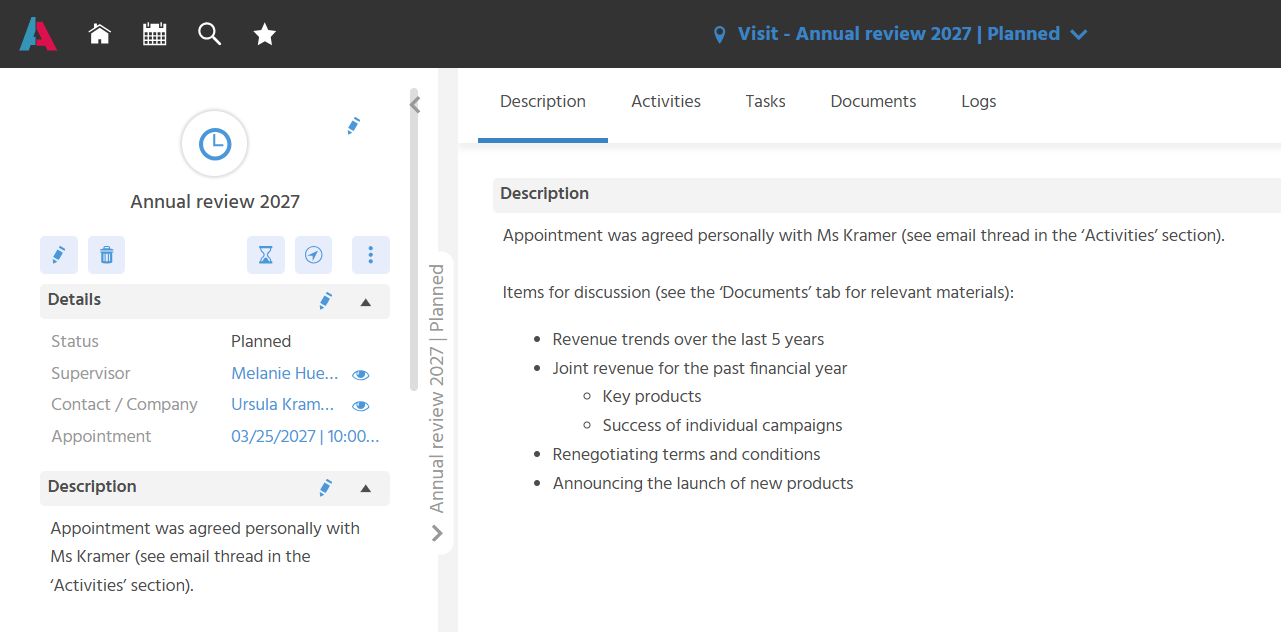
Adding Details to the Visit
Further details can be added to the visit before the appointment so that the Sales Executive finds all information relevant to the conversation in the visit record.
- If the visit was created automatically, the title is "Visit". To be able to distinguish the visit records, this title should be replaced by a more meaningful one, e.g. "Annual Meeting 2027" or "Product Presentation Q3 2027".
- In addition, only the company is assigned for visit recommendations. To make clear with whom the appointment will take place or who will be the main contact person in the appointment, a contact should also be linked.
- Previous arrangements regarding the appointment should be captured as an activity and linked to the visit so that the information can be found immediately during the visit.
- The description field can be used to note which topics are to be discussed during the visit.
- Documents, such as presentation material, can be attached to the visit.
Creating a Linked Appointment
Once the scheduling has been finalized with the contact, an appointment can be created from the visit so that the visit is also displayed in the calendar and an invitation can be sent. For this purpose, the Action "Create Appointment" is available under "Further Actions" in the preview.
The following data is taken over from the visit:
- the date of the visit
- the company linked to the visit as a link
- the contact person linked to the visit as a link
- the contact person linked to the visit as a participant, if an e-mail address is stored
- the logged-in user as a participant
- the title, status, date and supervisor of the visit as information
A visit can only ever be linked to one appointment; therefore, the Action for creating an appointment is only active as long as no appointment is linked to the visit. In the appointment, the link is shown in the "Connections" tab; in the visit, the link is shown in the preview. There, the date field is replaced by an appointment field if a link exists. When the visit takes place can then no longer be controlled via the visit, but only via the appointment.
When saved, the appointment is sent to the assigned participants if an external calendar system is connected.
Information on the calendar connection can be found here.
The reverse is also possible: A visit can be created from an appointment, see "Creating a Visit from an Appointment".