Managing Custom Groups/Prompts
Custom groups and prompts are managed by users in the "Prompt-Editor".
Creating a Group
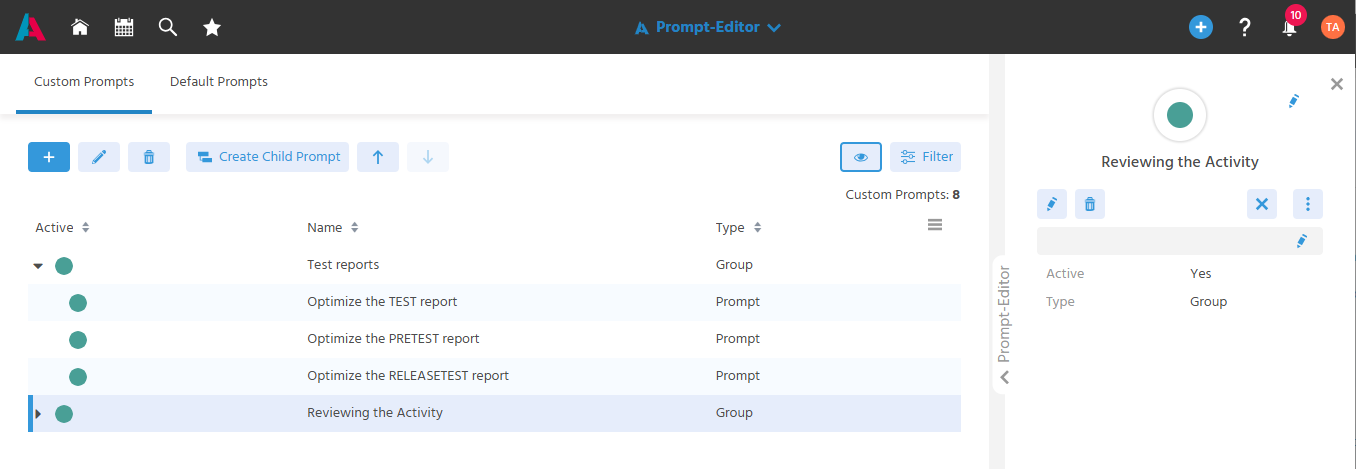
First, a group is created to structure prompts by topic and keep them organized.
A unique name (max. 36 characters) is assigned to the group, and it is created as active by default.
Creating a Prompt
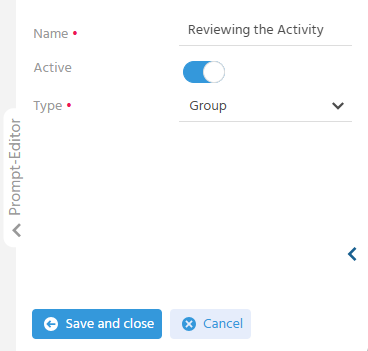
A custom prompt is created to capture individual recurring tasks as a prompt and thus make daily routines more efficient.
A unique name (max. 36 characters) and the actual prompt are assigned to the custom prompt. A custom prompt must always be assigned to a group. This creates a "tree" in which the order of a topic-based structure for custom prompts can be mapped. New prompts are created as active by default.
Alternatively, a new prompt can be created directly with the group pre-filled via the "Create Child Prompt" action (only active when exactly one group is selected).
- Via the "Create Child Prompt" action, new prompts can be assigned to both inactive and active groups.
- Via New, only active groups can be selected when creating a prompt.
Adjusting the Order of Prompts
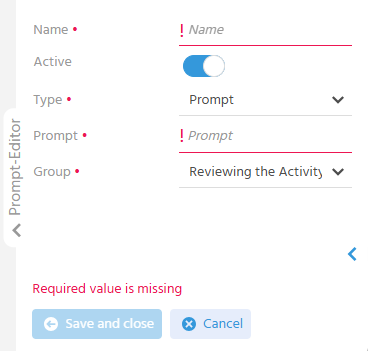
The order of custom prompts and groups in the tree can be adjusted using arrow buttons, so that the most important prompts are easy to find and have a defined order.
- The arrow buttons are only active when exactly one record is selected.
- If a group is moved, all prompts contained within it are automatically moved as well.
- Prompts can only be moved within a group.
Changing the Group Assignment
The group assignment of a custom prompt can be changed afterwards by editing the prompt's record and selecting a different active group. This allows a prompt to change groups if required.
Setting a Prompt Active/Inactive
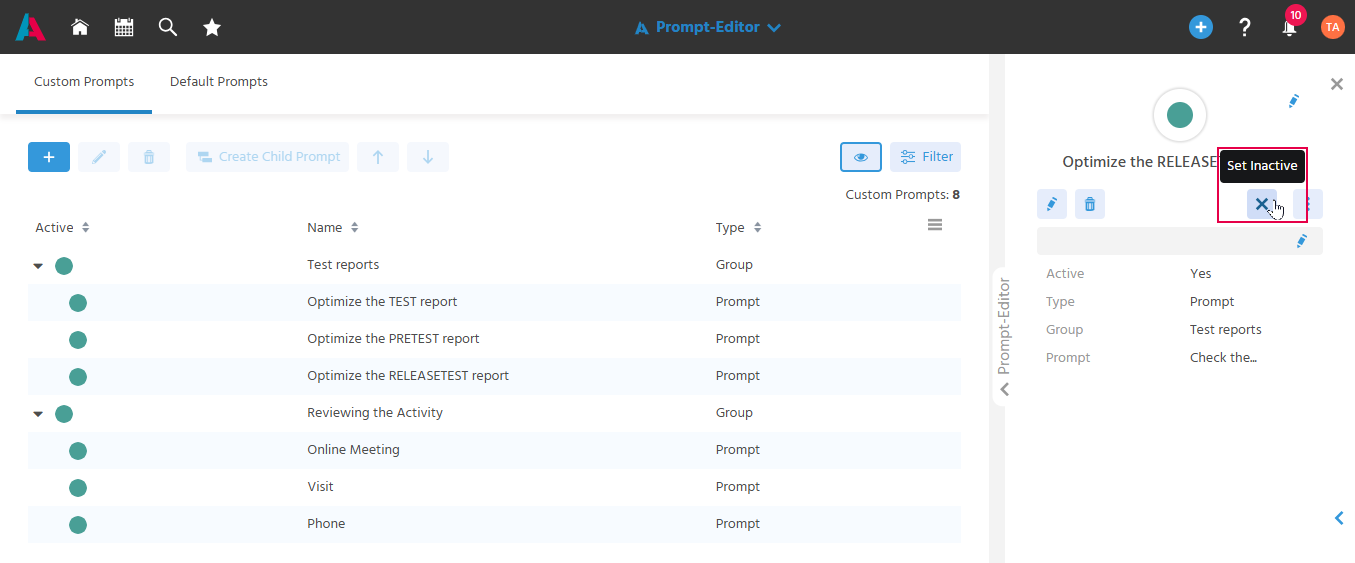
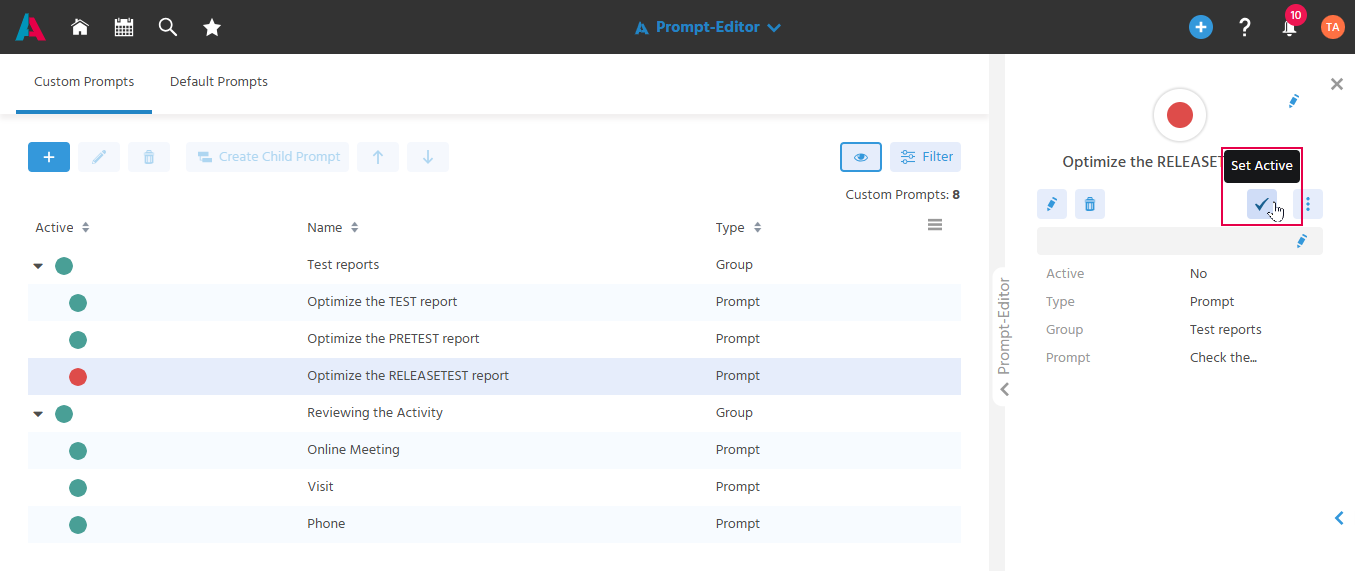
The status of a custom prompt can be changed in the preview via the "Set Active"/"Set Inactive" action, to temporarily set prompts to inactive when they are not needed for a while.
Setting a Group Active/Inactive
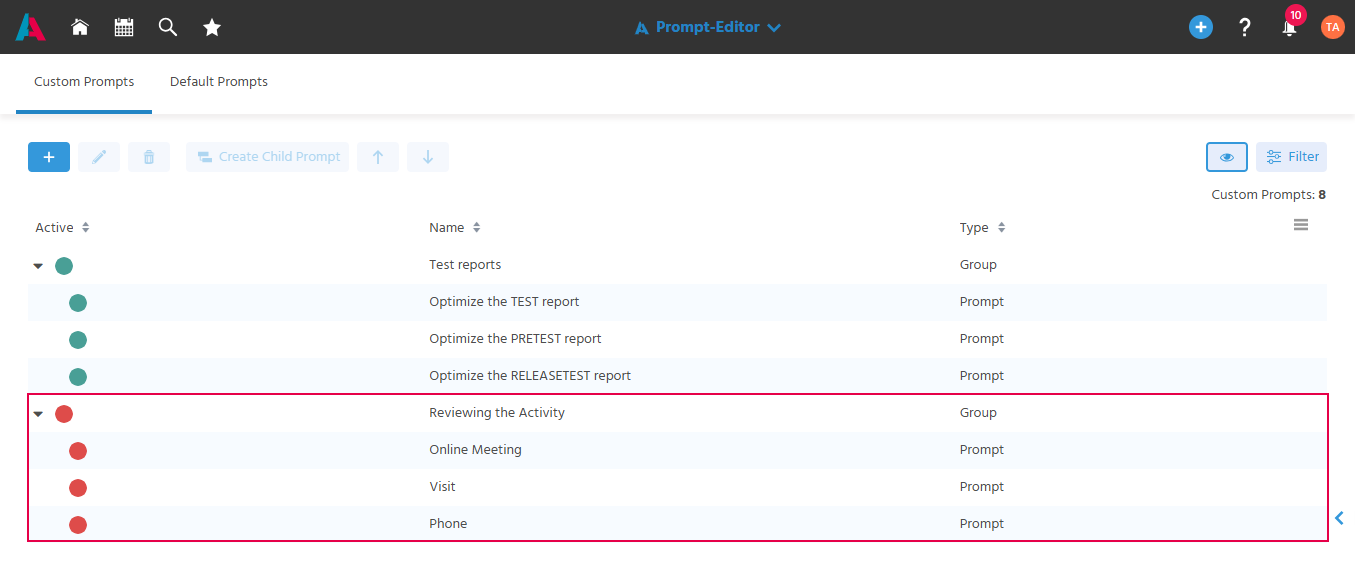
If the status of a group is changed, this status is applied to all prompts contained within it.
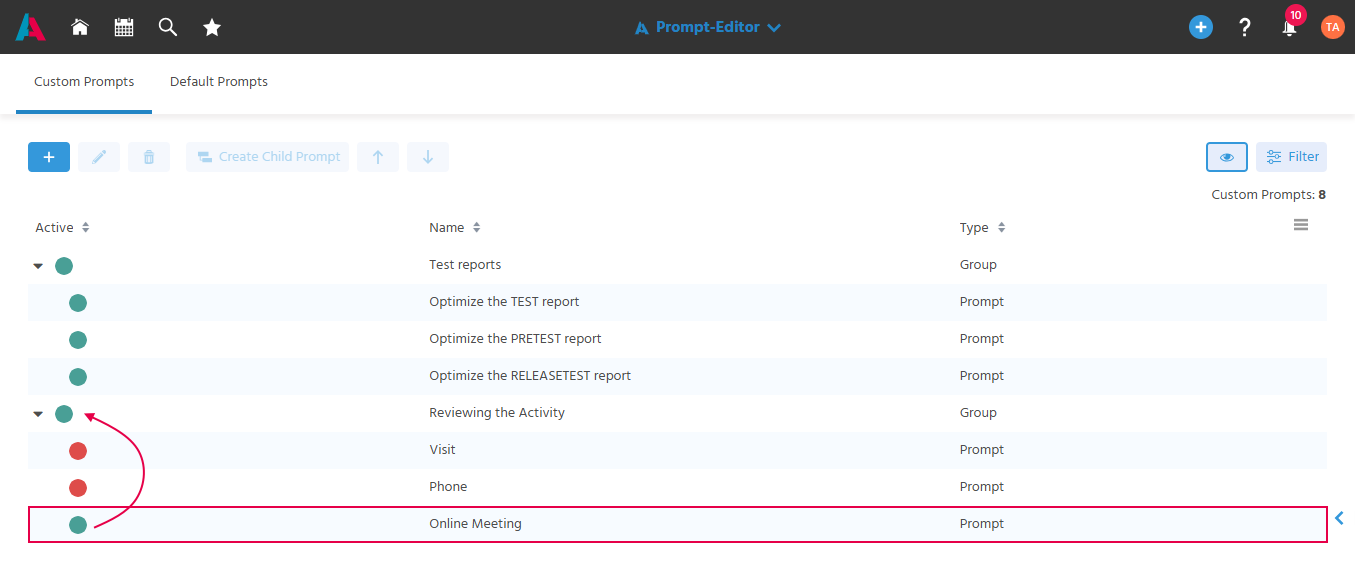
If the status of a prompt within an inactive group is set to active, the "active" status is applied to the group. This is the case when
- a prompt within the group is set to active again, or
- a new active prompt is assigned to the group via the "Create Child Prompt" action.
Editing a Prompt
To keep the content of a custom prompt up to date, it can be edited afterwards.
Deleting a Group/Prompt
If custom prompts are no longer needed, they can be deleted to keep the overview clean.
If a group is deleted, its child prompts are also deleted.
Project Manager Sales Executive Marketing Manager Service Agent System Manager Prompts