Create Offer
When creating an offer, the Sales Executive first captures the master data of the offer. There are several ways to open the EditView.
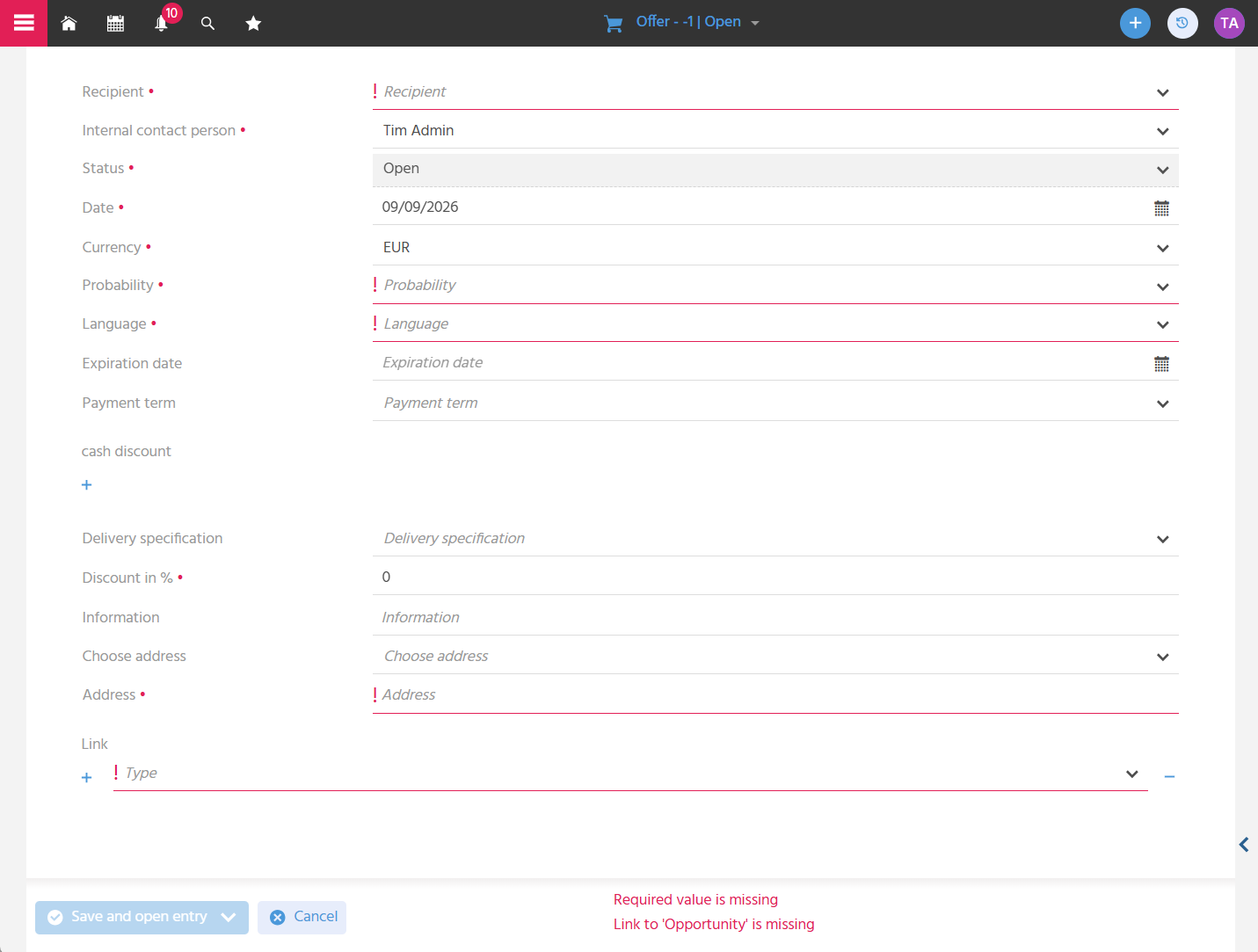
Opening the EditView for Creating an Offer
The EditView for creating an offer can be opened from various places in the system, so that offer creation can always be started in the fastest way:
- from a company / contact via the "360 Degree" tab
- from a company / contact via the "Further Actions" in the Preview
- from an opportunity via the "Further Actions" in the Preview
- from the filterview of the "Offer" Context via the create button
- via Quick Entry in the Global Bar
Addressing the Offer
The "Recipient" field specifies to whom the offer is addressed. Either a contact and the associated company or only a company can be selected there. If the offer is created from a contact or a company, this field is prefilled automatically.
The "Choose Address" field offers all addresses stored for the selected company. The selected address is displayed in the "Address" field and can be supplemented there if necessary, for example with a line "Attn. …".
Specifying the Internal Contact Person
An "Internal Contact Person" must be specified so that it is clear who is responsible for the offer internally. Initially, the logged-in user is prefilled automatically. However, the field is editable, so another employee can also be specified.
Capturing the Offer Date and Expiration Date
When the offer is created, the "Date" field is automatically prefilled with the current date, so that it is clear when the offer was issued. It can be adjusted manually. In addition, an "Expiration Date" can be set, so that both the customer and the Sales Executive can see until when the offer is binding.
If the Expiration Date is in the past, the notice "Validity exceeded" is displayed in the Preview of the offer.
Creating an Offer for International Customers
The "Currency" and "Language" fields are set on the offer, so that the offer is issued in the form appropriate for the respective customer. The language is automatically taken from the company ("Preferred Language"), but can be adjusted manually.
- The currency can only be changed as long as no items are included in the offer.
- If a product is added to an offer in a foreign currency, the prices are converted according to the selected currency. Further information on using foreign currencies in the system can be found in the PDF Foreign Currency.
Capturing the Probability of Closing
The probability of closing an offer can be entered in the "Probability" field, so that the Sales Executive can record their personal assessment of the chances of success and prioritize offers accordingly. The assessment is also useful for the Head of Sales to make a rough statement about the pipeline and the possible order volume.
Taking Commercial Conditions into Account
The Sales Executive can set payment terms, cash discount, delivery specifications, and discount, so that the offer contains all relevant commercial conditions and is clear and binding for the customer.
The "Payment Term" and "Delivery Specification" fields are filled automatically if a company is entered in the "Recipient" field. The values stored in the attributes of the company are applied. However, the fields are editable, so that possible deviations from the standard procedure can be taken into account.
If no terms and conditions are stored for the company, the following values are preset:
- Payment Term: "7 days net"
- Delivery Specification: "carriage free"
In addition, cash discount conditions can be stored, as well as an offer discount in the "Discount in %" field, which is calculated for all items of the offer.
-
Cash discount: New cash discount lines are displayed by clicking the blue plus.

-
Offer discount: The offer discount is deducted from the "Total Net". The "Total Net" in the Preview of an offer results from the total prices of the individual offer items. The item discount is therefore already included in the "Total Net". The total prices of optional offer items are not taken into account in the "Total Net".
Capturing an Internal Note
An internal note can be entered in the "Information" field, so that relevant notes can be recorded that should not appear on the customer document.
Adding a Link
The offer can be linked to other datasets, so that the assignment in the sales process is mapped correctly.
A link to exactly one opportunity is mandatory. It is therefore recommended to start creating the offer from the opportunity, since in this case the link to the opportunity is entered automatically.
Copying an Offer
Offers can be copied, so that recurring identical offers do not have to be created completely from scratch every time. The corresponding Action can be found in the "Further Actions" in the Preview of an offer. All master data of the template is applied, except for probability and expiration date. The status is set to "Open". In addition, all offer items are applied.
When an offer is copied, the offer number is incremented. For example, copying the offer 1037-1 can result in the offer 1145-1.