Add and Configure Items
The Sales Executive can add various types of items to the offer and adjust their content, order, and calculation data. For this purpose, the offer can be displayed either as a multiedit table or as a treetable view. The functions in the respective view differ in part.
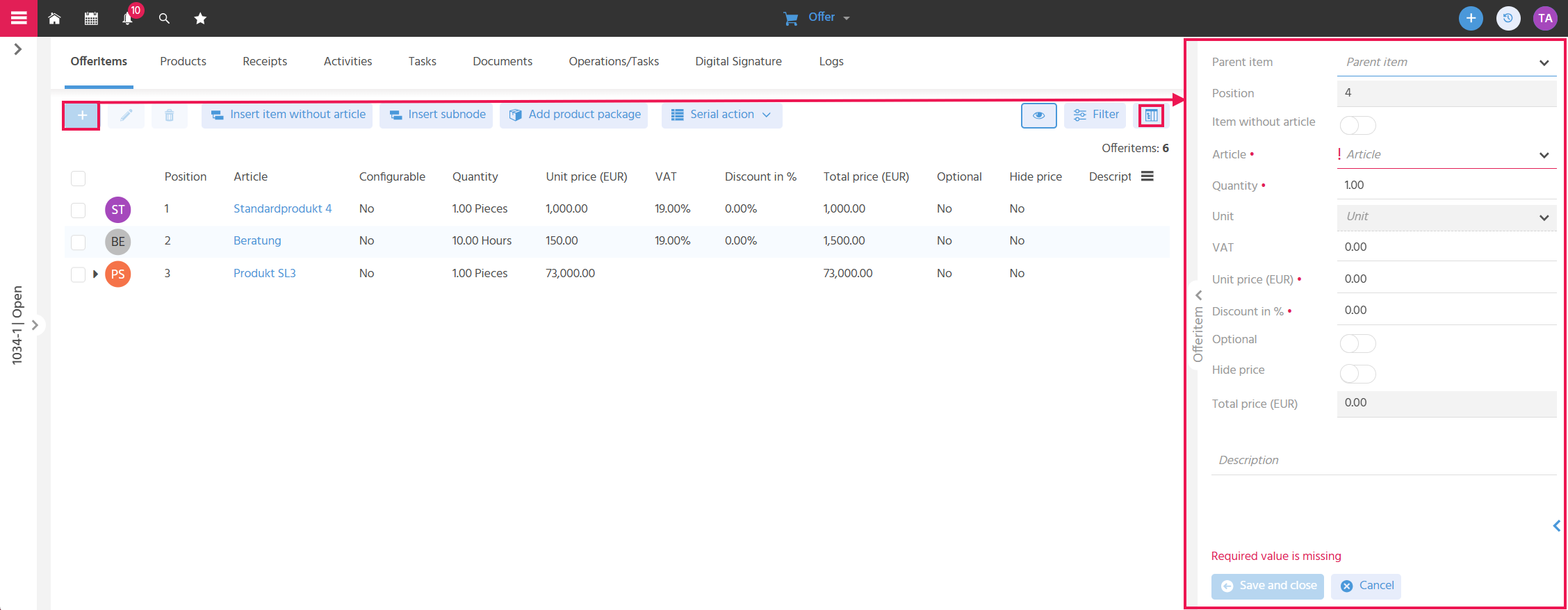
Adding items in the treetable view (screenshot)
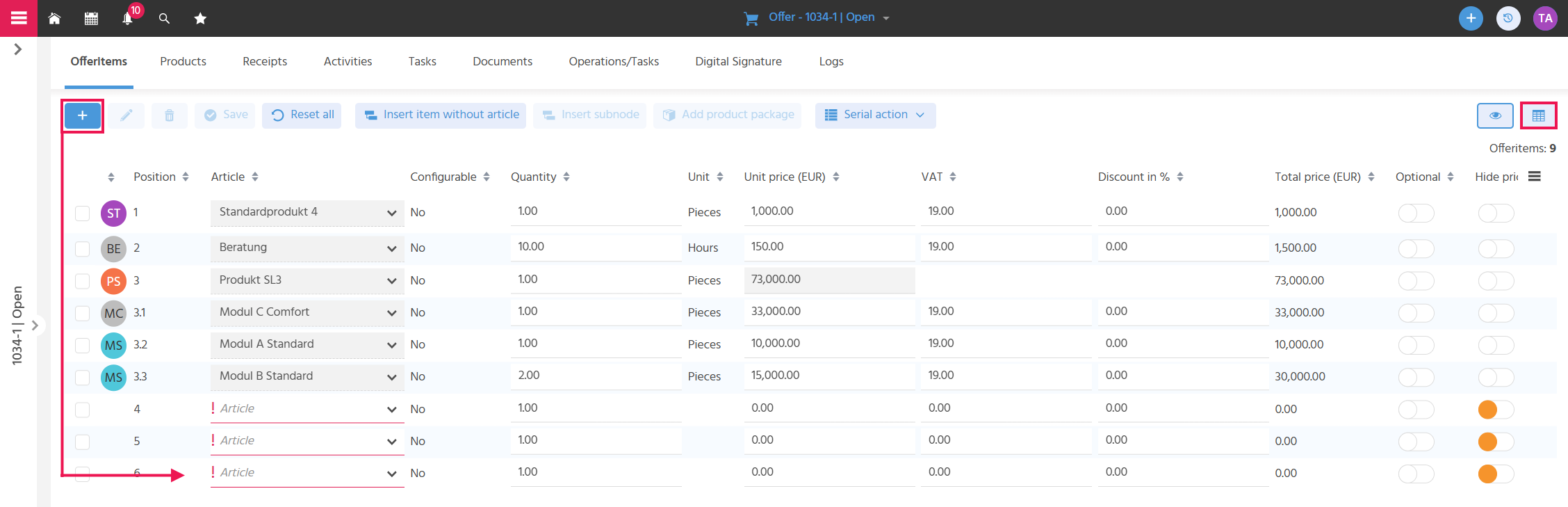
Adding items in the multiedit view (screenshot)
Adding and Managing Items Efficiently (Multiedit)
Offer items can be edited in parallel without having to open them individually for editing, so that work can be done as efficiently as possible. The multiedit table view is used for this.
In the multiedit table, the fields "Quantity", "Unit Price", "VAT", "Discount in %", "Optional", and "Hide Price" are always editable, as long as the status of the offer is not "Sent", "Won", or "Lost". To insert an item, a new row is added at the end of the table. Several rows can also be added and then edited.
Changes to offer items are highlighted in orange, so that the overview of pending changes is maintained. The changes are applied via the "Save" button and discarded via "Reset all".
Adding Single Items
Single items can be added to the offer, so that a tailored offer with exactly the required products or services can be created. In addition to capturing them directly in the multiedit view or treetable view, the "Products" tab is also available for this: There, a product is selected and applied via the "Add to Offer" button in the Preview of the product.
Treetable view with SmallEdit: Useful if the details are to be viewed calmly in the SmallEdit without being distracted by the table.
Multiedit view: Ideal if several items are to be added quickly one after the other, e.g., for an extensive offer with known products.
Tiles view in the "Products" tab: Helpful if visual recognition of the product is important – for example, for products that differ greatly in appearance and for which an image leads to the right product faster than a product number or name. The tiles view is also practical if a catalog is to be scrolled through quickly during an on-site customer meeting to show the customer what is available before a product is added to the offer.
Price Calculation
The unit price is determined from the prices stored on the product (see Price Determination Logic). The total price results from quantity times unit price minus item discount.
Adding Parts List Items
Parts list items are added to the offer if it is important to list the individual components of a product in the offer.
If a product with a stored parts list is added to the multiedit table and saved, all items of the parts list are automatically applied as sub-items, provided they are not assigned to a component (see Variant Items).
If a product with a stored parts list is added in the treetable view, the "Insert Parts List" button appears in the SmallEdit. If this button is active when saving, the product including the parts list is added to the offer, except for the parts list items that are assigned to a component (see Variant Items). If the button is deactivated, the product is applied without parts list items when saving.
Price Calculation
The unit price of the parent item results from the sum of the total prices of the sub-items. The total price of the parent item results from quantity times unit price of the parent item.
Adding Sub-Items
Sub-items can be added to an offer item without being permanently stored as parts list items on the product. This allows offer-specific additions or breakdowns to be made without changing the general product structure.
To insert a sub-item, a product is selected in the offer and the "Insert Subnode" Action is executed, which can be found in the Action bar of the offer. Alternatively, when adding an offer item in the treetable view, one of the offer items can be selected as the parent item in the SmallEdit. The added product is then assigned to the selected offer item as a sub-item.
Price Calculation
The unit price of the parent item results from the sum of the total prices of the sub-items. The total price of the parent item results from quantity times unit price of the parent item. So as soon as a sub-item is added to a product, the price determined from the product (parent item) is overwritten.
Adding a Product Package
Product packages are added to the offer, so that products of recurring product combinations do not have to be added individually every time.
Executing the "Add Product Package" Action opens a SmallEdit in which all product packages are available for selection. The products of the selected product package are applied to the offer as single items. If an offer item is selected before the "Add Product Package" Action is executed, the products of the product package are inserted there as sub-items.
Only those products of the product package are applied that are active and for which a price can be determined for the offer. The SmallEdit contains a notice informing you if not all products of the product package are applied to the offer.
Adding and Configuring Variant Items
Variant items are added to the offer and configured, so that products with customer-specific characteristics (e.g., color, size) can be applied to the offer. A product is configurable if at least one parts list item in its parts list has been assigned to a component; in this case, the "Configure Product" button is available on the Preview of the offer item. Products that are assigned to a component are only applied to the offer through the selection in the product configuration. Products of the parts list that are not assigned to a component are always applied to the offer as parts list items if the "Apply Parts List" button was active when adding them to the offer.
Procedure for product configuration (screenshot)
After executing the "Configure Product" Action (1), an overlay opens. In it, first the component (2) is selected and then the desired characteristic (3) for this component. The chosen characteristic is applied to the configuration area via "Add / Replace" (4). Thereby one characteristic can be selected per component. With "Apply Configuration" (5), the selected characteristics are applied to the configured product as parts list items.
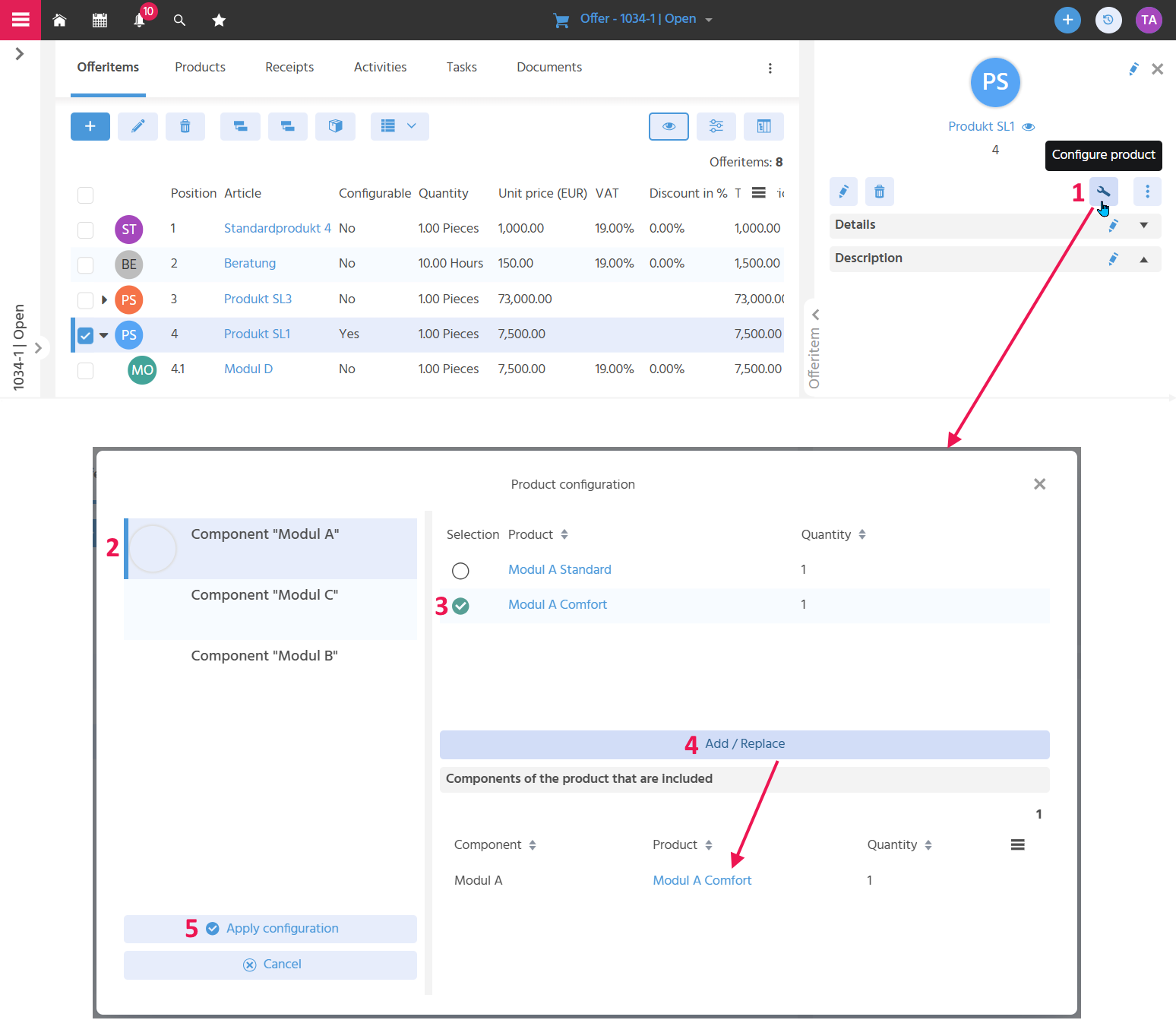
Suppose the product is a car. Component "Module A" would then be, for example, various seats that can be installed in the car. Component "Module B" would be, for example, the colors in which the car is available. Component "Module C" would be, for example, the special equipment "Heated windscreen". For "Module A", i.e., the seats, "Standard seat", "Sports seat", or "Ergonomic seat" could be available for selection, for example.
Defining an Item Group
Items can be combined into an item group via the "Item without Article" function, so that related services are displayed clearly with their own subtotal. To do this, an item without article is created and given a name. The associated products are inserted below it as sub-items. The unit price of the item without article is calculated from the total prices of the subordinate products. The total price of the item without article results from the quantity times the unit price stored on the item without article.
Example of using the "Item without Article"
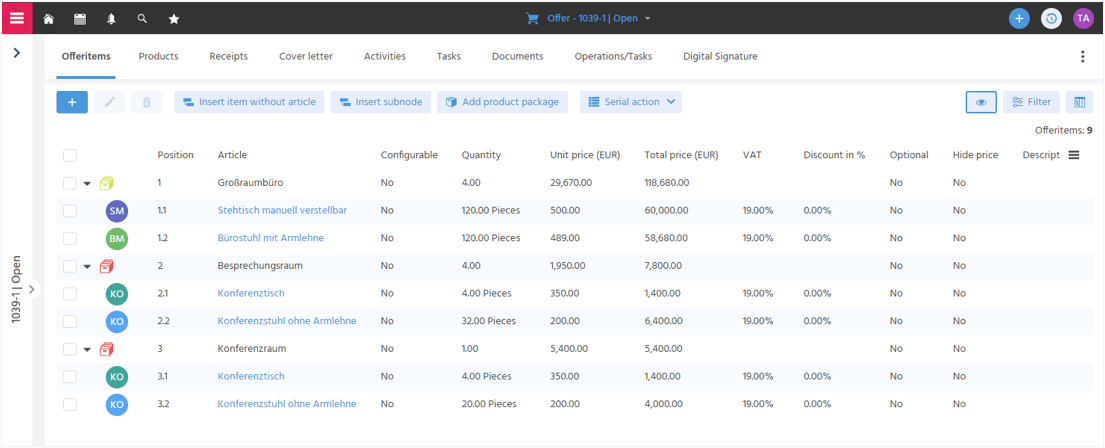 The screenshot shows the offer of an office supplier. Among other things, 4 open-plan offices are each equipped with 30 standing desks and 30 office chairs. The open-plan office was created as an "Item without Article" with the sub-items "Standing desk, manually adjustable" and "Office chair with armrest". The quantity "30 pieces" was specified for each of the sub-items. Since a total of 4 open-plan offices are to be equipped, the quantity "4" is specified for the "Item without Article". This results in a quantity of 120 pieces each for the sub-items.
If a quantity greater than 1 is already stored for an "Item without Article" and a sub-item is added subsequently, the already multiplied total quantity must be entered directly for this sub-item – not the individual quantity per item.
Example: The offer with the 4 open-plan offices has already been created when it is decided that each open-plan office will also get a locker. The sub-item "Locker" is not added with the quantity "1 piece", but with the quantity "4 pieces".
Adjusting Calculation Data
Quantity, unit price, VAT, and item discount in percent can be adjusted for each item, so that individual conditions can be offered for each item. The unit price of a parent item cannot be adjusted, since it is always calculated from the total prices of the sub-items.
The unit price of a single item or sub-item is initially filled based on the Price Determination Logic when a product is added.
Price Calculation and Quantity Changes
-
The total price of an item results from quantity times unit price minus the item discount.
-
If the quantity or unit price of a sub-item is changed, the unit price and total price of the parent item are recalculated, since the unit price of the parent item is automatically calculated from the total prices of the sub-items.
-
If the quantity of a parent item is changed, the quantities of the sub-items are adjusted accordingly when the change to the parent item is saved. The total prices of all sub-items and of the parent item are also recalculated.
Marking Items as "Optional"
An item can be marked as "Optional" via a button, so that optional additional services can be offered to the customer without them automatically being included in the total of the offer.
If a parent item is marked as "Optional", its sub-items are automatically set to "Optional" as well; these can then no longer be marked individually as "Not optional".
Price Calculation
The prices of optional sub-items are not included in the unit price and total price of the parent item. In addition, prices of optional items are not included in the offer total in the offer document, but are shown as a separate total.
Hiding the Price
If the "Hide Price" button is activated for a product in the offer, the unit price, VAT, and total price of the item are not displayed in the offer document, but are still included in the offer total, so that price transparency can be controlled while the total of the offer remains correct.
The button can be used, for example, if prices of individual items are not to be disclosed, so that no direct comparison with other offers is possible.
Changing the Order of Items
The order of the offer items can be changed in the treetable view via drag & drop within a level, so that subsequently added items can be moved to the correct position in the offer without having to recreate the offer. If the parent item of a parts list product is moved, all associated sub-items are moved with it. An item cannot be moved across levels, i.e., it cannot become a parent item from a sub-item or vice versa.
Sales Executive Offer Opportunity